

Frequently Asked Questions
For phone manuals and step-by-step guides, visit Phone Guides.
Search Silvercell help
How can we help?
Search looks for the phrase you entered and highlights matching phrases in the results. Highlighted phrases show where your search terms appear. They do not indicate every applicable answer or policy.
Browse by topic
Plans & Coverage
Do you have plans for smartwatches?Do you have plans for smartwatches?
At Silvercell, we believe in providing the best possible value. Because of this, we highly recommend our customers connect their smartwatch via Bluetooth to their phone. This way your watch won't need its own plan, which saves you money.
Do you have plans for tablets?Do you have plans for tablets?
At this time, Silvercell does not offer separate tablet plans. However, many customers who ask about tablet plans are surprised to learn that they often don't actually need one.
Here's why:
- Most tablets can connect to any available Wi‑Fi signal-at home, in public places, or anywhere Wi‑Fi is offered.
- And with Silvercell, every phone plan already includes hotspot service. This means your phone can act like a small Wi‑Fi router for your tablet. If you're somewhere without Wi‑Fi, you can simply turn on your hotspot and use the internet on your tablet through your phone's connection.
Because of this, many people discover they can enjoy full tablet use without paying for an extra monthly plan.
How do I know how much data I have used at any given time?How do I know how much data I have used at any given time?
Click MY ACCOUNT and sign in with your Verification PIN. Go to My Lines, then select the applicable line to view usage details. That line shows how much data you have used in the current billing period.
How many lines on one account?You can have up to 5 lines on one Silvercell account.
You can have up to 5 lines on one Silvercell account.
What happens if I go over my plan’s data limit?What happens if I go over my plan's data limit?
If you are on the 1 GB or 5 GB data plan and reach your data limit, you can review the available higher data plans in My Account. Sign in, open the line under My Lines, and choose Change plan. You can switch immediately or have the new plan start with your next billing cycle. For extra data, select Buy more data for that line when available. Choose a pack, review the payment options and purchase acknowledgement, then select Add extra data to confirm. Available packs include an extra 1 GB for $5. If you prefer personal help, our SilverService team can assist you through live chat.
What is unlimited data?What is unlimited data?
At Silvercell, "unlimited data" means you can use as much data as you need without worrying about overage fees. However, once you've used your plan's high-speed 5G/4G LTE data, your data speeds will be reduced for the remainder of your billing cycle.
For the Unlimited plan: Once you've used up your high-speed data, you'll still have access to unlimited data at speeds of approximately 128 Kbps
Will my coverage be the same as before?Will my coverage be the same as before?
Absolutely! Silvercell runs on the nation's largest and most reliable network, which covers 99% of Americans. Confirm your coverage here with our coverage checker tool
Transferring Your Current Number
Steps to transfer a number from AT&TSteps to transfer a number from AT&T. Account number: Usually found in the upper…
- Account number: Usually found in the upper right hand corner of any bill, or in your online account. If you have multiple services with AT&T that are all billed on one account, the account number should be a 12-digit number. It can be found under your wireless account section when logged in to your account.
- PIN:
- From your AT&T Mobile Device: Call *PORT (*7678). Follow the prompts to get your Number Transfer PIN sent to you via text. You'll need your account passcode to generate the Number Transfer PIN when calling *PORT (*7678).
- From the AT&T app: Sign in with primary online access. Select your profile icon, then Settings > Manage or remove account. In your account profile, select Settings, find Transfer phone number, and select Request new PIN.
- From your online AT&T account: Sign in to your account profile with primary online access. Select Settings, find Transfer phone number, then select Request new PIN. Your Number Transfer PIN appears on the screen.
- These methods apply to AT&T consumer wireless accounts. If you have AT&T Prepaid, Business Wireless, or a different account type, use AT&T's current number transfer instructions for your account. If Wireless Account Lock is on, turn it off before the transfer. Keep your current service active until your number transfer is complete.
Steps to transfer a number from Consumer CellularSteps to transfer a number from Consumer Cellular. Account number: Typically a…
- Account number: Typically a 9-digit number that can be found online or by calling Consumer Cellular 1-888-345-5509.
- Number Transfer PIN: Contact Consumer Cellular at 1-888-345-5509 and ask them to confirm the current account number and the transfer PIN required to move your number to another carrier. Use the PIN they provide; do not guess a PIN or assume it is part of your Social Security number. Keep your Consumer Cellular service active until the transfer is complete.
Steps to transfer a number from LivelySteps to transfer a number from Lively. Account number: See your bill or log into…
- Account number: See your bill or log into your account online.
- PIN: Contact the Customer Care team at 800-733-6632 to get your PIN or set one up if you do not have one.
From Spectrum MobileSteps to transfer a number from Spectrum Mobile. Account number: Log into your…
Steps to transfer a number from Spectrum Mobile
- Account number: Log into your account and you will see your account number at the top of the online account "Summary" page under your name. You can also find it by selecting the "Billing" tab and then "View Statements". Choose a statement and you'll find your account number at the top below the Spectrum logo.
- Transfer PIN: Sign in to Spectrum.net or the My Spectrum app using your Spectrum username and password. Select Services, then Mobile, and choose the line you want to transfer. Select Get Transfer PIN and follow the prompts to verify your identity. Choose the mobile number where Spectrum should send the PIN, then select Send and Continue. Your PIN also appears on screen. If the options look different, contact Spectrum for help.
Steps to transfer a number from StraightTalkConfirm the account number in your Straight Talk account or with Straight Talk support before requesting a number transfer.
- Account number: Check your Straight Talk account or contact Straight Talk support to confirm the exact account number needed to transfer your line. Do not assume the IMEI or SIM number on your current phone is the account number.
- PIN: Text NTP to 611611 from your phone and you will receive the number transfer PIN. You can also chat with the support team to get this number transfer PIN.
Steps to transfer a number from T-MobileFind your account number on your T-Mobile bill or in your account. The Primary Account Holder can request a Temporary Port Out PIN in T-Life.
- Account number: Find the exact T-Mobile account number on your bill or in your T-Mobile account.
- Temporary Port Out PIN: The Primary Account Holder can request this in the T-Life app on the phone with the active T-Mobile SIM or eSIM. Connect to the T-Mobile network with Wi-Fi turned off. Select Account (previously Manage), then the gear icon > Permission & controls > Transfer PIN. Complete verification and follow the prompts to create the PIN. If Port Out Protection is on for the line, turn it off before transferring. For website steps, prepaid accounts, or help, use T-Mobile's current transfer instructions. Keep your service active until the transfer is complete.
Steps to transfer a number from TracfoneSteps to transfer a number from Tracfone. Account number: Call TracFone customer care…
- Account number: Call TracFone customer care at 1-800-867-7183 to get your account number and PIN.
- PIN: Call TracFone customer care at 1-800-867-7183 to get your PIN.
Steps to transfer a number from VerizonSteps to transfer a number from Verizon. Account number: Can be found on bill or…
- Account number: Can be found on bill or online account.
- Sign in to My Verizon and use the account number shown on your Verizon account or most recent bill. If you need help finding it, use Verizon's current transfer instructions.
- Number Transfer PIN: For a standard monthly Verizon account, sign in to My Verizon as the Account Owner or Account Manager and open Create Your Number Transfer PIN, then select Generate PIN. You can also dial #PORT from the smartphone with the number you want to transfer and open the text link Verizon sends. If Number Lock is on, turn it off for the line before transferring. For business accounts or help generating a PIN, follow Verizon's current transfer instructions. For prepaid service, use our Verizon Prepaid instructions. Keep your service active until the transfer is complete.
Steps to transfer a number from Verizon PrepaidSteps to transfer a number from Verizon Prepaid. Account number: Log into your…
- Account number: Sign in to your Verizon Prepaid account or call Verizon Prepaid at 1-888-294-6804 to confirm the exact account number needed to transfer your line. Use the full number Verizon provides.
- Transfer PIN: Contact Verizon Prepaid at 1-888-294-6804 and ask for the current PIN and any Number Lock steps required to transfer your number to another carrier. Keep your prepaid service active until the transfer is complete.
Steps to transfer a number from XfinitySteps to transfer a number from Xfinity. Account number: To find your account number,…
- Account number: To find your account number, simply sign in to "Account and Identity" on xfinity.com and your account number will appear under Account Details.
- PIN: Go to "Devices" in your account online, select the device associated with the phone number you want to transfer to a new carrier. Then scroll down the page and select "Learn More" next to "Transfer your number, cancel this line" for details on obtaining your security PIN by text.
How do I transfer/port my number to Silvercell?How do I transfer/port my number to Silvercell?
You can bring an eligible phone number to Silvercell while it is still active with your current provider. Do not cancel that service before the transfer is complete.
Receive your order and activate your Silvercell line first
Wait until you have received your order and activated Silvercell service for the line before requesting the number transfer. For an eSIM order that does not require shipping, follow the activation and phone-setup instructions in My Account.
Your Silvercell line is initially activated with a temporary phone number. You can use that number until your transfer completes. The number you bring to Silvercell will replace the temporary number.
Have your current provider's information ready
- The phone number you want to bring
- Your current provider's name and account number
- The account holder's name and billing address exactly as that provider has them
- The Number Transfer PIN or port-out PIN required by that provider
Ask your current provider to remove any number-transfer or port-out lock before you submit the request. Your old provider's transfer PIN is different from the one-time Verification PIN used to sign in to Silvercell.
Request the transfer in My Account
- Open My Account and sign in with your account email address or primary phone number and the one-time Verification PIN.
- Under My Lines, find the activated line you want to use and select Open line details.
- Open Line Services, choose Change Phone Number, and select Bring my current number - no fee if the choices are shown. You may also see a Transfer my number shortcut.
- Enter the number and your current provider's account information. Review the information and the required confirmations carefully.
- Select Submit transfer to send the request.
When your transfer is complete
We will email you with the subject Silvercell has your number! when the transfer completes. The transferred number will replace the temporary number on your Silvercell line.
Keep your old service active until the transfer is complete. Afterward, confirm the transferred line's closure and any final bill with your old provider. A transfer does not necessarily close other lines or services on that account.
Need help? Chat with SilverService before submitting another request.
Ordering & Activation
Does Your Phone Say "Invalid SIM" or "SIM Not Supported"?Does Your Phone Say "Invalid SIM" or "SIM Not Supported"?
If you see a message such as "Invalid SIM" or "SIM Not Supported" after inserting your Silvercell Wireless SIM card into your phone, your phone is most likely SIM locked. What does that mean? A SIM lock means the phone is restricted by the original phone service provider to only work with their service. This is a common practice with phones that were financed, purchased at a too good to be true discount, or included in a special promotion from the service provider. With this, Silvercell Wireless does not participate in this practice, and we do not lock any of the phones we sell.
It is still possible to use your phone with Silvercell Wireless, the phone must first be SIM unlocked by the original service provider. Your previous provider will not let Silvercell Wireless unlock your phone. Only the original provider can remove the SIM lock.
"SIM Locked" Explained
Some carriers lock phones so they can only be used on their own network and make it harder for you to leave their service. This is often done when:
- There is still a balance owed on the phone
- The phone was sold at a discounted price
- The phone was part of a contract or promotion
- The carrier requires a certain amount of active service before unlocking
Until the phone is unlocked, it may not work with other wireless companies, including Silvercell Wireless.
How Do You Get Them To Unlock Your Phone?
The easiest way to get them to unlock your phone is to contact the company where the phone was originally purchased or activated.
In many cases, unlocking can be completed by:
- Visiting their website
- Contacting their customer support
- Logging into your online account
- Requesting an unlock after the phone is paid off or eligible
Once approved, the carrier will usually unlock the phone remotely or provide instructions to complete the process.
Which Carrier Do I Contact?
If your phone originally came from one of these providers, you will need to contact them directly:
If you purchased a new phone from a store such as Wal-Mart, Best Buy, Target, etc., and want to use it with Silvercell, it must be unlocked by the original service provider.
How Do I Know If My Phone Is Unlocked?
The easiest way to check is to contact the original carrier and ask them directly. They can tell you:
- If the phone is already unlocked
- If the phone is eligible to be unlocked
- What steps are needed before it can be unlocked
What Happens After My Phone Is Unlocked?
Once your phone has unlocked by the original provider, you can insert your Silvercell Wireless SIM card again and continue with activation. In many cases, restarting the phone after the unlock is completed can also help the phone activate properly.
What If My Phone Cannot Be Unlocked?
If your phone does not qualify for unlocking, you will need a different phone that is already unlocked and compatible with the Silvercell Wireless network. All phones offered by Silvercell are unlocked, meaning we have to earn your service, versus lock you to it. You can view our easy-to-use phones here.
Need More Help? Just Ask!
If you are unsure whether your phone is unlocked or need help during activation, the SilverService™ support team is here to help walk you through the process step by step. You can use the SilverService chat or message option or click here.
How do I activate my Bring Your Own Device (BYOD) with Silvercell?How do I activate my Bring Your Own Device (BYOD) with Silvercell?
If you ordered eSIM
Every new BYOD eSIM line must be activated in My Account. This applies to eSIM-only orders and orders that also include a phone, physical SIM, or accessory that will be shipped.
Click MY ACCOUNT and sign in with your Verification PIN. Under My Lines, find the line you want to activate and select ACTIVATE NOW when it is available.
Before continuing, please make sure the phone is connected to the internet so it can securely download your new service. You can use your home Wi-Fi or your existing phone service if your old service is still active.
When the phone is connected to the internet, select CONTINUE in the activation pop-up. To activate later, select CANCEL to close the pop-up.
Wait for My Account to confirm that your service is active. Then follow the Programming Your Phone instructions. Look for a notification from YNP (Your New Provider), or add an eSIM through your phone's settings. Follow the steps for your phone: Android, iPhone 12 or earlier, or iPhone 13 or newer.
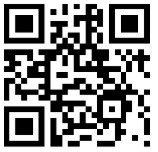
If you need the backup method, select BACKUP METHOD in the programming pop-up for QR-code instructions. You can also use the QR code below after My Account confirms that your service is active.
If you ordered a physical SIM
Power the phone off before you begin. With the phone still off, insert the Silvercell SIM card once it arrives. Then power the phone on and connect it to the internet. You can use your home Wi-Fi or a trusted public Wi-Fi service available in your area.
Click MY ACCOUNT. Enter the account email address or primary phone number and click Send my PIN. We send the Verification PIN to the email address on the account. If there are active lines on the account, it is also sent by text to the primary phone number. Enter the 6-digit PIN and click Verify PIN.
Under My Lines, find the line that is ready to activate and select ACTIVATE NOW. Read the preparation instructions, then select CONTINUE when the phone is connected to the internet. To activate later, select CANCEL to close the pop-up.
After My Account confirms that your service is active, follow the Programming Your Phone instructions. Allow the phone 4–5 minutes to finish programming and show signal bars. If you do not see signal bars, turn the phone off and back on, or turn airplane mode on for 30 seconds and then off. Allow a few more minutes, then place an outgoing call to verify service.
Would you like assistance?
If you would like assistance with anything such as transferring an existing number to Silvercell or help with your phone, simply use the SilverService chat or message option.
How do I activate my new phone with Silvercell?How do I activate my new phone with Silvercell?
If your phone purchased from Silvercell supports a physical SIM, we use the SIM card already installed in the phone for activation. You do not need to download an eSIM or scan an eSIM QR code. Phones that only support eSIM use eSIM instead. My Account shows the instructions for the activation method used on your line.
For a replacement phone on an existing line, open Equipment change pending for that line in My Account. Select YES when asked whether you received an order from Silvercell, choose the received phone and follow the confirmation instructions. Your existing phone stays active until you confirm the replacement. For brand-new service, follow the Activate Now steps below.
Step 1
If your phone uses a physical SIM, leave the preinstalled SIM card in place. If My Account shows eSIM, power your phone on and connect it to Wi-Fi before continuing. A phone using a physical SIM does not need Wi-Fi for activation.
Step 2
Click MY ACCOUNT. Enter the account email address or primary phone number and click Send my PIN. We send the Verification PIN to the email address on the account. If there are active lines on the account, it is also sent by text to the primary phone number. Enter the 6-digit PIN and click Verify PIN.
Step 3
Under My Lines, find the line that is ready to activate and select ACTIVATE NOW. Read the preparation instructions for your activation method, then select CONTINUE when you are ready. To activate later, select CANCEL to close the pop-up.
Step 4
Wait for My Account to confirm that your service is active, then follow the Programming Your Phone instructions for your phone. If your phone uses a physical SIM, allow 4–5 minutes for it to finish programming and show signal bars. If you do not see signal bars, turn the phone off and back on, or turn airplane mode on for 30 seconds and then off. Allow a few more minutes for the connection to complete.
Step 5
Make a test call to verify service is working.
Would you like assistance?
If you would like assistance with anything such as transferring an existing number to Silvercell or help with your phone, simply use the SilverService chat or message option.
How do I cancel an order I made?How do I cancel an order I made?
To cancel an order your made, you can simply chat with our 100% U.S. based live chat agents and they will be able to complete this for you.
To chat with us, simply use the SilverService chat or message option.
How do I edit an order I made?How do I edit an order I made?
To edit an order, you can simply chat with our 100% U.S. based live chat agents and they will be able to make any changes needed.
To chat with us, simply use the SilverService chat or message option.
How do I transfer data from my old phone to my new Silvercell phone?How do I transfer data from my old phone to my new Silvercell phone?
We know that one of the most important things when getting a new phone is making sure all the data from your old phone gets transferred over to your new phone. To make this process easier, we have provided steps for the most common ways to get your data from one phone to another.
Before you begin, charge both phones, connect them to a trusted Wi-Fi network, and back up the old phone. Do not erase the old phone until you have checked that the information you need is on the new phone. Device data transfer is separate from activating Silvercell service or transferring your phone number.
Android to Android
Below are steps for transferring data from one Android phone to another Android phone. You will first need to backup your old Android phone and then restore your new Android phone from the backup.
Also, there are other ways to transfer data from Android to Android, but we provide steps for transferring data using the Settings of your phone and Google. Please note that not all Android phones have settings in the same place or with the same names.
To Back Up Your Android Phone:
- On the old phone, open Settings > Google (or Google services) > All services.
- Under Backup and restore, select Backup and confirm the Google Account you want to use.
- Choose Back up now and wait for the backup to finish. Menus vary by phone and Android version.
For current steps and what can be saved, see Google's Android backup instructions. Not every app backs up all of its data.
To Backup Photos and Videos:
Check that the photos and videos you want to keep are backed up to the correct Google Account.
- Open Google Photos on the old phone.
- Tap your profile picture or initial at the top right.
- Tap Photos settings > Backup.
- Confirm the account and backup settings, then wait until the photos and videos you need are backed up. For other folders, review Back up device folders.
See Google's current photo backup instructions if the menus look different.
To Restore or Set Up Your New Android Phone:
- Turn on the new Android phone and follow its setup prompts.
- Choose to copy apps and data from your old Android phone, or restore a backup if the old phone is unavailable.
- Follow the prompts to connect the phones or sign in to the same Google Account and select the backup.
- Choose what to copy and keep the phones connected until the transfer finishes.
- Open Google Photos using the same Google Account to see backed-up photos and videos.
Menus and transfer options vary. Follow Google's current Android transfer guide or the phone manufacturer's instructions.
Android to iPhone
Below are steps for transferring data from an Android phone to an iPhone. During setup on the new iPhone, choose Set Up Without Another Apple Device on the Quick Start screen, then follow Apple's current Android-to-iPhone transfer instructions. Some free apps may transfer if they are available on both platforms and support the transfer. Download remaining apps from the App Store. Purchases and app data may not transfer between platforms.
- Make sure your Android and iPhone are connected to Wi-Fi
- On your Android phone, download and open the "Move to iOS" app
- On your new iPhone, follow setup until you reach the screen for transferring apps and data
- Choose From Android or Move Data from Android, then follow the Move to iOS prompts
- You will receive a code on your iPhone
- Enter that same code into your Android phone in the "Move to iOS" app
- Choose the data you want to transfer > "Next"
- Depending on how much media you have, this process may take awhile
- When the transfer is complete on your iPhone, tap "Continue Setting Up iPhone"
- You will create a new Apple ID or enter an existing one
- Proceed with the rest of your iPhone set up
If you would like to just transfer your photos, make sure photos are backed up to Google Photos on your Android. Then download Google Photos on your iPhone. The photos can then be easily uploaded to your iPhone.
iPhone to iPhone
Use Quick Start when available
- Connect your old iPhone to Wi-Fi and turn on Bluetooth. Unlock it and leave it on its Home Screen.
- Turn on the new iPhone and place it near the old one.
- Follow the Quick Start prompts on the phones, including entering your old device passcode if asked.
- Choose whether to transfer directly from the old phone or download from iCloud, then follow the prompts.
- Keep both phones near each other and connected to power until the transfer finishes.
See Apple's current Quick Start guide for the steps supported by your iOS version.
Use an iCloud or computer backup
If Quick Start is unavailable, you can back up the old iPhone and restore that backup to the new iPhone. Use Apple's current backup instructions and wait for the backup to complete.
For iCloud, open Settings on the old phone, tap your name > iCloud > iCloud Backup, then choose Back Up Now. When setting up the new phone, choose the option to restore from iCloud and select the correct backup.
For a computer backup, follow the instructions for Finder on a Mac, Apple Devices on Windows, or iTunes when that is the app available on your computer. Then follow Apple's restore-from-backup instructions. If the new phone is already set up, restoring a backup may require erasing that new phone first. Keep the old phone and its backup until you have confirmed the transfer.
iPhone to Android
Turn on the new Android phone and, when asked to copy data, choose iPhone or iPad. Follow the on-screen steps to connect the phones with a compatible cable or use the supported wireless Android Switch method. Choose the data to copy and keep the phones connected until the transfer completes.
Follow Google's current iPhone-to-Android guide or your new phone manufacturer's instructions. Review the guide's iMessage steps so that messages can reach the new Android phone, and check your contacts, photos, videos and messages after the move. Some data and paid apps may need separate steps.
Is the phone you want to use locked or unlocked?Is the phone you want to use locked or unlocked?
Some carriers lock phones so they can only be used on their own network and make it harder for you to leave their service. This is often done when:
- There is still a balance owed on the phone
- The phone was sold at a discounted price
- The phone was part of a contract or promotion
- The carrier requires a certain amount of active service before unlocking
Until the phone is unlocked, it may not work with other wireless companies, including Silvercell Wireless.
How Do You Get Them To Unlock Your Phone?
The easiest way to get them to unlock your phone is to contact the company where the phone was originally purchased or activated.
In many cases, unlocking can be completed by:
- Visiting their website
- Contacting their customer support
- Logging into your online account
- Requesting an unlock after the phone is paid off or eligible
Once approved, the carrier will usually unlock the phone remotely or provide instructions to complete the process.
Which Carrier Do I Contact?
If your phone originally came from one of these providers, you will need to contact them directly:
If you purchased a new phone from a store such as Wal-Mart, Best Buy, Target, etc., and want to use it with Silvercell, it must be unlocked by the original service provider.
How Do I Know If My Phone Is Unlocked?
The easiest way to check is to contact the original carrier and ask them directly. They can tell you:
- If the phone is already unlocked
- If the phone is eligible to be unlocked
- What steps are needed before it can be unlocked
What Happens After My Phone Is Unlocked?
Once your phone has unlocked by the original provider, you can insert your Silvercell Wireless SIM card again and continue with activation. In many cases, restarting the phone after the unlock is completed can also help the phone activate properly.
What If My Phone Cannot Be Unlocked?
If your phone does not qualify for unlocking, you will need a different phone that is already unlocked and compatible with the Silvercell Wireless network. All phones offered by Silvercell are unlocked, meaning we have to earn your service, versus lock you to it. You can view our easy-to-use phones here.
Need More Help? Just Ask!
If you are unsure whether your phone is unlocked or need help during activation, the SilverService™ support team is here to help walk you through the process step by step. You can use the SilverService chat or message option or click here.
How To Order Silvercell Phone ServiceChoose your plan and phone, review your order, complete checkout, and activate when you are ready.
Ordering Silvercell service is simple. Here are the general steps to get started.
- Choose your plan. Visit Plans and choose the monthly option that fits your needs.
- Choose your phone. You can buy a phone from Silvercell or use a phone you already own. To bring your current phone, use the Bring Your Phone compatibility checker to confirm it works with Silvercell. Your phone must also be unlocked by your current carrier.
- Review your cart. Check your plan, phone or SIM selection, and any accessories. You can add another service line if needed.
- Complete checkout. Follow the prompts to enter your contact, shipping and payment information. Review your order and place it when everything looks right.
- Activate when you are ready. Once you have what you need, sign in to My Account and follow the activation instructions. You can transfer an eligible current number or get a new number. Keep your current service active until your number transfer is complete.
Ready to begin? Visit Get Started.
Account & Billing
Can I pay for my service or make purchases with a prepaid credit card?Can I pay for my service or make purchases with a prepaid credit card?
Yes, as long as the prepaid credit card is a VISA, Mastercard, American Express, or Discover, you may use a prepaid credit card.
How do I change or update payment method at Silvercell?How do I change or update payment method at Silvercell?
Every Silvercell account must have an active primary payment method on file at all times. The primary method is the one that will be automatically charged for service each month. The account cannot be left without a primary method.
If you want to remove a payment method and it is the only one on the account, add a new payment method first. Then click Make Primary on the new method. Only after that can you Remove the old one.
If you have more than one method on file and want to remove one, click Make Primary on the method you want to keep, then click Remove on the method you no longer want.
To add a payment method:
- Click MY ACCOUNT and sign in with your Verification PIN.
- Under Billing & payments, click Payment methods.
- Click Add card or Add PayPal and complete the form.
- If you want the new method used for monthly service, click Make Primary.
To remove a payment method:
- Click MY ACCOUNT and sign in with your Verification PIN.
- Under Billing & payments, click Payment methods.
- If only one method is on file, add the replacement method first and click Make Primary on it.
- If the method you want to remove is still primary, click Make Primary on a different saved method first.
- Click Remove on the method you want to take off the account, then confirm Yes, remove.
How do I change or reset my password?How do I change or reset my password?
Silvercell does not use a password for My Account. Each time you sign in, we generate a one-time Verification PIN and send it to the email address on the account. If there are active lines on the account, the PIN is also sent by text to the primary phone number.
To sign in:
- Click MY ACCOUNT.
- Enter the account email address or primary phone number and click Send my PIN.
- Check the account email for your PIN. If the account has active lines, you can also check the text sent to the primary phone number.
- Enter the 6-digit PIN and click Verify PIN.
You do not create or reset a password. A new PIN is sent each time you sign in. For how long a PIN lasts and when you can request another one, see How does the Verification PIN work?.
If you don’t see the email or text within a few minutes, be sure to check your spam or junk folder. If you’re still having trouble, our support team is happy to help. To chat with the SilverService team, simply use the SilverService chat or message option. If you don't see this: CLICK HERE.
How to update my payment method?How to update my payment method?
Every Silvercell account must have an active primary payment method on file at all times. If you want to replace the only method on the account, add the new method first, click Make Primary on it, then remove the old one.
- Click MY ACCOUNT at the top of the website and sign in with your Verification PIN.
- Under Billing & payments, click Payment methods.
- Click Add card or Add PayPal to add a new method.
- Click Make Primary on the method you want charged each month.
- If you are replacing the only method on the account, add the new one and make it primary before you remove the old one.
What taxes and fees will I have to pay with Silvercell?What taxes and fees will I have to pay with Silvercell?
Silvercell doesn't charge line activation fees like many carriers do, but the Federal government does require us to charge taxes and regulatory fees (such as 911 emergency services) which are added to your monthly payment as "Taxes and Regulated Fees" and "Administrative Fee". You can see a breakdown of these fees for each plan on our plans page under the "Broadband Facts Label".
When does my billing cycle start?When does my billing cycle start?
For a new account, your first monthly billing cycle begins when your first line is activated. If you add a line to an existing account, it follows the account's current billing period and the first period may be prorated. Check My Account for your account's current billing dates.
To see your current billing period, click MY ACCOUNT and sign in with your Verification PIN. Open Account summary to view Billing cycle. You can also open the line under My Lines to see the current billing period. If you need help, chat with us here.
How does the Verification PIN work?My Account uses a one-time Verification PIN instead of a password. It expires in 10 minutes.
Silvercell does not use a password for My Account. Each time you sign in, we generate a one-time Verification PIN. That PIN is only used to sign you in.
To request a PIN:
- Click MY ACCOUNT.
- Enter the account email address or primary phone number and click Send my PIN.
- Check the account email for your PIN. If the account has active lines, you can also check the text sent to the primary phone number.
- Enter the 6-digit PIN and click Verify PIN.
The PIN expires 10 minutes after it is generated. If you do not receive it after 2 minutes, click Get new PIN when that button becomes available. We send a new PIN, and the earlier PIN will no longer work.
Check your spam or junk folder if the email is missing. If the account has active lines, the PIN is also sent by text to the primary phone number.
You do not create a password, and there is no password to reset.
If you still need help, use the SilverService chat or message option. If you don't see this: CLICK HERE.
Phone & Account Features
Is my phone hearing aid compatible?Is my phone hearing aid compatible?
Silvercell strives to offer a wide selection of phones meeting the Federal Communications Commission's (FCC) standards for wireless device use with hearing aids. The chart below shows hearing aid compatibility information for the listed models. For a model not listed, review the manufacturer's current specifications or ask SilverService for help before ordering.
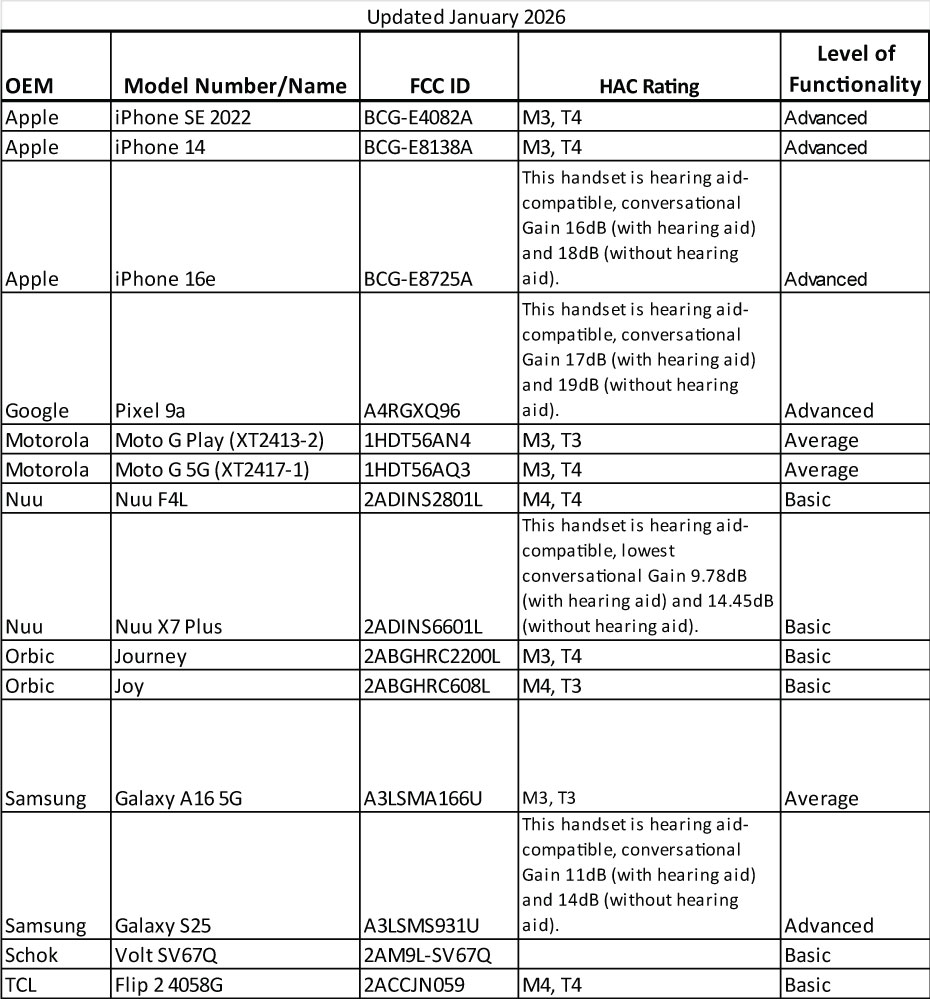
These phones have been tested and rated for use with hearing aids for some of the wireless technologies that they use. However, there may be some newer wireless technologies used in the phone that have not been tested yet for use with hearing aids. It is important to try the different features of the phone thoroughly and in different locations, using your hearing aid or cochlear implant, to determine if you hear any interfering noise. For more details on hearing aid compatibility, refer to the phone's manufacturer. If you have any questions about return or exchange policies, feel free to chat with us.
Information on hearing aid compatibility is available from the Federal Communications Commission at https://www.fcc.gov/hearing-aid-compatibility-wireless-telephones.
General information regarding hearing aid-compatible and non-hearing aid compatible handset models is available at http://gari.info/.
Level of Functionality Descriptions:
Basic - (MSRP - $149.99 or less) Phones classified as "basic" offer the necessary wireless features and may have a lower-quality camera and limited Bluetooth® or Internet capabilities. Typically, these phones offer smaller phone book capacity and average talk time. Most of these phones are generally flip screen phones and lack features such as MP3 players, expandable memory and download capabilities.
Average - (MSRP - $150 - $299.99) Phones classified as "average" generally offer lower-quality cameras (compared to advanced models), handsfree and headset Bluetooth® profiles, expandable memory, larger phone book capacity, an enhanced color display or increased talk time (over basic models). However, these phones offer fewer features than advanced models.
Advanced - (MSRP - $300 Plus) Phones classified as "advanced" generally offer enhanced features such as a higher-quality camera, multiple Bluetooth® profiles, Internet access, high-speed processing, a touch-screen interface, email or an Android operating system.
Hearing Aid Compatible Frequently Asked Questions
What does hearing aid compatibility (HAC) mean for wireless devices?
The FCC defines HAC for wireless devices in terms of two parameters: radio frequency (RF) emissions and telecoil coupling. Wireless devices that comply with the FCC's hearing aid compatibility rule must receive a minimum rating of M3 for RF emissions and T3 for telecoil coupling.
What does the "M" rating mean?
"M" refers to the RF emissions level of the device, and means that the device is intended for use with hearing aids in microphone mode. The higher the "M" rating for a device, the more likely it can be used with a hearing aid on the microphone setting.
What does the "T" rating mean?
"T" refers to the device's telecoil coupling ability, and means that the device is intended for use with hearing aids in telecoil mode. The higher the "T" rating for a device, the more likely the device can be used with a hearing aid on the telecoil setting.
A telecoil is a small device that is built into some hearing aids for use with the telephone as well as assistive listening devices. To use the telecoil, generally either the hearing aid is switched to the "T" position or a button on the hearing aid is pushed to select the telecoil program. Some newer hearing aids will automatically switch to telecoil mode when using a phone. The telecoil picks up magnetic fields generated by telephones and converts these fields into sound. Telecoils are particularly useful for telephone communication because they permit the volume control of a hearing aid to be turned up without creating feedback or "whistling," and background noise can be reduced especially when using wireless devices in noisy places. A hearing health professional can determine whether a hearing aid contains a telecoil and how it is activated.
How do I find hearing aid compatibility information for a phone?
Review the chart above and the phone's details. If you do not see the information you need, ask SilverService for help with that exact model before ordering. For models using M/T ratings, the M rating describes microphone-mode compatibility and the T rating describes telecoil-mode compatibility, as explained above. Try the phone with your own hearing aid or cochlear implant and review the return or exchange policy before you choose a phone.
Does Silvercell support eSIM?Does Silvercell support eSIM?
If your phone purchased from Silvercell supports a physical SIM, we use the SIM card already installed in the phone for activation. You do not need to download an eSIM or scan an eSIM QR code. Phones that only support eSIM use eSIM instead. My Account shows the instructions for the activation method used on your line.
Yes, you can activate an eSIM on Silvercell. To see if your phone is eSIM compatible, go here. If you are prompted to get an eSIM, that means your phone is eSIM compatible.
How do I activate an eSIM on Android?How do I activate an eSIM on Android?
Use these instructions when My Account shows that your line uses eSIM. Eligible phones purchased from Silvercell use their preinstalled physical SIM by default; phones that only support eSIM use eSIM. Customers bringing their own phone can still choose an available eSIM option.
After placing your order, activate your new eSIM service in MY ACCOUNT. Under My Lines, find the line you want to activate and select ACTIVATE NOW.
Before continuing, please make sure the phone is connected to the internet so it can securely download your new service. You can use your home Wi-Fi or your existing phone service if your old service is still active.
When the phone is connected to the internet, select CONTINUE in the activation pop-up. To activate later, select CANCEL to close the pop-up.
Wait for My Account to confirm that your service is active. Then follow the Programming Your Phone instructions and the steps below to set up the eSIM on your phone.
Keep the phone connected to the internet during setup. You may see a notification from YNP (Your New Provider) about setting up your new cellular plan. Select the notification and follow the prompts. If you do not see it, follow the instructions in My Account to add an eSIM through your phone's settings. Android menus vary by manufacturer and model; the instructions below show a general example.
1. Start by initiating the download for your new eSIM.
*Note: YNP stands for Your New Provider.
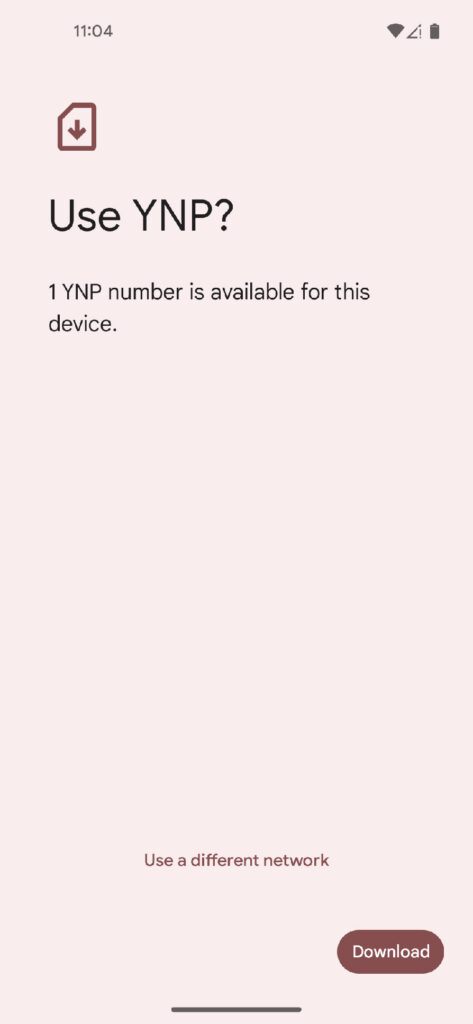
2. It can take up to 5 minutes for your phone to connect to the new network. Once the download is successful, you may also need to turn off and restart your phone.

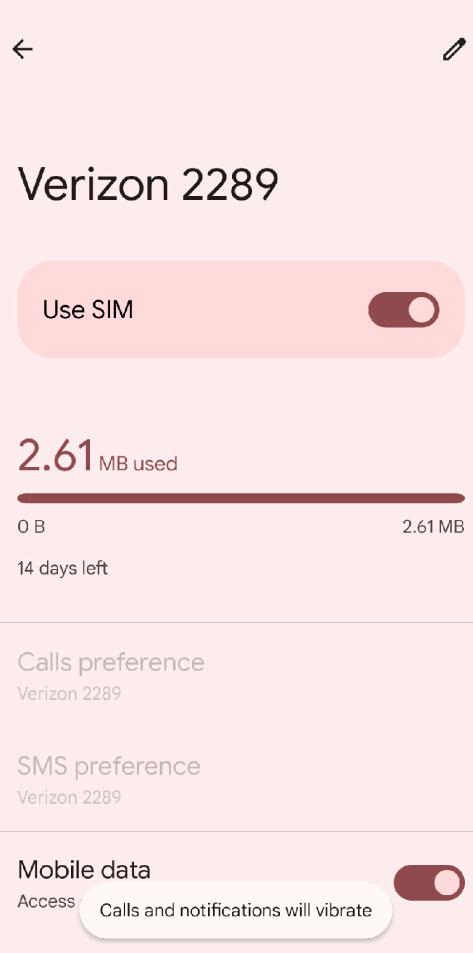
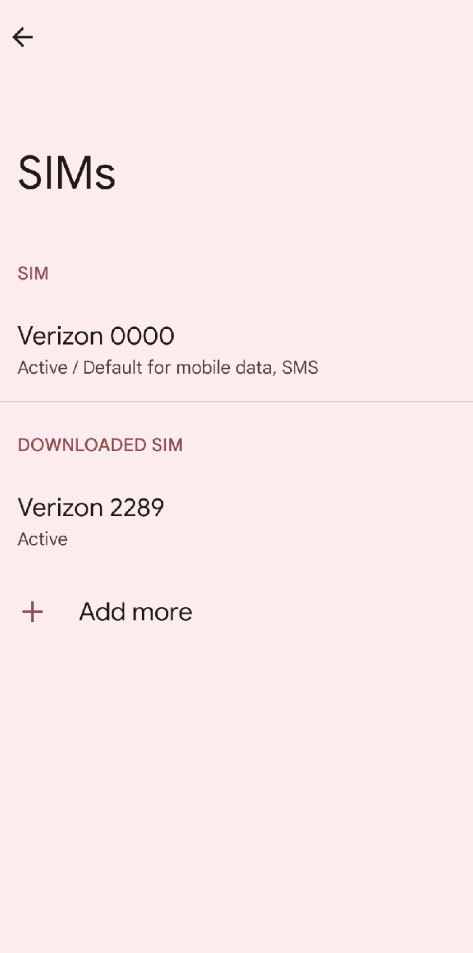
3. If you are adding an additional eSIM to your Android phone, go to Settings > Network and internet (on some phones this will be labeled as Connections) > SIMs or SIM manager.
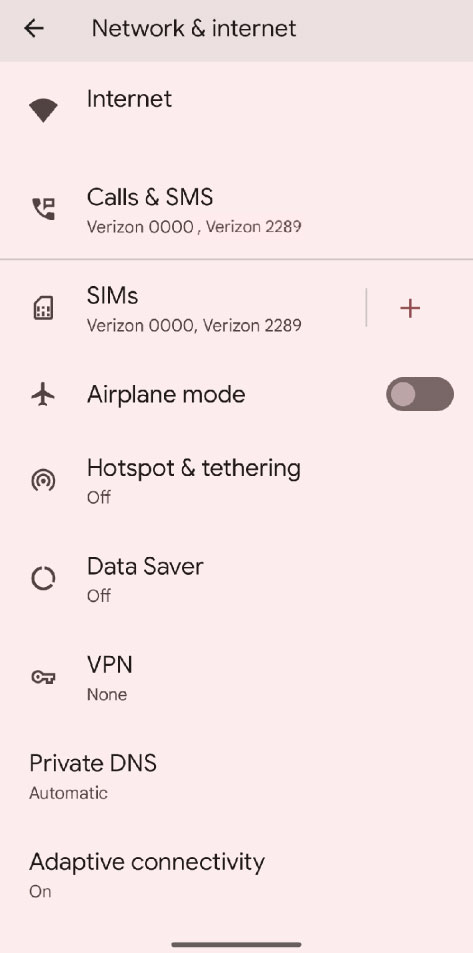
4. Note: This is also where you will turn on and off your SIMs if you have multiple on your phone, simply click onto each SIM and you will toggle the Use SIM on and off.
5. Select "Add more".
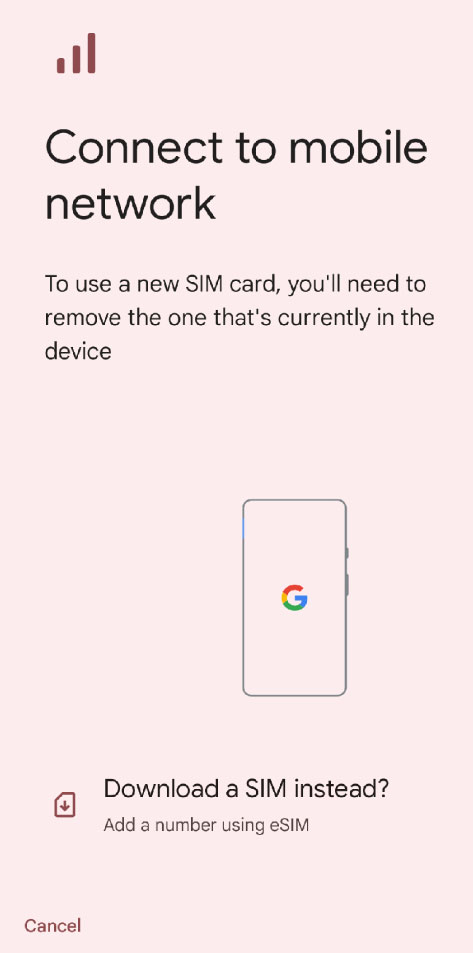
6. Then, you will click on "Download a SIM instead?"
7. If you need the QR-code backup method, select BACKUP METHOD in Programming Your Phone in My Account. Follow its QR instructions, or choose "Scan QR code" on your phone and scan the Silvercell QR code below. If you are viewing this guide on the phone you are setting up, open it on another device so the phone can scan the code.
*Note* Some Androids do not need to scan the QR code and will receive the notification for activation automatically.
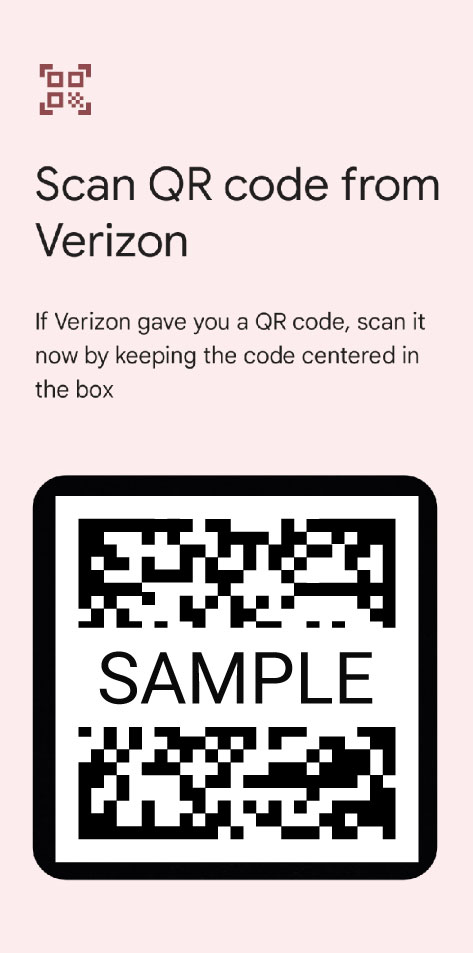
6. After you scan the QR code, you will follow the onscreen prompts. Follow these until your phone has finished activating and you are connected to the Silvercell network
7. Once eSIM setup is complete, disconnect from Wi-Fi and make a test call using your Silvercell line. If the phone has more than one SIM, select that line before placing the call.
*Once you are finished with your test call, don't forget to turn back on your Wi-Fi.
If you need additional help, Silvercell's 100% U.S. based live chat agents are available from 8am - 9pm CST Monday through Friday and from 10am - 6pm CST Saturday through Sunday (excluding holidays).
To chat with us, simply use the SilverService chat or message option.
You can also click here to contact us and start a chat.
How do I activate eSIM on iPhone 12 or earlier?How do I activate eSIM on iPhone 12 or earlier?
Use these instructions when My Account shows that your line uses eSIM. Eligible phones purchased from Silvercell use their preinstalled physical SIM by default; phones that only support eSIM use eSIM. Customers bringing their own phone can still choose an available eSIM option.
After placing your order, activate your new eSIM service in MY ACCOUNT. Under My Lines, find the line you want to activate and select ACTIVATE NOW.
Before continuing, please make sure the phone is connected to the internet so it can securely download your new service. You can use your home Wi-Fi or your existing phone service if your old service is still active.
When the phone is connected to the internet, select CONTINUE in the activation pop-up. To activate later, select CANCEL to close the pop-up.
Wait for My Account to confirm that your service is active. Then follow the Programming Your Phone instructions and the steps below to set up the eSIM on your phone.
The steps for activating your new eSIM can vary depending on what model of iPhone you have. To find your model of iPhone, go to Settings > General > About. Your iPhone model and the current iOS version installed on your phone is listed there.
iPhone 12 and earlier can use only one active eSIM at a time. Keep your existing SIM or eSIM until any number transfer is complete. Follow your phone's prompts to select the new Silvercell eSIM, and do not delete your old eSIM unless SilverService tells you to.
Will also need to ensure that you have the latest iOS installed on your phone before activating your eSIM. To see if you have the latest iOS, follow the steps below:
1. Go to your phone's Settings
2. Choose "General"
3. Tap on "Software Update"
4. You will be shown the iOS version that's currently installed on your phone and whether an update is available to download or not
5. If you need to update your phone, follow the steps that you are prompted on your phone to do this
After My Account confirms that your service is active, make sure your iPhone has the latest iOS version installed and is connected to the internet. You are then ready to set up your Silvercell eSIM by following the steps below.
First, check for a notification from YNP (Your New Provider) and follow its prompts. If it does not appear, follow the phone-settings instructions in Programming Your Phone in My Account. Use the QR-code steps below only if you need the BACKUP METHOD. If the first method finishes setup, skip the QR-code steps.
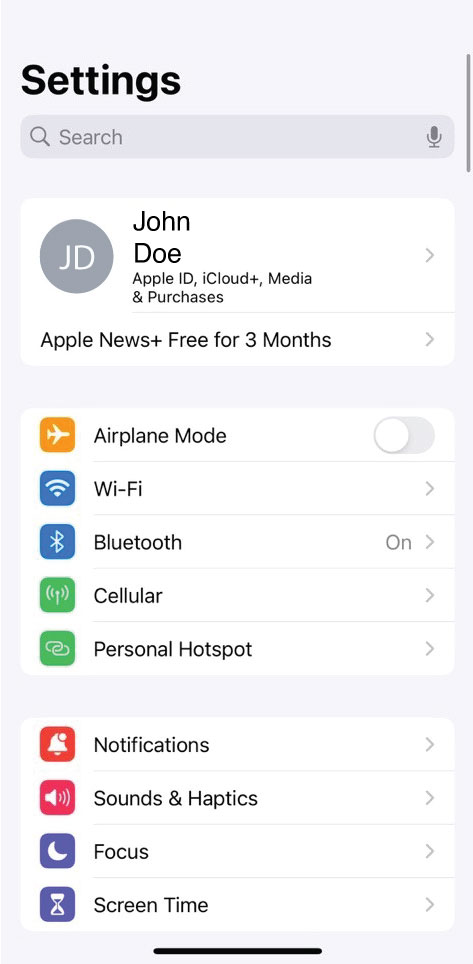
1. On your iPhone, go to Settings > Cellular > Add eSIM
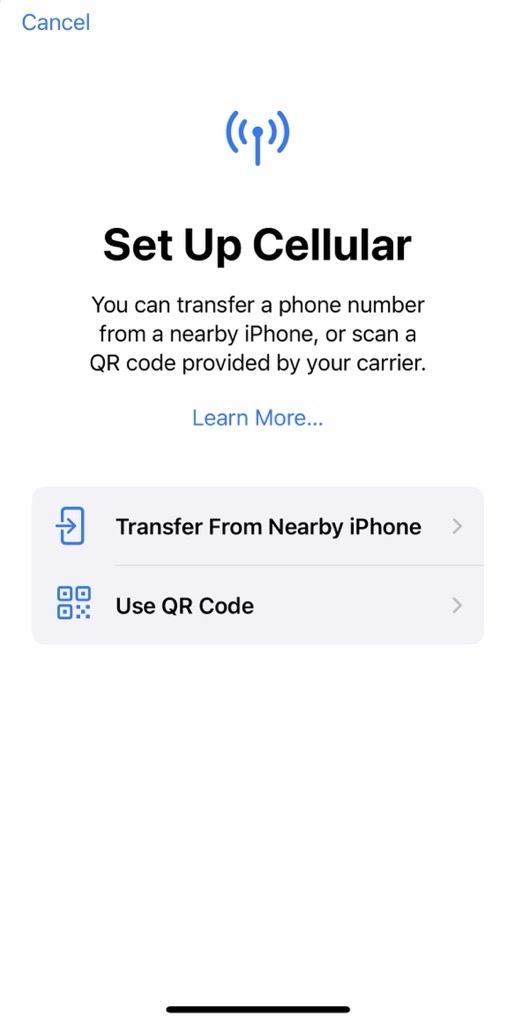
2. Choose "Use QR Code"
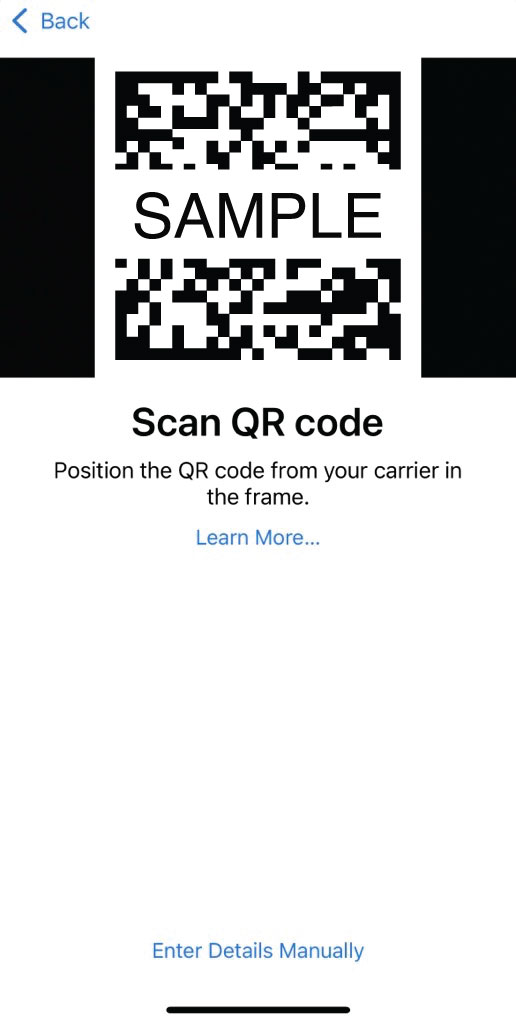
3. Select BACKUP METHOD in Programming Your Phone in My Account to display the QR-code instructions. You can also scan the Silvercell QR code below. If you are viewing this guide on the phone you are setting up, open it on another device so the phone can scan the code. Follow the prompts and tap "Continue" when asked.
- If you receive an error message saying that QR code is not valid, please chat with customer support so we can assist you further in activating your eSIM
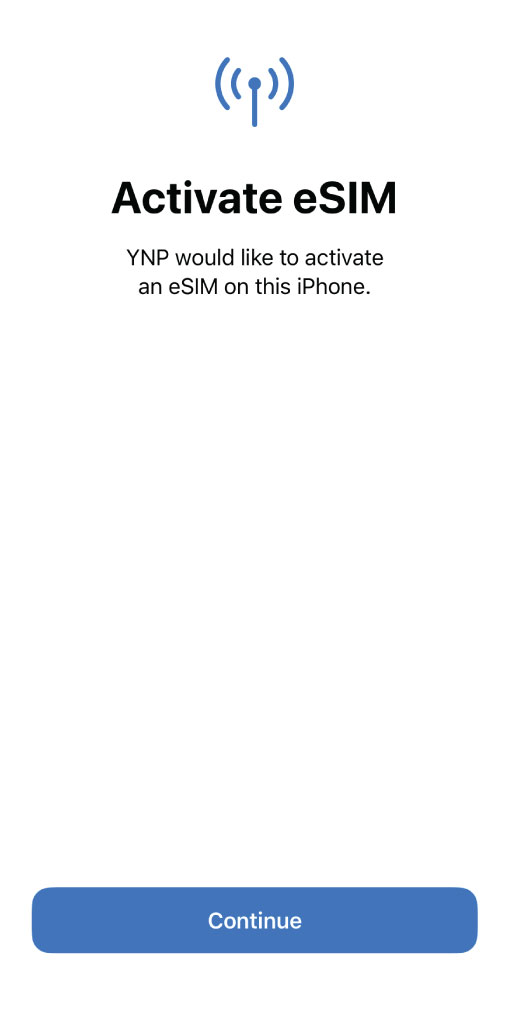
4. Your eSIM is now activating. Please allow about 5 minutes for your phone to activate and connect to the network. The activating button will spin until it is fully activated
*Note: YNP stands for Your New Provider.
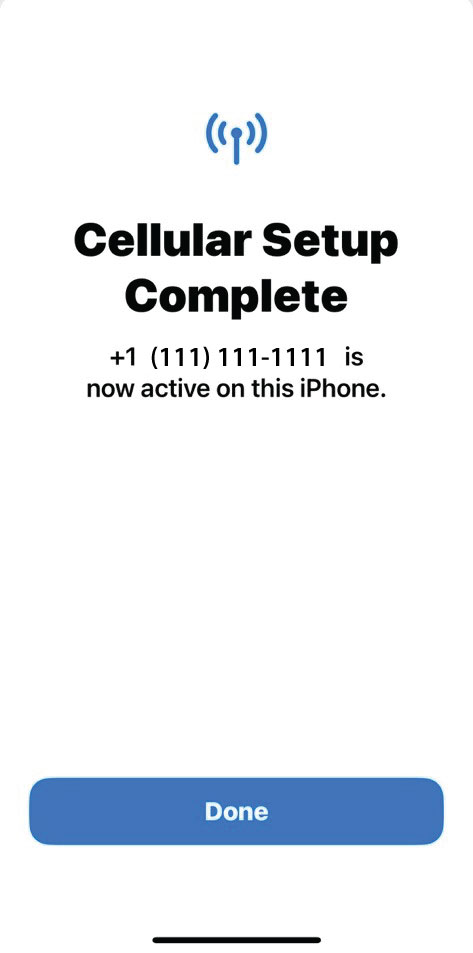
5. Once activation is complete, tap on "Done"
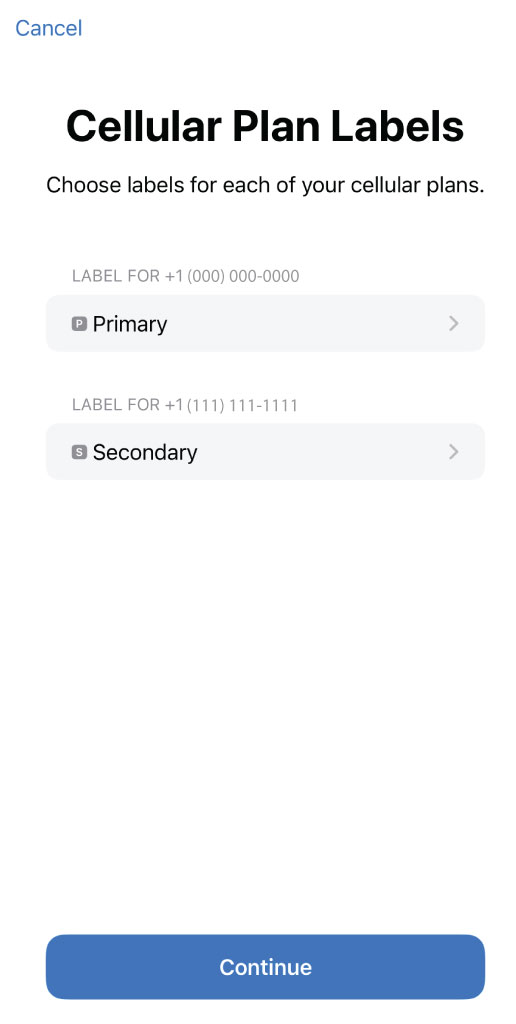
6. Next, you will label your lines. You can choose between Business, Cellular Data, Personal, Primary, Secondary, Travel, or create custom labels
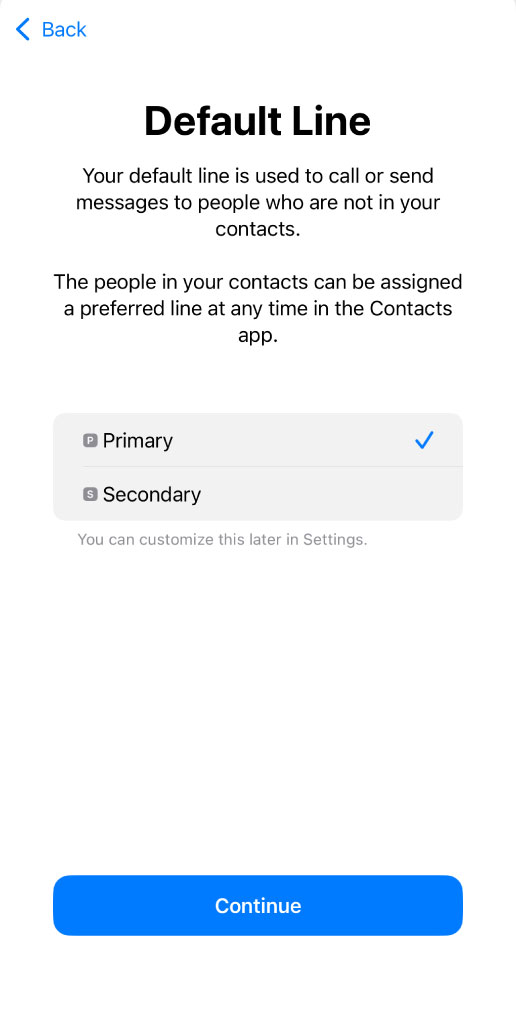
7. Select which line will be your default line
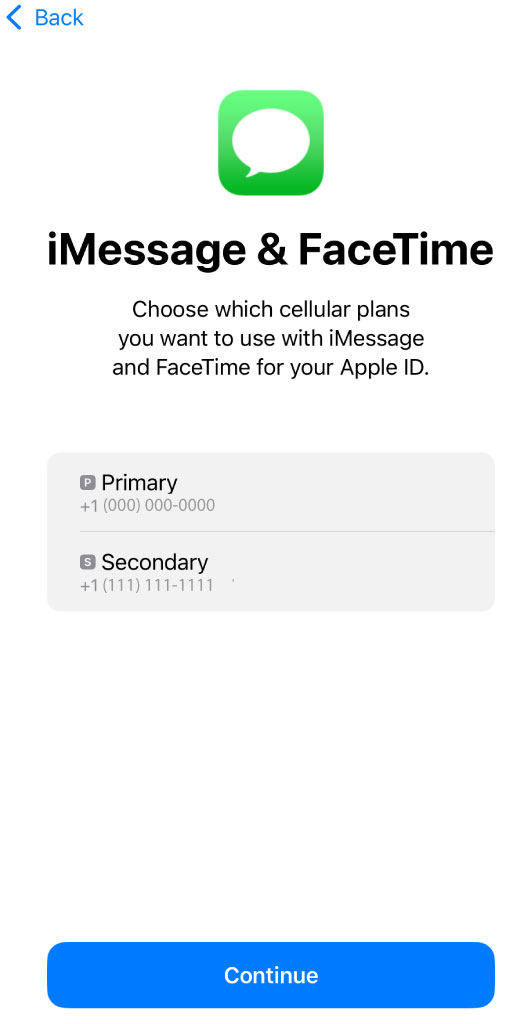
8. Choose which line you want to use with iMessage and Facetime
9. Choose which line will be the default line for cellular data. Select "Allow Cellular Data Switching" to allow your phone to use whatever line has the best coverage at any given time
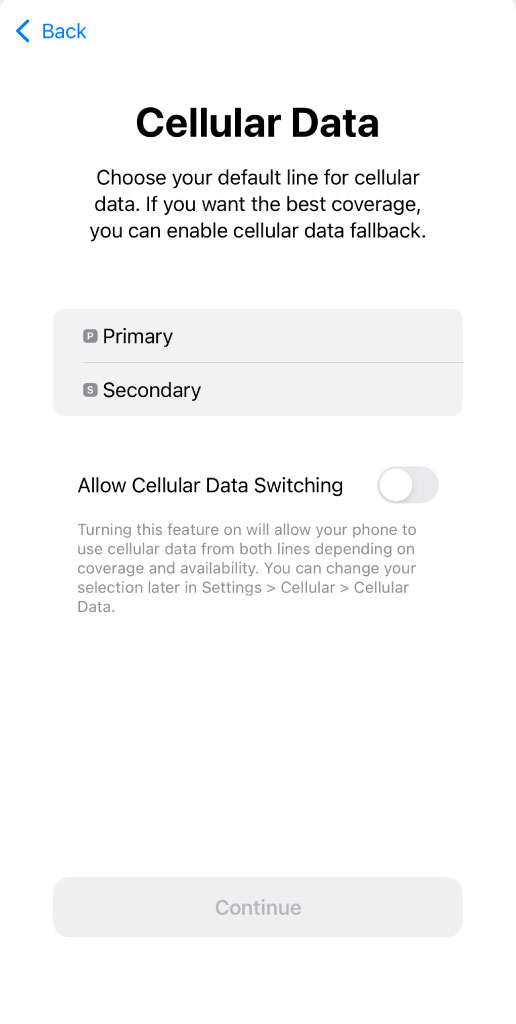
10. Now, your line settings are all selected and your service has been fully activated. We suggest making a test call by disconnecting from Wi-Fi and selecting your new line of service when placing the call
If you need additional help, Silvercell's 100% U.S. based live chat agents are available from 8am - 9pm CST Monday through Friday and from 10am - 6pm CST Saturday through Sunday (excluding holidays).
To chat with us, simply use the SilverService chat or message option.
You can also click here to contact us and start a chat.
How do I activate eSIM on iPhone 13 or newer?How do I activate eSIM on iPhone 13 or newer?
Use these instructions when My Account shows that your line uses eSIM. Eligible phones purchased from Silvercell use their preinstalled physical SIM by default; phones that only support eSIM use eSIM. Customers bringing their own phone can still choose an available eSIM option.
How do I activate eSIM on iPhone 13 or newer?
After placing your order, activate your new eSIM service in MY ACCOUNT. Under My Lines, find the line you want to activate and select ACTIVATE NOW.
Before continuing, please make sure the phone is connected to the internet so it can securely download your new service. You can use your home Wi-Fi or your existing phone service if your old service is still active.
When the phone is connected to the internet, select CONTINUE in the activation pop-up. To activate later, select CANCEL to close the pop-up.
Wait for My Account to confirm that your service is active. Then follow the Programming Your Phone instructions and the steps below to set up the eSIM on your phone.
The steps for activating your new eSIM can vary depending on what model of iPhone you have. To find your model of iPhone, go to Settings > General > About. Your iPhone model and the current iOS version installed on your phone is listed there.
Before you activate your eSIM, make sure you have the latest iOS installed on your phone before activating your eSIM. To see if you have the latest iOS, follow the steps below:
1. Go to your phone's Settings
2. Choose "General"
3. Tap on "Software Update"
4. You will be shown the iOS version that's currently installed on your phone and whether an update is available to download or not
5. If you need to update your phone, follow the steps that you are prompted on your phone to do this
Then, connect to Wi-Fi and follow the steps below to activate your eSIM:
1. After My Account confirms that your service is active, you may receive a notification from YNP (Your New Provider) saying your eSIM is ready for setup. Select that notification and follow the prompts on your phone.
If you do not receive the notification, go to Settings > Cellular (or Mobile Service) and select Add eSIM or Set Up Cellular. Follow the instructions in My Account. If you need the QR-code backup method, select BACKUP METHOD in the programming pop-up.
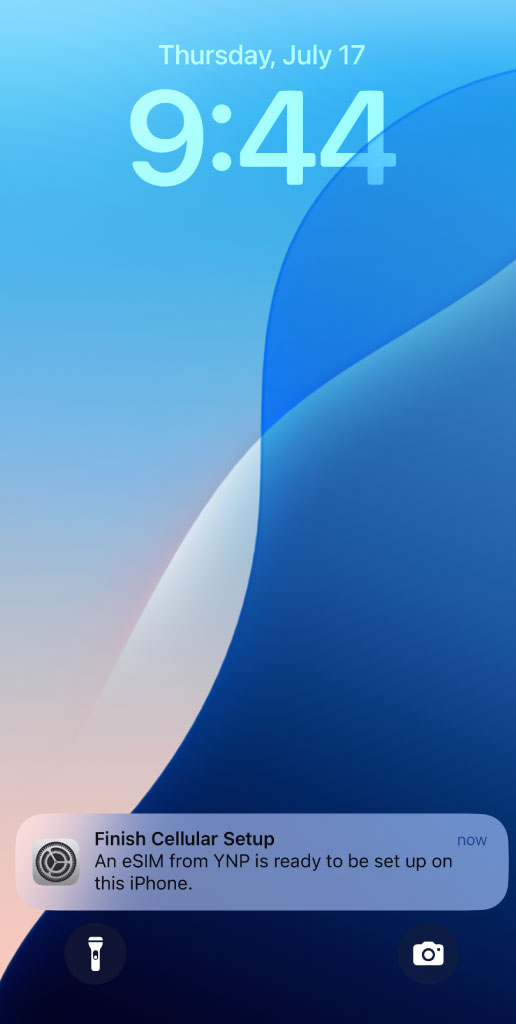
2. Now your eSIM is activating. This step can take a few minutes to complete
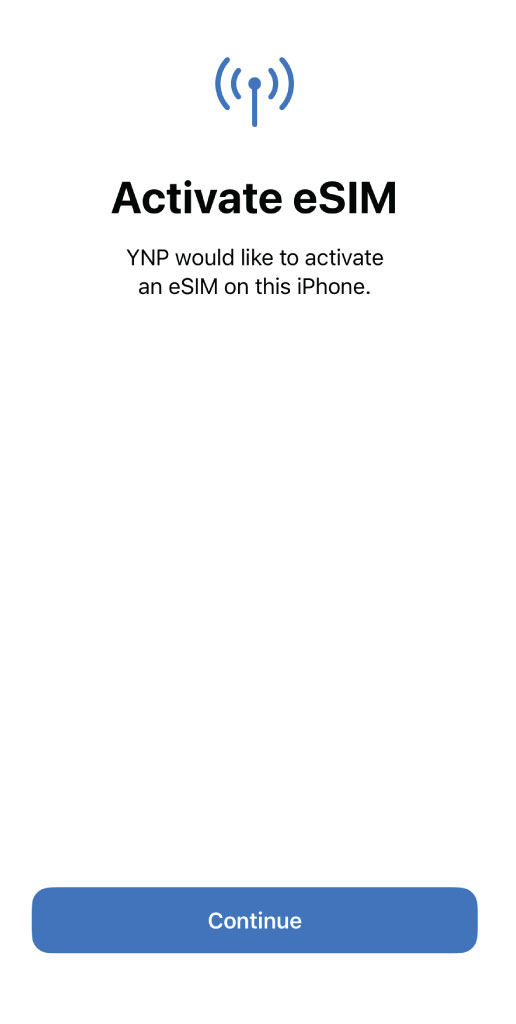
- If setup was interrupted or you did not see the notification, return to Programming Your Phone in My Account and follow the phone-settings instructions first. If setup still does not finish, select BACKUP METHOD for the QR-code instructions. You can use the Silvercell QR code below; open this guide on another device if needed so the phone can scan it.
3. Once activation is complete, tap on "Done"
4. Next, you will label your lines. You can choose between Business, Cellular Data, Personal, Primary, Secondary, Travel, or create custom labels
5. Select which line will be your default line
6. Choose which line you want to use with iMessage and Facetime
7. Choose which line will be the default line for cellular data. Select "Allow Cellular Data Switching" to allow your phone to use whatever line has the best coverage at any given time
8. Now, your line settings are all selected and your service has been fully activated. We suggest making a test call by disconnecting from Wi-Fi and selecting your new line of service when placing the call
If you need additional help, Silvercell's 100% U.S. based live chat agents are available from 8am - 9pm CST Monday through Friday and from 10am - 6pm CST Saturday through Sunday (excluding holidays).
To chat with us, simply use the SilverService chat or message option.
You can also click here to contact us and start a chat.
How do I set up my hotspot?How do I set up my hotspot?
Hotspot lets a compatible phone share its mobile data with another device. Set it up on the phone itself; your hotspot name and password are not stored in your Silvercell account.
- Make sure your Silvercell line is active. In My Account, open the line under My Lines, then check Line features > Mobile Hotspot - Free. If it is available but off, follow the on-screen instructions to turn it on. Hotspot is not offered on the Home Phone Replacement Plan. Contact SilverService if the option is missing or unavailable.
- Turn on mobile data on your phone.
- iPhone: Open Settings > Personal Hotspot (or Settings > Cellular > Personal Hotspot), then turn on Allow Others to Join. The password is shown under Wi-Fi Password.
- Android: Open your phone's Settings and look for Hotspot & tethering or Mobile Hotspot, often under Network & internet or Connections. Check the hotspot name and password there, then turn it on. Menu names vary by model.
- On the other device, open Wi-Fi settings, select your phone's hotspot name, and enter the password shown on your phone.
Do not assume the password is your phone number or use your Silvercell sign-in Verification PIN. You can change the hotspot password in the phone's settings. Turn hotspot off when you finish to save battery and data.
Hotspot uses your plan's high-speed data and requires a phone that supports it. See Phone Guides for model-specific help, or chat with SilverService.
How do I turn on Wi-Fi Calling and texting?How do I turn on Wi-Fi Calling and texting?
Android
- Go to your phone's "Settings"
- Within the search box, type in "Wi-Fi calling"
- Next, your phone should display the feature within your settings. If not, check "Mobile Networks" or "Internet or Connections". The labeling of this setting can vary depending on the model of your phone
- Next, look for the "Wi-Fi Calling" setting
- On some newer phones, Wi-fi calling functionality can be installed if they are offered by your phone manufacturer through a firmware update. If you do not see Wi-Fi calling under your phone's settings but you are using a newer device with LTE compatibility (typically devices released in 2015 or later), research your phone model number to see if Wi-Fi calling is available and if a firmware update is required
- Toggle Wi-Fi Calling on
- Check that your emergency address is up to date
iPhone
- Wi-Fi calling is available on most newer iPhones (iPhone 6S or later). Go to your iPhone's "Settings"
- Tap Cellular, select your Silvercell line if more than one line is shown, then tap Wi-Fi Calling
- Turn on "Wi-Fi Calling on This iPhone" and follow the prompts
- A prompt may appear next, choose "Enable"
- Check that your emergency address is up to date
See terms and conditions for Wi-Fi Calling and Texting
You can see our terms and conditions for Wi-Fi calling and texting here.
How do I use my phone as a hotspot?How do I use my phone as a hotspot?
Mobile Hotspot is a feature that lets you share your network connection with other devices so they can access the internet. Devices connect to your Mobile Hotspot using their Wi-Fi feature. This setup is also called tethering or internet sharing. Silvercell provides the option to use Mobile Hotspot for no additional cost. Please remember that while connected, this will use and deduct data from your monthly plan. Hotspot uses your plan data and is subject to the plan's data limits and terms.
Hotspot availability depends on your phone model and plan. Some feature phones support it and others do not. Sign in to My Account, find the line under My Lines and select Open line details. Under Line features, check Mobile Hotspot - Free and turn it on if the eligible control is available. Then turn on hotspot in your phone's settings and connect the other device to that hotspot network. The hotspot password is found in the phone's hotspot settings. If the feature is not available for your line or you need help, chat with SilverService.
Mobile Hotspot is available for most smartphones.
Is my phone eSIM compatible?Is my phone eSIM compatible?
If your phone purchased from Silvercell supports a physical SIM, we use the SIM card already installed in the phone for activation. You do not need to download an eSIM or scan an eSIM QR code. Phones that only support eSIM use eSIM instead. My Account shows the instructions for the activation method used on your line.
The following models typically support eSIM activation if they are unlocked and approved by our network provider:
Apple: iPhone XR, XS, XS Max, SE (2nd generation), SE (3rd generation), iPhone 11, 11 Pro, 11 Pro Max, iPhone 12, 12 mini, 12 Pro, 12 Pro Max, iPhone 13, 13 mini, 13 Pro, 13 Pro Max, iPhone 14, 14 Plus, 14 Pro, 14 Pro Max, iPhone 15, 15 Plus, 15 Pro, 15 Pro Max, iPhone 16e, iPhone 16, iPhone 16 Plus, iPhone 16 Pro, and iPhone 16 Pro Max.
Note: iPhone 14 and newer models sold in the U.S. do not have a physical SIM tray and are eSIM-only.
Google Pixel: Pixel 4, 4 XL, 4a, 4a (5G), Pixel 5, 5a, Pixel 6, 6a, 6 Pro, Pixel 7, 7a, 7 Pro, Pixel 8, 8a, 8 Pro, Pixel 9, Pixel 9 Pro, Pixel 9 Pro XL, and Pixel 9 Pro Fold, Pixel 10, Pixel 10 Pro, Pixel 10 Pro XL, Pixel 10 Pro Fold
Samsung Galaxy: Note 20, Note 20 Ultra, Galaxy A36 5G, A56 5G, A55 5G, XCover 7, Z Fold, Z Fold 2, Z Fold 3, Z Fold 4, Z Fold 5, Z Fold 6, Z Flip, Z Flip 5G, Z Flip 3, Z Flip 4, Z Flip 5, Z Flip 6 S20, S20+, S20 Ultra, S21, S21+, S21 Ultra, S22, S22+, S22 Ultra, S23, S23+, S23 Ultra, S24, S24+, S24 Ultra, Galaxy S25, Galaxy S25+, Galaxy S25 Ultra, and the Galaxy S25 Edge.
This list is not exhaustive, and there may be other eSIM-capable models not listed. To confirm if your phone is compatible with Silvercell, please use our tool. You can click here to check your phone's compatibility.
If your phone is eSIM compatible, you will be prompted to order an eSIM. If your phone is not eSIM compatible, you will be prompted to order a physical SIM card.
*Please Note* Your phone must be unlocked for eSIM activation on the Silvercell network.
What is an eSIM?What is an eSIM? An eSIM is a digital SIM that is downloaded into your phone so that you can have cellular…
An eSIM is a digital SIM that is downloaded into your phone so that you can have cellular service. Once the eSIM has been downloaded and activated, it allows your phone to connect to our network provider just like a physical SIM card does.
eSIMs are fast and easy to use. They allow you to activate your phone without having to wait for a physical SIM card to arrive in the mail. Plus, it's secure and never stores any of your personal information. Since there isn't a physical SIM card that you must insert into your phone, it's also easier to use. Additionally, eSIMs allow you to use two different phone numbers on one phone. This is great for people who have two phones and two phone numbers, one for personal and one for work. No more having to carry two phones around.
What Is an IMEI and Why Does It Matter?What Is an IMEI and Why Does It Matter?
An IMEI (International Mobile Equipment Identity) is a unique 15-digit number that identifies your cell phone. Think of it like a serial number for your phone. Every phone has its own IMEI, and wireless networks use this number to recognize your device.
Checking your IMEI helps us make sure your phone will work properly on our network before you sign up. This helps avoid surprises and ensures you get reliable service right away.
Some phones have more than one IMEI. If your phone has an IMEI2, it may also be labeled IMEI (eSIM) or eSIM IMEI. Follow the compatibility checker's prompts and use Get Help if you are unsure which number to enter.
How to Find Your IMEI
Finding your IMEI number is simple. Here are the easiest ways:
Option 1: Dial a Simple Code
- Open your phone's dial pad
- Dial *#06#
- Your IMEI number will appear on the screen
Option 2: Check in Settings
- iPhone: Open Settings > General > About, then scroll to IMEI.
- Android: Open Settings > About phone. Depending on the phone, you may need to select Status or Device information.
Option 3: Look on the Phone Box
- The IMEI is often printed on the original phone box or paperwork.
Check If Your Phone Works with Silvercell
Once you have your IMEI number, you can use it to check if your phone is compatible with Silvercell. Simply enter your IMEI in the Silvercell compatibility checker to see if your phone will work on our network.
Checking your IMEI only takes a minute and is the easiest way to make sure your phone is ready to use with Silvercell Wireless.
What is Wi-Fi calling?What is Wi-Fi calling?
Wi-Fi Calling and Texting allows you to make and receive calls and text messages using a Wi-Fi network with your existing Silvercell phone number. Wi-Fi works within the range of the router, and you do not need a cell signal. Using a Wi-Fi signal to send texts, make calls, and start video calls means that you can stay connected even when you have weak cell signal or when traveling abroad. At Silvercell, Wi-Fi Calling and Texting is included with every plan for free.
Why am I having issues with my voicemail?Why am I having issues with my voicemail?
If you're having trouble with voicemail, there are a few steps you can take to resolve the issue. First, make sure your voicemail is properly set up. If you're new to Silvercell or have recently activated your phone, you may need to set it up by dialing voicemail or holding 1 to follow the setup prompts. Sometimes, voicemail issues are related to network problems, so check your signal strength. If you're in an area with poor service or no signal, voicemail may not work as expected. A simple restart of your phone can also help clear up many common issues, as it refreshes your network connection and resets any temporary glitches.
If you've tried these steps and voicemail is still not working, don't hesitate to reach out to our live support team. We're happy to assist you with troubleshooting and ensuring your voicemail is functioning properly.
Why am I having trouble connecting to hotspot?Why am I having trouble connecting to hotspot?
Having issues with Hotspot? To troubleshoot your issue, please make sure you are in an area with coverage. Then, follow these three steps while checking for success after each step is complete:
- Airplane Mode: Turn ON Airplane mode in your phone for 30 seconds. Then turn Airplane mode OFF and watch for the phone to get signal. When the phone has signal, see if Hotspot is working.
- Restart Phone: Simply power the phone off, wait 1-2 minutes and then power it back on. Once the phone has signal, see if Hotspot is working.
- Reset Network Settings: From your phone, go to Settings, and locate Reset Network Settings or Reset Wi-Fi, mobile, and Bluetooth (in some models). Perform this reset and then allow the phone to get signal again. Once signal is available, see if Hotspot is working.
If the above does not work, please chat with a U.S. based Silvercell live agent by using the SilverService chat or message option or clicking here.
Why can’t I activate my eSIM?Why can't I activate my eSIM?
Use these instructions when My Account shows that your line uses eSIM. Eligible phones purchased from Silvercell use their preinstalled physical SIM by default; phones that only support eSIM use eSIM. Customers bringing their own phone can still choose an available eSIM option.
If you're having trouble activating your eSIM, first ensure your device's software is up to date, as outdated software can cause issues. Check that you're connected to a stable Wi-Fi network, as a weak connection can interfere with activation. Try restarting your device, as this can resolve many minor glitches.
If you're still having trouble, you can reach SilverService by using the chat or message option below or by clicking here. Our 100% U.S. based live agents are available from 8am - 9pm Central Time Monday through Friday and from 10am - 6pm Central Time Saturday through Sunday (excluding holidays).
Why is Wi-Fi calling not working on my phone?Why is Wi-Fi calling not working on my phone?
There could be a couple of reasons why you can't make or receive Wi-Fi calls.
- You aren't connected to a Wi-Fi network
- Wi-Fi calling isn't turned on in your Settings
- You don't have the latest software version for your phone
- You're using a phone that doesn't support Wi-Fi calling
- Your emergency address isn't updated
Why would I need to use Wi-Fi Calling and Texting?Why would I need to use Wi-Fi Calling and Texting?
Wi-Fi Calling and Texting is great to use in situations where you find yourself with unpredictable service or traveling outside the U.S. Having a weak cell signal can happen for a variety of reasons that are out of anyone's control. Being in a basement, inside a newer metal building, and living in a rural area can all affect your cell signal. In these situations, using Wi-Fi Calling and Texting would help you avoid dropped calls and unsent text messages.
Additionally, Wi-Fi Calling and Texting can help you stay connected when traveling abroad. While abroad and connected to Wi-Fi, your phone will work just like it does in the U.S. You can call and text U.S. numbers while in a different country. You can also call and text international numbers like you would normally from home. Please note that in order for Wi-Fi Calling and Texting to work where there is not a cellular connection available (such as traveling abroad or in a remote area), it must be turned on while you are still within network coverage and have service prior to your arrival to the area with no coverage.
Phone Manuals
Apple iPhone iOS GuideOpen Apple's iPhone User Guide in your browser and choose the iOS version that matches your phone.
To access the full iPhone user guide:
Open Apple's iPhone User Guide in your web browser. Choose the iOS version that matches your phone, then use the Table of Contents or search to find a topic.
To check your iOS version, open Settings > General > About and look for iOS Version or Software Version. You can bookmark the guide so it is easy to open again.
Need additional help? We are here for you!
If you need additional help or have questions, simply use the SilverService chat or message option. Our 100% U.S. based Customer Support Team is available for live chat from 8am until 9pm (CST) Monday through Friday and from 10am until 6pm (CST) Saturday and Sunday (excluding holidays).
Google Pixel 9aGoogle Pixel 9a. To view the full Google Pixel 9a user guide, please click the link below:…
To view the full Google Pixel 9a user guide, please click the link below:
How can I recycle my old phone?How can I recycle my old phone?
Silvercell encourages proper recycling of all phones, if you have an unwanted phone, we appreciate your participation in any of the following recycling programs. Together we can make the world a cleaner place! Before recycling your phone, if the phone is working, go to the Settings menu on your phone, select Factory Data Reset and follow the prompts to erase your data.
The Battery Network
The Battery Network offers a free option for recycling your phone. As the country's leading consumer battery recycling and stewardship program, they have partnered with thousands of businesses that act as drop off locations. Click Here to find a drop off location near you.
Earth911
If the above option isn't convenient, please visit Earth911 to find an e-waste recycling facility near you. Earth 911 provides a searchable database of recycling vendors in your area.
New York Residents
Please email support@silvercellwireless.com or start a chat on our website so we can help you properly dispose of your old phone.
Moto G 5G 2024Moto G 5G 2024. Click here to see the Moto G 5G 2024 user manual.
Moto G Play 2024Click here to see the Moto G Play 2024 user manual.
Nuu Mobile F4LNuu Mobile F4L. Click here to see the Nuu F4L user manual.
Orbic JourneyOrbic Journey. Click here to see the Orbic Journey user manual.
Orbic JoyOrbic Joy. Click here to see the Orbic Joy user manual.
Samsung A15 5GSamsung A15 5G. Click here to see the Samsung A15 5G user manual.
Samsung A17Samsung A17. Click here to see the Samsung A17 user manual.
Samsung S25 5GSamsung S25 5G. Click here to see the Samsung S25 5G user manual.
TCL FlipTCL Flip. Click here to see the TCL Flip user manual.
International Calling & Traveling
How do I keep in touch when traveling abroad?How do I keep in touch when traveling abroad?
Silvercell phone service works throughout the United States, giving you reliable coverage wherever you go. And even when you're traveling outside the country, many customers with iPhones or Android phones stay connected easily by using Wi‑Fi for calls, texts, and apps. It's just one more way Silvercell makes staying in touch simple, flexible, and worry‑free - no matter where your travel takes you.
Stay Connected with Wi-Fi Calling and Texting
A simple and free way to communicate while traveling is by using Silvercell's Wi-Fi Calling and Texting feature that is included for FREE with every plan.
Wi-Fi Calling allows you to make and receive phone calls and text messages as long as you are connected to a Wi-Fi network and your phone supports the feature. This works even when you are outside of Silvercell's U.S. coverage area. So, if you have a basement that does not have the signal but has WiFi - you're covered. If you're in Europe, you're covered. Just like that!
As long as you have adequate Wi-Fi signal (such as in a hotel, public area, airport, restaurant or coffee shop), you can:
- Make and receive phone calls
- Check voicemail
- Send and receive text messages and pictures
- No cellular signal is required
Important: Turn on Wi‑Fi Calling Before You Travel
Wi‑Fi Calling and Texting comes with every Silvercell plan at no extra cost. The only thing you need to do is turn it on before you leave the U.S. while your phone is still connected to the Silvercell network.
Once it's turned on, it will keep working anywhere in the world as long as you have a Wi‑Fi connection. If you need help confirming it is on, simply chat with our SilverService team and they will be able to help you.
International Calling with Wi-Fi
If you're traveling to a country where Silvercell's International Calling and Texting supports, you can use it along with Wi‑Fi Calling. This gives you two great benefits:
- You can call local numbers in the country you're visiting
- You can easily stay in touch with family and friends back in the U.S.
Just remember to turn on Wi‑Fi Calling before you leave the United States.
Using an App if Wi-Fi Calling Is Not Enabled
If you're traveling, another easy way to stay in touch is by using Facebook Messenger. As long as you have Wi‑Fi, you can make calls, send messages, and share photos with family and friends. Many of us already use Facebook, so Messenger is a comfortable and familiar option while you're away from home.
How do I send texts to international numbers?How do I send texts to international numbers?
With Silvercell's Unlimited Global Texting, you can text as much as you want to anyone in the United States and to over 180 other international countries. Just be sure you're within Silvercell's U.S. coverage area or if you are traveling abroad, be sure you have Wi-Fi calling and texting enabled and connected. While abroad and connected to Wi-Fi, your phone will work just like it does in the U.S. Please note that unlimited global text messages (SMS) do not include audio, picture, or video messaging features (MMS).
Sending a Text Message to Someone in the United States
To send a text message to someone in the U.S., simply enter their 10-digit wireless phone number. (e.g. 111-555-2345)
Sending a Text Message to Someone Outside of the U.S.
To send an international text message to someone outside of the U.S., you must enter country code and the mobile phone number. (e.g. 011-44-555-111-2222)
Receiving a Global Text
When you receive a global text message, the phone will displace the international mobile number (including the appropriate international access code). You can reply to the message as usual; you will not have to enter the destination address or add the access code when replying.
Message Length
Global texts can be up to 160 characters.
International Destinations
The table below lists the available destinations for Silvercell Wireless's Global Texting. Please note that texting to Canada is the same as texting a U.S. number. The country code is simply 1.
This list is subject to change/updates. International countries supported are subject to change without notice. International wireless carriers and intercarrier providers are under no obligation to maintain connectivity with the Silvercell network.
| Country | Code | Organization Name/Carrier |
|---|---|---|
| Abkhazia | 995 | A-MOBILE |
| Afghanistan | 93 | AFGHAN TELECOM |
| AFGHAN WIRELESS COMMUNICATION COMPANY | ||
| ETISALAT AFGHANISTAN | ||
| MTN AFGHANISTAN | ||
| TELECOM DEVELOPMENT COMPANY AFGHANISTAN LTD. | ||
| WASEL AFG | ||
| Albania | 355 | ALBANIAN MOBILE COMMUNICATIONS |
| EAGLE MOBILE SH.A. | ||
| PLUS COMMUNICATION | ||
| VODAFONE ALBANIA | ||
| Algeria | 213 | ATM MOBILIS |
| ORASCOM TELECOM ALGERIE SPA | ||
| WATANIYA TELECOM ALGERIE | ||
| American Samoa | 684 | ASTCA |
| AMERICAN SAMOA LICENSE, INC. | ||
| Angola | 244 | MOVICEL TELECOMUNICAÇÕES LDA. |
| UNITEL S.A.R.L. | ||
| Anguilla | 264 | CABLE & WIRELESS (WEST INDIES) LTD. ANGUILLA |
| DIGICEL ANGUILLA | ||
| Antigua & Barbuda | 268 | ANTIGUA PUBLIC UTILITIES AUTHORITY-APUA |
| ANTIGUA WIRELESS VENTURES LIMITED | ||
| CABLE & WIRELESS CARIBBEAN CELLULAR (ANTIGUA) LIMITED | ||
| Argentina | 54 | AMX ARGENTINA S.A. |
| NEXTEL ARGENTINA | ||
| TELECOM PERSONAL SA | ||
| TELEFONICA MOVILES ARGENTINA S.A (MOVISTAR) | ||
| Armenia | 374 | ARMENTEL |
| K TELECOM CJSC | ||
| KARABAKH TELECOM | ||
| ORANGE ARMENIA CJSC | ||
| Aruba | 297 | DTH TELEVISION AND TELECOMMUNICATIONS N.V. |
| NEW MILLENIUM TELECOM SERVICES (NMTS) | ||
| SETAR (SERVICIO DI TELECOMUNICACION DI ARUBA) | ||
| Australia | 61 | HUTCHISON 3G AUSTRALIA PTY LIMITED |
| LYCA MOBILE AUSTRALIA | ||
| SINGTEL OPTUS LIMITED | ||
| SOFTWARE CELLULAR NETWORK LTD | ||
| TELSTRA CORPORATION LIMITED | ||
| VIRGIN MOBILE(AUSTRALIA) | ||
| VODAFONE PACIFIC LIMITED | ||
| Austria | 43 | HUTCHISON 3G AUSTRIA GMBH |
| LYCA MOBILE AUSTRIA | ||
| MASS RESPONSE AUSTRIA | ||
| MOBILKOM AUSTRIA AG (BOB) | ||
| MUNDIO MOBILE AUSTRIA | ||
| ORANGE AUSTRIA TELECOMMUNICATION GMBH | ||
| T-MOBILE AUSTRIA GMBH | ||
| TELE2 AUSTRIA | ||
| TELE.RING AUSTRIA | ||
| UPC AUSTRIA | ||
| Azerbaijan | 994 | AZERCELL TELECOM LLC |
| AZERFON LLC | ||
| BAKCELL LTD | ||
| Bahamas | 242 | THE BAHAMAS TELECOMMUNICATIONS COMPANY LTD |
| NEWCO - BAHAMAS | ||
| Bahrain | 973 | BAHRAIN TELECOMMUNICATIONS COMPANY |
| STC BAHRAIN B.S.C | ||
| ZAIN BAHRAIN B.S.C | ||
| Bangladesh | 880 | AIRTEL BANGLADESH LIMITED |
| AXIATA (BANGLADESH) LIMITED. | ||
| GRAMEENPHONE LTD | ||
| ORASCOM TELECOM BANGLADESH LIMITED. | ||
| PACIFIC BANGLADESH TELECOM LTD. | ||
| TELETALK BANGLADESH LTD | ||
| Barbados | 246 | CABLE & WIRELESS BARBADOS LTD. |
| DIGICEL (BARBADOS) LIMITED | ||
| Belarus | 375 | FE VELCOM |
| JLLC MOBILE TELESYSTEMS | ||
| Belgium | 32 | BELGACOM SA/NV |
| KPN GROUP BELGIUM NV/SA | ||
| LYCA MOBILE BELGIUM | ||
| MOBISTAR S.A. | ||
| TELENET BELGIUM | ||
| VOXBONE | ||
| Belize | 501 | BELIZE TELEMEDIA LIMITED |
| SPEEDNET COMMUNICATIONS | ||
| Benin | 229 | BELL BENIN COMMUNICATIONS (BBCOM) |
| BENIN TELECOM | ||
| ETISALAT BENIN S.A | ||
| GLOMOBILE BENIN LIMITED | ||
| SPACETEL-BENIN | ||
| Bermuda | 441 | BERMUDA DIGITAL COMMUNICATIONS LIMITED |
| M3 WIRELESS LTD | ||
| TELECOMMUNICATIONS (BERMUDA & WEST INDIES) LTD | ||
| Bhutan | 975 | B-MOBILE |
| TASHI INFOCOMM LIMITED | ||
| Bolivia | 591 | ENTEL SA |
| NUEVATEL PCS DE BOLIVIA SA | ||
| TELEFONICA CELULAR DE BOLIVIA S.A. | ||
| Bosnia & Herzegovina | 387 | BH TELECOM, JOINT STOCK COMPANY, SARAJEVO |
| PUBLIC ENTERPRISE CROATIAN TELECOM LTD. | ||
| RS TELECOMMUNICATIONS JSC BANJA LUKA | ||
| Botswana | 267 | BOTSWANA TELECOMMUNICATIONS CORP (BTC) |
| MASCOM WIRELESS (PTY) LIMITED | ||
| ORANGE (BOTSWANA) PTY LIMITED | ||
| Brazil | 55 | 14 BRASIL TELECOM CELULAR S.A |
| AMERICEL S.A. CLARO | ||
| NEXTEL BRAZIL | ||
| PORTO SEGURO CONECTA | ||
| SERCOMTEL CELULAR S/A | ||
| TIM CELULAR S.A. | ||
| TNL PCS S.A. | ||
| VIVO S.A. (RIO DE JANIERO) | ||
| VIVO S.A. (SAO PAOLO) | ||
| British Virgin Islands | 284 | CABLE & WIRELESS (WEST INDIES) LIMITED |
| CARIBBEAN CELLULAR TELEPHONE | ||
| DIGICEL (BVI) LIMITED | ||
| Brunei Darussalam | 673 | B-MOBILE COMMUNICATIONS SDN BHD |
| DATASTREAM TECHNOLOGY (DST) | ||
| Bulgaria | 359 | BULGARIAN TELECOMMUNICATIONS COMPANY AD |
| COSMO BULGARIA MOBILE EAD | ||
| Burkina Faso | 226 | CELTEL BURKINA FASO |
| ONATEL | ||
| TELECEL FASO | ||
| Burundi | 257 | AFRICELL PLC COMPANY |
| ONATEL | ||
| LACELL SU - BURUNDI | ||
| VIETTEL BURUNDI | ||
| Cambodia | 855 | CAMBODIA ADVANCE COMMUNICATIONS CO. LTD (CADCOMMS) |
| CAMGSM | ||
| LATELZ CO., LTD | ||
| MFONE CO., LTD | ||
| SOTELCO LTD. | ||
| TELEKOM MALAYSIA INTERNATIONAL (CAMBODIA) CO. LTD | ||
| VIETTEL (CAMBODIA) PTE., LTD | ||
| XINWEI CAMBODIA | ||
| Cameroon | 237 | CAMTEL |
| MTN CAMEROON LTD | ||
| ORANGE CAMEROUN S.A. | ||
| VIETTEL CAMEROON | ||
| Cape Verde | 238 | CVMOVEL, S.A. |
| T+ TELECOMUNICACÕES S.A. | ||
| Cayman Islands | 345 | CABLE & WIRELESS (CAYMAN ISLANDS) LIMITED |
| DIGICEL CAYMAN LTD. | ||
| Central African Republic | 236 | ATLANTIQUE CELLULAIRE RCA (MOOV) |
| TELECEL CENTRAFRIQUE | ||
| Chad | 235 | CELTEL TCHAD SA |
| MILLICOM CHAD | ||
| Chile | 56 | CLARO CHILE SA |
| ENTEL PCS | ||
| NETLINE MOVILE CHILE | ||
| NEXTEL CHILE SA | ||
| SIMPLE MOVILES CHILE | ||
| TELEFONICA MOVIL DE CHILE | ||
| VIRGIN MOBILE CHILE | ||
| VTR MOVIL S.A. | ||
| China | 86 | CHINA MOBILE |
| CHINA TELECOM | ||
| CHINA UNICOM | ||
| Colombia | 57 | AVANTEL S.A.S |
| COLOMBIA MOVIL SA (TIGO) | ||
| COMUNICACION CELULAR SA COMCEL SA | ||
| LLEIDA SAS COLUMBIA | ||
| TELEFONICA MOVILES COLOMBIA S.A. | ||
| Comoros | 269 | SOCIETE NATIONALE DES TELECOMMUNICATIONS (COMORES TELECOM) |
| TELCO COMORES | ||
| Congo | 242 | CELTEL CONGO SA |
| EQUATEUR TELECOM CONGO (ETC) | ||
| MTN CONGO S.A | ||
| WARID CONGO SA | ||
| Costa Rica | 506 | CLARO COSTA RICA |
| FULLMOVIL | ||
| I.C.E. (INSTITUTO COSTARRICENSE DE ELECTRICIDAD) | ||
| TELEFONICA COSTA RICA | ||
| TUYO MOVIL | ||
| Croatia | 385 | CROATIAN TELECOM INC. |
| TELE2 D.O.O ZA TELEKOMUNIKACIJSKE ULUGE | ||
| VIPNET D.O.O. | ||
| Cyprus | 357 | CYPRUS TELECOMMUNICATIONS AUTH |
| LEMONTEL LTD | ||
| MTN CYPRUS LIMITED | ||
| MUNDIO MOBILE | ||
| PRIMETEL | ||
| Czech Republic | 420 | MUNDIO MOBILE |
| TELEFÓNICA O2 CZECH REPUBLIC A.S. | ||
| T-MOBILE CZECH REPUBLIC A.S. | ||
| VODAFONE CZECH REPUBLIC A.S. | ||
| Dem. Rep. of the Congo | 243 | CELTEL CONGO |
| ORANGE DRC | ||
| TIGO | ||
| VODACOM CONGO (RDC) SPRL | ||
| Denmark | 45 | HI3G DENMARK APS TELIA SONERA |
| LYCAMOBILE - DNK | ||
| MUNDIO MOBILE DENMARK | ||
| TDC A/S | ||
| TELENOR A/S | ||
| TELIA NATTJANSTER NORDEN AB | ||
| Djibouti | 253 | DJIBOUTI TELECOM SA |
| Dominica | 767 | CABLE & WIRELESS DOMINICA LTD. |
| WIRELESS VENTURES (DOMINICA) LTD. | ||
| Dominican Republic | 1 | COMPAÑIA DOMINICANA DE TELEFONOS, C. POR A. |
| ORANGE DOMINICANA S.A. | ||
| TRICOM | ||
| TRILOGY DOMINICANA (FORMERLY CENTENNIAL) | ||
| Ecuador | 593 | ALEGRO PCS |
| CONECEL S.A. (CONSORCIO ECUATORIANO DE TELECOMUNICACIONES S.A.) | ||
| OTECEL S.A. | ||
| Egypt | 20 | ECMS-MOBINIL |
| ETISALAT MISR | ||
| VODAFONE EGYPT TELECOMMUNICATIONS S.A.E | ||
| El Salvador | 503 | CTE TELECOM PERSONAL SA DE CV CLARO |
| DIGICEL - EL SALVADOR | ||
| TELEFONICA MOVILES EL SALVADOR, S.A DE C.V | ||
| TELEMOVIL EL SALVADOR S.A (TIGO) | ||
| Equatorial Guinea | 240 | GETESA |
| HITS | ||
| Estonia | 372 | AS EMT |
| ELISA EESTI AS | ||
| TELE2 EESTI AS | ||
| Ethiopia | 251 | ETHIOPIAN TELECOMMUNICATIONS CORPORATION |
| Faroe Islands | 298 | FAROESE TELECOM |
| KALL P/F | ||
| Fed. States of Micronesia | 691 | FSM TELECOMMUNICATIONS CORPORATION |
| Fiji | 679 | DIGICEL FIJI |
| VODAFONE FIJI LTD | ||
| Finland | 358 | DNA LTD |
| ELISA CORPORATION | ||
| MUNDIO MOBILE | ||
| TELIASONERA FINLAND OYJ | ||
| France | 33 | BOUYGUES TELECOM |
| FREE MOBILE | ||
| LLEIDA FRANCE | ||
| LYCA MOBILE FRANCE | ||
| MOBIQUI THINGS | ||
| MUNDIO MOBILE FRANCE | ||
| NRJ FRANCE | ||
| OMEA | ||
| ORANGE FRANCE | ||
| SFR | ||
| French Polynesia | 689 | PACIFIC MOBILE TELECOM |
| TIKIPHONE SA | ||
| Gabon | 241 | ATLANTIQUE TELECOM GABON S.A. |
| CELTEL GABON SA | ||
| LIBERTIS S.A. | ||
| USAN (BINTEL) | ||
| Gambia | 220 | AFRICELL (GAMBIA) LTD |
| COMIUM GAMBIA LTD | ||
| GAMBIA TELECOMMUNICATIONS CELLULAR COMPANY LTD (GAMCELL) | ||
| QCELL LIMITED | ||
| Georgia | 995 | GEOCELL LTD |
| GMOBILE | ||
| MAGTICOM LTD | ||
| MOBITEL LLC | ||
| Germany | 49 | E-PLUS MOBILFUNK GMBH & CO. KG |
| EMNIFY ITALY | ||
| LYCA MOBILE GERMANY | ||
| SOFTWARE CELLULAR NETWORK LTD | ||
| TELEFONICA O2 GERMANY GMBH & CO.OHG | ||
| T-MOBILE DEUTSCHLAND GMBH | ||
| VODAFONE D2 GMBH | ||
| YUILOP | ||
| Ghana | 233 | GHANA TELECOMMUNICATIONS COMPANY LTD |
| GLO MOBILE GHANA LTD. | ||
| KASAPA TELECOM LIMITED | ||
| MILLICOM GHANA LIMITED | ||
| SCANCOM LTD | ||
| ZAIN COMMUNICATIONS (GHANA) LIMITED | ||
| Gibraltar | 350 | GIBTELECOM LIMITED |
| Greece | 30 | AMD TELECOM SA |
| COSMOTE - MOBILE TELECOMMUNICATIONS S.A. | ||
| VODAFONE-PANAFON | ||
| WIND HELLAS TELECOMMUNICATIONS S.A. | ||
| Greenland | 299 | TELE GREENLAND A/S |
| Grenada | 473 | AISLECOM - GRENADA |
| CABLE & WIRELESS GRENADA LTD. | ||
| DIGICEL GRENADA LTD. | ||
| Guadeloupe | 590 | DAUPHIN TELECOM |
| ORANGE CARAIBE | ||
| OUTREMER TELECOM | ||
| Guam | 671 | DOCOMO PACIFIC, INC. |
| I-CONNECT | ||
| IT&E OVERSEAS, INC | ||
| PULSE MOBILE LLC | ||
| WAVE RUNNER LLC | ||
| Guatemala | 502 | COMCEL-COMMUNICACIONES CELULARES SOCIEDAD ANONIMA |
| TELECOMUNICACIONES DE GUATEMALA, S.A. (TELGUA) CLARO | ||
| TELEFONICA MOVILES GUATEMALA, SA | ||
| Guinea | 224 | AREEBA GUINEA |
| CELLCOM GUINEE S.A. | ||
| INTERCEL GUINÉE | ||
| ORANGE GUINEE SA | ||
| Guinea-Bissau | 245 | ORANGE BISSAU |
| SPACETEL GUINEE-BISSAU SA | ||
| Guyana | 592 | GUYANA TELEPHONE & TELEGRAPH CO. |
| U-MOBILE (CELLULAR) INC. | ||
| Haiti | 509 | COMMUNICATION CELLULAIRE D'HAITI SA |
| DIGICEL (HAITI) LIMITED | ||
| NATCOM VIETTEL | ||
| Honduras | 504 | SERVICIOS DE COMUNICACIONES DE HONDURAS S.A. DE C.V. Claro Honduras |
| TELEFONICA CELULAR S.A (CELTEL - TIGO) | ||
| Hong Kong | 852 | CHINA MOBILE HONG KONG COMPANY LIMITED |
| CHINA MOTION TELECOM | ||
| CSL LIMITED | ||
| GREENROAM | ||
| HONG KONG TELECOMMUNICATIONS (HKT) LIMITED | ||
| HUTCHISON TELECOM (HK) LTD | ||
| LYCAMOBILE HONG KONG LIMITED | ||
| SMARTONE MOBILE COMMUNICATIONS LIMITED | ||
| SOFTWARE CELLULAR NETWORK LTD | ||
| Hungary | 36 | LGI MOBILE |
| PANNON GSM TELECOMMUNICATIONS | ||
| VODAFONE HUNGARY | ||
| Iceland | 354 | DEVICE CLOUD NETWORKS |
| ICECELL EHF | ||
| IMC ISLAND EHF | ||
| NOVA EHF. | ||
| OG FJARSKIPTI HF | ||
| SIMINN HF | ||
| India | 91 | AIRCEL LIMITED |
| BHARAT SANCHAR NIGAM LIMITED | ||
| BHARTI AIRTEL LIMITED | ||
| ETISALAT DB TELECOM PRIVATE LIMITED | ||
| IDEA CELLULAR LIMITED | ||
| LOOP MOBILE (INDIA) LIMITED | ||
| MAHANAGAR TELEPHONE NIGAM LTD | ||
| RELIANCE COMMUNICATIONS LIMITED | ||
| RELIANCE JIO | ||
| SISTEMA SHYAM TELESERVICES LIMITED | ||
| TATA TELESERVICES LTD | ||
| UNITECH WIRELESS LIMITED | ||
| VIDEOCON | ||
| VODAFONE ESSAR CELLULAR LIMITED - KERALA | ||
| VODAFONE ESSAR DIGILINK LIMITED | ||
| VODAFONE ESSAR EAST LIMITED | ||
| VODAFONE ESSAR GUJARAT LIMITED | ||
| VODAFONE ESSAR LIMITED | ||
| VODAFONE ESSAR MOBILE SERVICES LIMITED | ||
| VODAFONE ESSAR SOUTH LIMITED | ||
| VODAFONE ESSAR SPACETEL LIMITED | ||
| Indonesia | 62 | HUTCHISON CP TELECOMMUNICATIONS |
| PT BAKRIE TELECOM | ||
| PT INDONESIAN SATELLITE CORPORATION TBK (INDOSAT) | ||
| PT MOBILE-8 TELEKOM TBK | ||
| PT NATRINDO TELEPON SELULER | ||
| PT TELKOM INDONESIA | ||
| TELKOMSEL | ||
| XLCOMINDO | ||
| Iran | 98 | IRANCELL TELECOMMUNICATIONS SERVICES COMPANY |
| RIGHTEL IRAN | ||
| Iraq | 964 | ASIACELL COMMUNICATIONS LLC |
| ATHEER TELECOM IRAQ MTC | ||
| KOREK TELECOM LTD. | ||
| OMNNEA IRAQ | ||
| Ireland | 353 | HUTCHISON 3G IRELAND LIMITED |
| LGI MOBILE IRELAND | ||
| LYCAMOBILE- IRL | ||
| METEOR MOBILE TELECOMMUNICATIONS LIMITED | ||
| O2 COMMUNICATIONS (IRELAND) LTD | ||
| TESCO MOBILE | ||
| VODAFONE IRELAND LTD. | ||
| Israel | 972 | ALON CELLULAR |
| AZI COMMUNICATIONS | ||
| CELLCOM ISRAEL LTD | ||
| GOLAN TELECOM LTD. | ||
| MIRS | ||
| PARTNER COMMUNICATIONS COMPANY LTD | ||
| PELEPHONE COMMUNICATIONS LTD. | ||
| Italy | 39 | DIGIMOBILE ITALY |
| H3G | ||
| INTERMATICA | ||
| LYCAMOBILE ITALY | ||
| NOVERCA | ||
| POSTE MOBILE | ||
| TELECOM ITALIA SPA | ||
| VODAFONE OMNITEL N.V. | ||
| WIND TELECOMUNICAZIONI SPA | ||
| Ivory Coast | 225 | ATLANTIQUE TELECOM COTE D'IVOIRE |
| COMIUM IVORY COAST INC | ||
| MTN CÔTE D'IVOIRE S.A. | ||
| ORANGE CI | ||
| ORICEL | ||
| Jamaica | 876 | CABLE & WIRELESS JAMAICA LIMITED |
| DIGICEL (JAMAICA) LIMITED | ||
| Japan | 81 | EMOBILE |
| KDDI | ||
| NTT DOCOMO, INC | ||
| SOFTBANK MOBILE CORP. | ||
| Jordan | 962 | JORDAN MOBILE TELEPHONE SERVICES (JMTS) |
| PETRA JORDANIAN MOBILE TELECOMMUNICATIONS | ||
| UMNIAH MOBILE COMPANY | ||
| Kazakhstan | 7 | ALTEL |
| KAR-TEL LLP | ||
| KCELL | ||
| MTS NEO | ||
| Kenya | 254 | CELTEL KENYA LIMITED. |
| ESSAR TELECOM KENYA LIMITED | ||
| SAFARICOM LIMITED | ||
| TELKOM KENYA LIMITED | ||
| Kiribati | 686 | TELECOM SERVICES |
| Kuwait | 965 | KUWAIT TELECOM COMPANY (KTC) |
| MOBILE TELECOMMUNICATIONS CO. | ||
| NATIONAL MOBILE TELECOMMUNICATIONS CO. | ||
| Kyrgyzstan | 996 | ALFA TELECOM JOINT STOCK COMPANY |
| NEXI | ||
| NURTELECOM LLC | ||
| SKY MOBILE LLC | ||
| Laos | 856 | ENTERPRISE OF TELECOMMUNICATIONS LAO (ETL) |
| LAO TELECOMMUNICATIONS | ||
| MILLICOM LAO CO LTD | ||
| STAR TELECOM COMPANY LIMITED (STL) | ||
| Latvia | 371 | CAMEL MOBILE |
| LATVIJAS MOBILAIS TELEFONS | ||
| SIA BITE LATVIJA | ||
| TELE2 | ||
| TELEKOM BALTIJA | ||
| Lebanon | 961 | MIC 1 |
| MIC 2 | ||
| Lesotho | 266 | ECONET TELECOM LESOTHO (PTY) LTD (ETL) |
| VODACOM LESOTHO (PTY) LTD | ||
| Liberia | 231 | CELLCOM TELECOMMUNICATIONS, INC |
| COMIUM | ||
| LONESTAR/AREEBA | ||
| Libya | 218 | AL MADAR AL JADID |
| LIBYANA MOBILE PHONE | ||
| Liechtenstein | 423 | CUBIC TELECOM LIECHTENSTEIN |
| ORANGE AG (Mobilkom) | ||
| Lithuania | 370 | ELUX LUXEMBOURG |
| OMNITEL | ||
| UAB BITÉ LIETUVA | ||
| UAB TELE2 | ||
| Luxembourg | 352 | ORANGE S.A. |
| P & T LUXEMBOURG | ||
| TANGO MOBILE SA | ||
| Macau | 853 | CTM |
| HUTCHISON TELEPHONE (MACAU) COMPANY LTD | ||
| SMARTONE MOBILE COMMUNICATIONS (MACAU) LTD | ||
| Macedonia | 389 | LYCAMOBILE MACEDONIA |
| ONE STOCK COMPANY SKOPJE | ||
| T-MOBILE MACEDONIA | ||
| VIP OPERATOR DOOEL SKOPJE | ||
| Madagascar | 261 | CELTEL MADAGASCAR |
| ORANGE MADAGASCAR S.A. | ||
| TELMA MOBILE SA | ||
| Malawi | 265 | CELTEL LIMITED |
| MALAWI ACCESS | ||
| Malaysia | 60 | CELCOM (MALAYSIA) SDN BHD |
| DIGI TELECOMMUNICATIONS SDN BHD | ||
| MAXIS COMMUNICATIONS BERHAD | ||
| U MOBILE SDN. BHD. | ||
| YTL | ||
| Maldives | 960 | DHIVEHI RAAJJEYGE GULHUN PRIVATE LTD |
| WATANIYA TELECOM MALDIVES PVT. LTD | ||
| Mali | 223 | MALITEL SA |
| ORANGE MALI SA | ||
| Malta | 356 | MELITA MOBILE LTD. |
| MOBISLE COMMUNICATIONS LIMITED | ||
| VODAFONE MALTA LIMITED | ||
| Marshall Islands | 692 | NTA MARSHALL ISLANDS |
| Martinique | 596 | DIGICEL ANTILLES FRANÇAISE GUYANE |
| Mauritania | 222 | CHINGUITEL S.A. |
| MATTEL | ||
| MAURITEL MOBILES | ||
| Mauritius | 230 | CELLPLUS MOBILE COMMUNICATIONS LTD. |
| EMTEL LTD | ||
| MTML | ||
| Mexico | 52 | IUSACELL |
| NEXTEL MEXICO | ||
| PEGASO PCS, S.A. DE C.V. | ||
| RADIOMOVIL DIPSA SA DE CV (TELCEL) | ||
| Moldova | 373 | INTERDNESTRCOM (JSC) |
| MOLDCELL SA | ||
| MOLDTELECOM | ||
| OPTIMA TELECOM | ||
| ORANGE MOLDOVA S.A. | ||
| Monaco | 377 | MONACO TELECOM |
| Mongolia | 976 | G-MOBILE |
| MOBICOM | ||
| SKYTEL | ||
| UNITEL LLC | ||
| Montenegro | 382 | MTEL D.O.O. PODGORICA |
| TELENOR MONTENEGRO | ||
| T-MOBILE MONTENEGRO LLC | ||
| Montserrat | 664 | CABLE & WIRELESS WEST INDIES LTD (MONTSERRAT) |
| DIGICEL MONTSERRAT | ||
| Morocco | 212 | IAM |
| MEDI TELECOM | ||
| WANA | ||
| Mozambique | 258 | MOCAMBIQUE CELULAR S.A.R.L (MCEL) |
| MOVITEL | ||
| VM, S.A.R.L. | ||
| Myanmar | 95 | MYANMAR POSTS AND TELECOMMUNICATIONS |
| OOREDOO MYANMAR | ||
| TELENOR MYANMAR | ||
| Namibia | 264 | MTC NAMIBIA |
| POWERCOM (PTY) LTD | ||
| TELECOM NAMIBIA | ||
| Nauru | 674 | DIGICEL NAURU |
| Nepal | 977 | NEPAL TELECOM |
| SPICE NEPAL PRIVATE LTD | ||
| UNITED TELECOM LIMITED (UTL) | ||
| Netherlands | 31 | AGMS |
| INTERCITY | ||
| KPN B.V. | ||
| LYCAMOBILE - NLD | ||
| MUNDIO MOBILE NETHERLANDS | ||
| SOFTWARE CELLULAR NETWORK LTD | ||
| TELE2 NL | ||
| TELEENA NLD | ||
| TISMI | ||
| T-MOBILE NETHERLANDS B.V | ||
| UPC BROADBAND | ||
| VODAFONE LIBERTEL B.V. | ||
| ZIGGO NETHERLANDS | ||
| Netherlands Antilles | 599 | CURACAO TELECOM N.V. |
| SETEL NV | ||
| New Caledonia | 687 | OPT NEW CALEDONIA |
| New Zealand | 64 | TELECOM NEW ZEALAND LIMITED |
| TWO DEGREES MOBILE LIMITED | ||
| VODAFONE MOBILE NZ LIMITED | ||
| Nicaragua | 505 | EMPRESA NICARAGUENSE DE TELECOMUNICACIONES S.A. - ENITEL |
| TELEFONIA CELULAR DE NICARAGUA S.A. | ||
| Niger | 227 | CELTEL NIGER |
| ORANGE NIGER S.A | ||
| TELECEL NIGER SA | ||
| Nigeria | 234 | CELTEL NIGERIA LTD |
| EMERGING MARKETS TELECOMMUNICATION SERVICES LTD | ||
| GLOBACOM LTD. | ||
| MTN NIGERIA COMMUNICATIONS LIMITED | ||
| MULTI-LINKS TELECOMMUNICATIONS LTD. | ||
| SMILE NIGERIA | ||
| STARCOMMS LIMITED | ||
| VISAFONE | ||
| Norfolk Island | 6723 | NORFOLK TELECOM |
| Northern Marina Islands | -669 | PTI PACIFICA INC. |
| Norway | 47 | ICE COMMUNICATIONS NORWAY |
| LYCAMOBILE NORWAY | ||
| MOBILE NORWAY AS | ||
| NETCOM AS | ||
| TDC MOBIL NORWAY | ||
| TELENOR NORGE AS. | ||
| VENTELO | ||
| Oman | 968 | OMAN TELECOMMUNICATIONS COMPANY |
| OMANI QATARI TELECOMS CO. | ||
| Pakistan | 92 | CMPAK LIMITED |
| INSTAPHONE - PAK | ||
| MOBILINK-PMCL | ||
| PAKISTAN TELECOMMUNICATION MOBILE LTD | ||
| SPECIAL COMMUNICATIONS ORG. MOBILE | ||
| TELECARD LIMITED | ||
| TELENOR PAKISTAN (PVT) LTD. | ||
| WARID TELECOM (PVT) LTD | ||
| Palau | 680 | PALAU NATIONAL COMMUNICATIONS CORP (PNCC) |
| Palestine | 970 | PALESTINE TELECOMM CO LTD |
| WATANIYA PALESTINE MOBILE TELECOMMUNICATIONS COMPANY | ||
| Panama | 507 | CABLE & WIRELESS PANAMA |
| CLARO PANAMA S.A. | ||
| DIGICEL (PANAMA) S.A. | ||
| TELEFONICA MOVILES PANAMA, S.A. | ||
| DIGICEL PNG LTD. | ||
| TELIKOM PNG | ||
| Paraguay | 595 | AMX PARAGUAY S.A. |
| NUCLEO S.A | ||
| TELECEL PARAGUAY | ||
| Peru | 51 | AMERICA MOVIL PERU S.A.C CLARO |
| ENTEL PERU | ||
| TELEFONICA MOVILES S.A. | ||
| VIETTEL PERU | ||
| Philippines | 63 | BELLTEL PHILIPPINES |
| DIGITAL TELECOMMUNICATIONS PHILS, INC | ||
| GLOBE TELECOM | ||
| SMART COMMUNICATIONS INC | ||
| Poland | 48 | ASPENTA - POLAND |
| CYFROWY POLSAT | ||
| LYCA MOBILE POLAND | ||
| P4 SP. Z O.O | ||
| POLKOMTEL S.A. PLAYMOBILE | ||
| POLSKA TELEFONIA CYFROWA (PTC, ERA) | ||
| PTK CENTERTEL | ||
| SOFTWARE CELLULAR NETWORK LTD | ||
| Portugal | 351 | LYCA MOBILE PORTUGAL |
| MUNDIO MOBILE LTD | ||
| SONAECOM - SERVIÇOS DE COMUNICAÇÕES, S.A. | ||
| TMN | ||
| VODAFONE PORTUGAL | ||
| Qatar | 974 | Q-TEL |
| VODAFONE QATAR Q.S.C. | ||
| Réunion | 262 | ORANGE REUNION |
| OUTREMER TELECOM | ||
| SOCIETE REUNIONNAISE DE RADIOTELEPHONE | ||
| Romania | 40 | COSMOTE ROMANIAN MOBILE TELECOMMUNICATIONS S.A. |
| LYCAMOBILE ROMANIA LTD | ||
| ORANGE ROMANIA SA | ||
| RCS & RDS | ||
| TELEMOBIL | ||
| VODAFONE ROMANIA S.A. | ||
| CLOSE CORPORATION KEMEROVO MOBILE COMMUNICATION (Tele2) | ||
| GLOBAL TELECOM | ||
| IRIDIUM RUSSIA | ||
| LLC EKATERINBURG-2000 | ||
| MEGAFON, OPEN JOINT STOCK COMPANY | ||
| MOBILE TELESYSTEMS (MTS) | ||
| NECHERNOZEMYA CELLULAR COMMUNICATIONS | ||
| OJSC VIMPELCOM | ||
| PJSC SMARTS | ||
| SPRINT RUSSIA | ||
| YENISEYTELECOM | ||
| Rwanda | 250 | AIRTEL RWANDA |
| MTN RWANDACELL SARL | ||
| TIGO RWANDA S.A | ||
| Saint Barthélemy | 590 | UTS FR ST MARTIN & ST BARTH |
| Saint Kitts & Nevis | 869 | CABLE & WIRELESS ST KITTS & NEVIS LIMITED |
| UTS ST KITTS & NEVIS | ||
| WIRELESS VENTURES ST KITTS & NEVIS | ||
| Saint Lucia | 758 | CABLE & WIRELESS CARIBBEAN CELLULAR (ST LUCIA) LIMITED |
| DIGICEL (ST LUCIA) LIMITED | ||
| Saint Martin | 721 | UTS SAINT MAARTEN |
| Saint Pierre and Miquelon | 508 | GLOBALTEL - SPM |
| Saint Vincent & Grenadines | 784 | CABLE & WIRELESS CARIBBEAN CELLULAR (ST. VINCENT) LTD |
| DIGICEL (ST. VINCENT) LIMITED | ||
| Samoa | 685 | BLUESKY SAMOA |
| DIGICEL SAMOA | ||
| Sao Tome & Principe | 239 | CST COMPANHIA SANTOMENSE DE TEL SA |
| Saudi Arabia | 966 | ETIHAD ETISALAT COMPANY |
| PTC | ||
| SAUDI TELECOM COMPANY (STC) | ||
| ZAIN | ||
| Senegal | 221 | SENTEL GSM S.A. |
| SONATEL | ||
| SUDATEL SENEGAL | ||
| Serbia | 381 | ORION TELEKOM |
| TELEKOM SRBIJA | ||
| TELENOR D.O.O. | ||
| VIP MOBILE D.O.O. | ||
| Seychelles | 248 | CABLE & WIRELESS (SEYCHELLES) |
| TELECOM (SEYCHELLES) LTD | ||
| Sierra Leone | 232 | AIRTEL (SL) LIMITED |
| LINTEL (SIERRA LEONE) LIMITED | ||
| MILLICOM SL | ||
| SIERRA LEONE TELECOMMUNICATIONS NETWORK | ||
| SMART | ||
| Singapore | 65 | MOBILEONE LTD |
| SINGAPORE TELECOM MOBILE PTE LTD SingTel | ||
| STARHUB MOBILE PTE LTD | ||
| Slovakia | 421 | ORANGE SLOVENSKO A.S. |
| TELEFÓNICA O2 SLOVAKIA, S.R.O. | ||
| T-MOBILE SLOVENSKO, A.S. | ||
| Slovenia | 386 | MOBITEL D.D. |
| SI | ||
| T-2 D.O.O | ||
| TUSMOBIL D.O.O. | ||
| Solomon Islands | 677 | BMOBILE LIMITED |
| Somalia | 252 | GOLIS TELECOMMUNICATIONS COMPANY LTD |
| HORMUUD TELECOM SOMALIA INC | ||
| SOMTEL | ||
| TELESOM COMPANY | ||
| South Africa | 27 | CELL C (PTY) LTD |
| MTN - MOBILE TELEPHONE NETWORKS (PTY) LTD. | ||
| NEOTEL | ||
| TELKOM | ||
| VODACOM GROUP PTY LTD. | ||
| WIRELS CONNECT | ||
| South Korea | 82 | KT FREETEL |
| LG TELECOM (UPLUS) | ||
| SK TELECOM | ||
| South Sudan | 211 | GEMTEL SOUTH SUDAN |
| MTN SOUTH SUDAN | ||
| VIVACELL SOUTH SUDAN | ||
| ZAIN SOUTH SUDAN | ||
| Spain | 34 | BEST |
| BRITISH TELECOM | ||
| EUSKALTEL | ||
| FONYOU | ||
| FRANCE TELECOM ESPAÑA SA | ||
| IBERCOM | ||
| IOS SPAIN | ||
| JAZZTEL | ||
| KPN (E-PLUS) | ||
| LLEIDA | ||
| LYCAMOBILE - ESP | ||
| MUNDOR | ||
| ONO | ||
| SOFTWARE CELLULAR NETWORK LTD | ||
| TELECABLE | ||
| TELEFONICA MOVILES ESPAÑA S.A. | ||
| TUENTI SPAIN | ||
| VODAFONE ESPANA S.A.U. | ||
| XFERA MOVILES SA | ||
| Sri Lanka | 94 | BHARTI AIRTEL LANKA (PRIVATE) LIMITED |
| DIALOG TELEKOM PLC | ||
| ETISALAT LANKA (PRIVATE) LIMITED | ||
| HUTCHISON TELECOMMUNICATIONS LANKA (PTE) LIMITED | ||
| Sudan | 249 | MOBITEL |
| MTN SUDAN | ||
| NETWORK OF THE WORLD | ||
| SUDATEL | ||
| Suriname | 597 | DIGICEL SURINAME NV |
| TELESUR | ||
| UTS SURINAME | ||
| Swaziland | 268 | SWAZI MTN LIMITED |
| Sweden | 46 | GOTANET |
| HI3G ACCESS AB | ||
| LYCAMOBILE- SWE | ||
| MUNDIO MOBILE LIMITED | ||
| TDC MOBIL- SWE | ||
| TELE 2 AB | ||
| TELENOR SVERIGE AB | ||
| TELIASONERA MOBILE NETWORKS AB SWEDEN | ||
| Switzerland | 41 | BEBBICELL SWITZERLAND |
| IN &PHONE SA | ||
| LYCA MOBILE SWITZERLAND | ||
| MUNDIO MOBILE SWITZERLAND | ||
| ORANGE COMMUNICATIONS SA | ||
| SUNRISE COMMUNICATIONS AG | ||
| SWISSCOM (SWITZERLAND) LTD | ||
| UPC BROADBAND | ||
| Syria | 963 | MTN SYRIA (JSC) |
| SYRIATEL MOBILE TELECOM SA | ||
| Taiwan | 886 | ASIA PACIFIC TELECOM CO. LTD |
| CHUNGHWA TELECOM | ||
| FAR EASTONE TELECOMMUNICATIONS CO LTD | ||
| VIBO TELECOM INC | ||
| Tajikistan | 992 | CJSC BABILON-MOBILE |
| INDIGO TAJIKISTAN | ||
| TACOM LLC | ||
| TK MOBILE TAJIKSTAN | ||
| Tanzania | 255 | AIRTEL TANZANIA LIMITED |
| BENSON INFORMATICS LIMITED | ||
| HALOTEL VIETTEL - TA | ||
| MIC TANZANIA LIMITED | ||
| SMILE COMMUNICATIONS | ||
| TANZANIA TELECOMMUNICATIONS COMPANY LTD. | ||
| VODACOM TANZANIA LIMITED | ||
| ZANZIBAR TELECOM LTD | ||
| Thailand | 66 | ADVANCED INFO SERVICE PLC |
| ADVANCED WIRELESS NETWORK CO., LTD | ||
| DTAC TRINET CO. (DTN) | ||
| REAL FUTURE | ||
| TOTAL ACCESS COMMUNICATIONS CO | ||
| TRUEMOVE THAILAND | ||
| Timor-Leste | 670 | TELKOMCEL |
| TIMOR TELECOM | ||
| VIETTEL TIMOR LESTE | ||
| Togo | 228 | TELECEL TOGO |
| TOGO TELECOM | ||
| Tonga | 676 | DIGICEL (TONGA) LIMITED |
| TONGA COMMUNICATIONS CORPORATION | ||
| Trinidad & Tobago | 868 | DIGICEL TRINIDAD & TOBAGO |
| TELECOMMUNICATIONS SERVICES OF TRINIDAD AND TOBAGO LTD | ||
| Tunisia | 216 | LYCAMOBILE TUNISIA |
| ORANGE TUNISIE, SA | ||
| ORASCOM TELECOM TUNISIE | ||
| TUNISIE TELECOM | ||
| Turkey | 90 | AVEA ILETISIM HIZMETLERI A.S. |
| TURKCELL ILETISIM HIZMETLERI A.S. | ||
| VODAFONE TELEKOMUNIKASYON A.S | ||
| Turkmenistan | 993 | BARASH COMMUNICATION TECHNOLOGIES INC. |
| TM-CELL (Altyn Asyr) | ||
| Turks & Caicos Islands | 649 | CABLE & WIRELESS WEST INDIES LTD (TURKS & CAICOS) |
| DIGICEL (TURKS & CAICOS) LIMITED | ||
| Uganda | 256 | CELTEL UGANDA LIMITED |
| MTN UGANDA LTD | ||
| ORANGE UGANDA LIMITED | ||
| SMILE COMMUNICATIONS | ||
| SURE TELECOM | ||
| UGANDA TELECOM LTD | ||
| VODAFONE UGANDA | ||
| WARID TELECOM UGANDA LIMITED | ||
| Ukraine | 380 | ASTELIT LLC LIFE |
| INTERTELECOM | ||
| KYIVSTAR GSM JSC | ||
| MTS UKRAINE | ||
| OJSC UKRTELECOM | ||
| TELESYSTEMS OF UKRAINE | ||
| UKRAINIAN RADIO SYSTEMS | ||
| United Arab Emirates | 971 | EMIRATES INTEGRATED TELECOMMUNICATIONS COMPANY PJSC |
| ETISALAT UAE | ||
| United Kingdom | 44 | BARABLU UNITED KINGDOM |
| BT ONEPHONE UK | ||
| CABLE & WIRELESS GUERNSEY LTD | ||
| CABLE AND WIRELESS UK | ||
| CLOUD9 | ||
| EVERYTHING EVERYWHERE LIMITED | ||
| GAMMA TELECOM | ||
| HUTCHISON 3G UK LTD (H3G) | ||
| JERSEY AIRTEL LIMITED | ||
| JERSEY TELECOM | ||
| LIMITLESS MOBILE | ||
| LLEIDA UNITED KINGDOM | ||
| LYCAMOBILE UK | ||
| MANX TELECOM | ||
| MARATHON TELECOM | ||
| MUNDIO MOBILE LIMITED | ||
| ROUTO TELECOMMUNICATIONS | ||
| SOFTWARE CELLULAR NETWORK LTD | ||
| STOUR MARINE | ||
| TELECOM2 | ||
| TELECOM NA - UK | ||
| TELEENA UK | ||
| TELEFÓNICA O2 UK LIMITED | ||
| UNIFY | ||
| VIRGIN MOBILE (UK) | ||
| VODAFONE LTD | ||
| VODAFONE UK | ||
| VOXBONE - GBR | ||
| YUILOP | ||
| Uruguay | 598 | AM WIRELESS URUGUAY S.A. |
| ANTEL | ||
| TELEFONICA MOVILES DEL URUGUAY S.A. | ||
| Uzbekistan | 998 | COSCOM |
| FE 'UZDUNROBITA' LTD | ||
| PERFECTUM MOBILE | ||
| UNITEL LLC | ||
| UZBEKTELECOM JOINT STOCK COMPANY | ||
| Vanuatu | 678 | DIGICEL (VANUATU) LTD |
| TELECOM VANUATU LIMITED | ||
| Venezuela | 58 | CORPORACION DIGITEL C.A. |
| MOVISTAR VENEZUELA | ||
| TELECOMUNICACIONES MOVILNET C.A. | ||
| Vietnam | 84 | GTEL MOBILE JOINT STOCK COMPANY (GTEL MOBILE) |
| HANOI TELECOM JOINT STOCK COMPANY | ||
| VIETNAM TELECOM SERVICES COMPANY (GPC) | ||
| VIETTEL CORPORATION | ||
| Yemen | 967 | HITS-UNITEL |
| SPACETEL - YEMEN | ||
| YEMEN MOBILE | ||
| YEMEN MOBILE PHONE COMPANY - SABAFON | ||
| Zambia | 260 | CELTEL ZAMBIA LIMITED |
| MTN (ZAMBIA) LTD | ||
| ZAMTEL | ||
| Zimbabwe | 263 | AFRICOM ZIMBABWE |
| ECONET WIRELESS (PRIVATE) LIMITED | ||
| NET*ONE CELLULAR (PVT) LTD |
Is international calling and texting included with my plan?Is international calling and texting included with my plan?
International Calling
With Silvercell International Calling, you can make calls to over 80 countries including Canada, India, UK, Mexico, and more. The minutes included in your plan are available to make calls to the United States as well as over 80 countries at no additional charge.
Unlimited Global Texting
With Silvercell Unlimited Global Texting, you can text as much as you want to anyone in the United States and over 180 other international countries. Unlimited global text messages (SMS) do not include audio, picture, or video messaging features (MMS). You will need one of our affordable data plans to support these features.
What countries are included with international calling?What countries are included with international calling?
With Silvercell International Calling, you can make calls to over 80 countries including Canada, India, UK, and Mexico. The minutes included in your plan are available to make calls to the United States or any of the countries listed below.
When placing these calls, be sure you're within Silvercell's U.S. coverage area or if you are traveling abroad, ensure that you have Wi-Fi calling and texting enabled and connected.
How to Place an International Call
To make a call to an approved Silvercell International Destination, follow these instructions.
Calling Canada and the Caribbean
For calls to Canada, Bermuda, and Mariana Islands, these calls do not require 011 or a country code. You would follow the steps below:
- Enter the 10-digit phone number
After making the call, you will hear one of the following messages:
- If the number entered is to an approved international destination, the caller will hear: "Please hold while we connect your call." Don't worry, the number that is shown to the person you're calling is your phone number.
- If the number entered is valid, but not on the approved destination list, the caller will hear: "This service does not allow calls to the number you have entered."
- If the number entered is not valid, the caller will hear: "The number you entered is not valid"
If you get either one of the invalid messages, you will be taken back to the first voice prompt 3 times before the call is disconnected.
Calling All Other Countries
For all other international calls, you will need their country code. To call all other countries, you would follow the steps below:
- Dial 011
- Dial country code
- Dial phone number
After making the call, you will hear one of the following messages:
- If the number entered is to an approved international destination, the caller will hear: "Please hold while we connect your call." Don't worry, the number that is shown to the person you're calling is your phone number.
- If the number entered is valid, but not on the approved destination list, the caller will hear: "This service does not allow calls to the number you have entered."
- If the number entered is not valid, the caller will hear: "The number you entered is not valid"
If you get either one of the invalid messages, you will be taken back to the first voice prompt 3 times before the call is disconnected.
Below, you will find the international calling destinations available.
| Country/Location | Cellular | Landline |
|---|---|---|
| Algeria | ✓ | |
| American Samoa | ✓ | ✓ |
| Andorra | ✓ | |
| Angola | ✓ | |
| Argentina | ✓ | ✓ |
| Aruba | ✓ | |
| Australia | ✓ | ✓ |
| Bangladesh | ✓ | ✓ |
| Belgium | ✓ | |
| Bermuda | ✓ | ✓ |
| Bhutan | ✓ | ✓ |
| Brazil | ✓ | ✓ |
| British Virgin Islands | ✓ | ✓ |
| Brunei | ✓ | ✓ |
| Bulgaria | ✓ | |
| Cambodia | ✓ | ✓ |
| Canada | ✓ | ✓ |
| Chile | ✓ | ✓ |
| China | ✓ | ✓ |
| Colombia | ✓ | ✓ |
| Costa Rica | ✓ | ✓ |
| Cyprus | ✓ | |
| Czech Republic | ✓ | ✓ |
| Denmark | ✓ | ✓ |
| Dominican Republic | ✓ | |
| Egypt | ✓ | ✓ |
| Estonia | ✓ | |
| Faroe Islands | ✓ | ✓ |
| France | ✓ | |
| French Guiana | ✓ | |
| Germany | ✓ | |
| Gibraltar | ✓ | |
| Greece | ✓ | |
| Guadeloupe | ✓ | ✓ |
| Guam | ✓ | ✓ |
| Guatemala | ✓ | |
| Hong Kong | ✓ | ✓ |
| Hungary | ✓ | ✓ |
| Iceland | ✓ | ✓ |
| India | ✓ | ✓ |
| Indonesia | ✓ | ✓ |
| Iran | ✓ | |
| Ireland | ✓ | ✓ |
| Israel | ✓ | ✓ |
| Italy | ✓ | |
| Japan | ✓ | ✓ |
| Kazakhstan | ✓ | |
| Kuwait | ✓ | ✓ |
| Laos | ✓ | ✓ |
| Liechtenstein | ✓ | |
| Macao | ✓ | ✓ |
| Malaysia | ✓ | ✓ |
| Mariana Islands | ✓ | ✓ |
| Martinique | ✓ | |
| Mauritius | ✓ | |
| Mexico | ✓ | ✓ |
| Monaco | ✓ | |
| Mongolia | ✓ | ✓ |
| Morocco | ✓ | |
| Namibia | ✓ | ✓ |
| Netherlands Antilles – Curacao | ✓ | |
| New Zealand | ✓ | ✓ |
| Nigeria | ✓ | |
| Norway | ✓ | ✓ |
| Pakistan | ✓ | ✓ |
| Panama | ✓ | |
| Paraguay | ✓ | ✓ |
| Peru | ✓ | ✓ |
| Poland | ✓ | |
| Portugal | ✓ | |
| Puerto Rico | ✓ | ✓ |
| Romania | ✓ | ✓ |
| Russia | ✓ | |
| Singapore | ✓ | ✓ |
| Slovakia | ✓ | ✓ |
| South Korea | ✓ | ✓ |
| Spain | ✓ | |
| Sweden | ✓ | ✓ |
| Switzerland | ✓ | |
| Taiwan | ✓ | |
| Thailand | ✓ | ✓ |
| Turkey | ✓ | |
| US Virgin Islands | ✓ | ✓ |
| United Kingdom | ✓ | ✓ |
| Uruguay | ✓ | |
| Venezuela | ✓ | |
| Vietnam | ✓ | ✓ |
Warranties & Returns
Can I return an accessory at Silvercell?Can I return an accessory at Silvercell?
Due to the extremely low retail price of Silvercell accessories, accessories orders are nonrefundable unless returned unopened and in conjunction with a 30-day Satisfaction Guarantee account cancellation. Silvercell doesn't replace or exchange any accessory purchases.
If you have any questions, please use the SilverService chat or message option or click here to be connected to our 100% U.S. based Customer Support team. They are available for live chat from 8am until 9pm Monday - Friday and 10am until 6pm Saturday & Sunday.
Does Silvercell have a return, exchange, and warranty policy?Does Silvercell have a return, exchange, and warranty policy?
IMPORTANT PLEASE READ
When returning or exchanging a phone, it cannot be locked in any way. If you are returning a smartphone, all accounts must be removed and for iPhones, Find My iPhone must be turned off.
If a phone is received by Silvercell and these steps have not been followed, it will be returned, and the account will be billed a $15 non-refundable shipping fee. If assistance is needed in understanding what to do before returning a phone, please use the SilverService chat or message option or click here to chat with a representative.
Return, Exchange and Warranty Policy
While issues with Silvercell phones are uncommon, we know that occasionally things don't always work out as expected. For this reason, Silvercell has designed a comprehensive program for our return, exchange and warranty policies.
To receive a full refund due to a return, exchange or warranty claim, the phone must be in its original condition and accompanied by all components. This means there cannot be any minor cosmetic wear such as scratches (of any measure) on the screen or slight imperfections on the sides and/or back. Missing items, scratches, imperfections or damage will reduce and could eliminate the amount of the refund. If the phone or components are deemed by Silvercell to not be in their original condition, a non-refundable fee will be charged that may equal the full purchase price of the phone. Once received, returns are typically processed within 5 business days. Upon request, Silvercell will return a non-refundable phone and apply a $15 non-refundable shipping fee. If components are damaged or missing upon Silvercell's receipt of the phone, the following refund reductions will apply:
1. Battery: $20
2. Charger: $15
3. USB Cable: $10
4. Battery Door (if removable): $15
5. SIM Card: $5
6. Packaging (box): $5
PHONE RETURNS
If a phone purchased from Silvercell is found unsatisfactory and has less than 100 minutes of use, it can be returned within 14 days of receipt date for a full refund of the purchase price (excluding shipping). The phone and all included components must be in their original condition as outlined above. Silvercell does not cover the costs associated with returning the phone back to us. Upon request, we will provide a prepaid shipping label to return the phone for $15.
ACCESSORY RETURNS
Due to Silvercell's extremely low prices on accessories, there are no warranties or exchanges. Accessories can only be returned in conjunction with a 30-day satisfaction cancellation of service. Accessory must be unused and not removed from packaging to be eligible for a refund.
PHONE EXCHANGES
A phone can be exchanged for a different model within 30 days of receipt date for a refund of the purchase price (excluding shipping) with a non-refundable exchange fee, which is the greater of $15 or 15% of purchase price. To exchange a phone, the original phone that is being exchanged must include all included components and be in the original condition. This means there cannot be any minor cosmetic wear such as scratches (of any measure) on the screen or slight imperfections on the sides and/or back. Missing items, scratches, imperfections or damage will reduce and could eliminate the amount of the refund for the original phone.
PHONE WARRANTY
NEW PHONE WARRANTY PERIOD:
One year from purchase date. Warranty is directly with Silvercell and not the manufacturer.*
CERTIFIED/PREVIOUSLY OWNED PHONE WARRANTY PERIOD:
60 days from purchase date. Warranty is directly with Silvercell and not the manufacturer.*
Standard Warranty
Silvercell will evaluate the phone upon receipt. If the phone is found to be in warrantable condition, Silvercell will send the phone to the specified vendor in order to facilitate the warranty. When the phone is returned or replaced by the vendor, which may take 3-5 weeks, Silvercell will inspect and verify the problem is resolved. If resolved, Silvercell will return the phone for use. Silvercell cannot guarantee that the phone received back will be the same exact phone that was sent in. Many times, the initial phone cannot be fixed, and a replacement is issued. For this reason, please make sure that all data such as contacts and pictures are backed up accordingly. If the phone is found to be NO TROUBLE FOUND (NTF), Silvercell will return the phone and charge a $15 non-refundable NTF fee. If the phone is found to have NON-WARRANTABLE damage such as physical abuse, liquid damage, modified software, etc., the phone can be returned, upon request, for a $15 non-refundable shipping fee.
To begin a Standard Warranty claim, simply use the SilverService chat or message option to chat with a representative.
Fast Exchange Warranty
The quickest and easiest way to manage a warranty claim is Silvercell's Fast Exchange Warranty. Simply pay a $30 Fast Exchange fee along with the cost of the replacement phone. Silvercell will ship the replacement phone so the user will not be without a phone to use during the warranty process. The defective phone must be returned to Silvercell using the return label provided within 10 days of return label email. If not received within 20 days, no refund will be processed for the defective phone. If the defective phone is found to be in warrantable condition, Silvercell will refund the purchase price of the original phone to the credit or debit card on file. The $30 fee is waived during the first 30 days of the warranty period.
If the defective phone is found to have NON-WARRANTABLE damage such as physical abuse, liquid damage, modified software, etc., the cost of the defective phone is not refunded. If there is NO TROUBLE FOUND (NTF) with the phone, Silvercell will charge a $15 non-refundable NTF fee.
To begin a Fast Exchange Warranty claim, simply use the SilverService chat or message option to chat with a representative.
SIM CARDS
Due to Silvercell's extremely low price of SIM cards, there are no warranties or exchanges. If a SIM card was purchased in conjunction with obtaining service, it must be returned before a 30-day satisfaction guarantee refund will be processed.
HOW TO SUBMIT A RETURN REQUEST
To start the return process, simply use the SilverService chat or message option or click here to chat with a representative. You can also email us at support@silvercellwireless.com. A return authorization number will be provided. Before shipping the phone back, the authorization number must be written on the outside of the shipping box.
*Please note that any warranty offered by Silvercell is only valid while the phone is active with Silvercell.
How do I claim a warranty with Silvercell?How do I claim a warranty with Silvercell?
You can claim a warranty through Silvercell with either of the warranty options below.
For Certified and Previously Owned Silvercell phones, you can claim a warranty within 60 days from the purchase date.*
For New Silvercell phones, you can claim a warranty within 1 year from the purchase date.*
Standard Warranty:
Silvercell will evaluate the phone upon receipt. If the phone is found to be in warrantable condition, Silvercell will send the phone to the specified vendor in order to facilitate the warranty. When the phone is returned or replaced by the vendor, which make take 3-5 weeks, Silvercell will inspect and verify the problem is resolved. If resolved, Silvercell will return the phone for use. Silvercell cannot guarantee that the phone received back will be the exact phone that was sent in. Many times, the initial phone cannot be fixed, and a replacement is issued. For this reason, please make sure that all data such as contacts and pictures are backed up accordingly. If the phone is found to be NO TROUBLE FOUND (NTF), Silvercell will return the phone and charge a $15 non-refundable NTF fee. If the phone is found to have NON-WARRANTABLE damage such as physical abuse, liquid damage, modified software, etc, the phone can be returned, upon request, for a $15 non-refundable shipping fee.
To begin a Standard Warranty claim, simple use the SilverService chat or message option to chat with a representative.
Fast Exchange Warranty:
The quickest and easiest way to manage a warranty claim is SIlvercell's Fast Exchange Warranty. Simply pay a $30 Fast Exchange fee along with the cost of the replacement phone. Silvercell will ship the replacement phone so the user will not be without a phone to use during the warranty process. The defective phone must be returned to Silvercell using the return label provided (if applicable) within 10 days of return label email. If not received within 20 days, no refund will be processed for the defective phone. If the defective phone is found to be in warrantable condition, Silvercell will refund the purchase price of the original phone to the credit or debit card on file. The $30 fee is waived during the first 30 days of the warranty period.
If the defective phone is found to have NON-WARRANTABLE damage such as physical abuse, liquid damage, modified software, etc., the cost of the defective phone is not refunded. If there is NO TROUBLE FOUND (NTF) with the phone, Silvercell will charge a $15 non-refundable NTF fee.
To begin a Fast Exchange Warranty claim, simply use the SilverService chat or message option to chat with a representative.
SIM Cards:
Due to Silvercell's extremely low price of SIM cards, there are no warranties or exchanges. If a SIM card was purchased in conjunction with obtaining service, it must be returned before a 30-day satisfaction guarantee refund will be processed.
HOW TO SUBMIT A RETURN REQUEST:
To start a return, open the Return Request form. After we review the request, a return authorization number (RA#) will be provided within 48 business hours. Before shipping the phone back, the authorization number (RA#) must be written on the outside of the shipping box. Failure to write the RA# on the outside of the shipping box may result in a delay of your return being processed.
If you need help, use the SilverService chat or message option. You can also click here to chat with a Silvercell representative.
*Please note that any warranty offered by Silvercell is only valid while the phone is active with Silvercell.
Try Silvercell Wireless with Complete Confidence. Our 30‑Day Guarantee.Try Silvercell Wireless with Complete Confidence.
At Silvercell Wireless, we want you to feel completely comfortable when giving our service a try. That's why every new activation comes with a simple, worry‑free 30‑day money‑back guarantee.
Here's how it works:
If at any point during your first 30 days of service you decide Silvercell isn't the right fit, just let us know. We'll refund the full cost of your plan, including any taxes and fees. (Any shipping fees, if they applied to your order, aren't refundable.)
Thinking about keeping your phone number?
If you plan to move your number to another carrier, the transfer-or "port"-must be fully completed within those 30 days. This helps you qualify for the refund and ensures you aren't billed for a second month. To be safe, we recommend starting the port at least four (4) business days before your 30‑day period ends.
Our goal is simple: make trying Silvercell Wireless completely risk‑free. If the service doesn't work the way you hoped, just contact us within 30 days of activation. We'll take care of the refund quickly and kindly.
What is the warranty for a certified phone?What is the warranty for a certified phone?
Certified Silvercell phones have a warranty of 60 days from the purchase date.
Our warranty covers defects in materials or workmanship. It does not cover:
- Defects arising from damage
- Normal wear-and-tear or aging
- Visible, accidental physical damage
- Liquid damage
- "Rooted" or "modded" devices
What is the warranty for a new phone?What is the warranty for a new phone?
For a new phone, there is a one-year warranty period (from the purchase date) between the owner of the phone and Silvercell.
Our warranty covers defects in materials or workmanship. It does not cover:
- Defects arising from damage
- Normal wear-and-tear or aging
- Visible, accidental physical damage
- Liquid damage
- "Rooted" or "modded" devices.
What is the warranty if I have a previously owned phone?What is the warranty if I have a previously owned phone?
Previously Owned Silvercell phones have a warranty of 60 days from the purchase date.
Our warranty covers defects in materials or workmanship. It does not cover:
- Defects arising from damage
- Normal wear-and-tear or aging
- Visible, accidental physical damage
- Liquid damage
- "Rooted" or "modded" devices
What should I do before returning a basic or feature phone?What should I do before returning a basic or feature phone?
To receive a refund for a basic or feature phone you are returning to Silvercell, you should follow these instructions.
First, chat with a U.S. based Silvercell agent. Once the RA# has been requested, please allow up to 2 business days for the RA# to be sent to your email. When you receive the email containing the RA#, you must clear the phone. Without performing these actions, Silvercell cannot gain access to the phone and therefore a refund will not be issued. To make certain this doesn't happen, you need to remove all phone locks or PINs and perform a master or factory reset of the phone. Here are the steps in the order they need to be performed.
Before starting these steps, don't forget to back up all content and settings of the phone.
All basic or feature phones are slightly different so menu options will vary.
You will need to Reset your Feature Phone:
-
- Go to "Menu" then "Settings"
- Select the option for "Reset/Delete"
- Enter your current lock code (if you have one)
- Locate the option to "Reset Phone", and select it. Then hit "Reset Phone"
- Once completed, your phone should say "Phone Reset Complete". Then choose "Ok"
- Your phone will now be reset and all information including lock codes, pictures, contacts, call logs, and messages will now be cleared
Simply turn the phone off and prepare it for shipment back to Silvercell. Please make sure you ship the phone back with the original box, charger and any other accessories that accompanied the phone. The phone box must be packed in another box (preferably the one the order was originally shipped in) and that box should have the Return Authorization Number (RA#) written on the outside box.
What should I do before returning an Android smartphone?What should I do before returning an Android smartphone?
To receive a refund for an Android Smartphone you are returning to Silvercell, you should follow these instructions.
First, chat with a U.S. based Silvercell agent. Once the RA# has been requested, please allow up to 2 business days for the RA# to be sent to your email. When you receive the email containing the RA#, you must clear the phone. Without performing these actions, Silvercell cannot gain access to the phone and therefore a refund will not be issued. To make certain this doesn't happen, you need to remove all passcodes/pins as well as any pattern, fingerprint, iris and/or facial recognition locks from the phone. You will also need to remove your Google ID, remove all accounts, and erase all content and settings. Here are the steps in the order they need to be performed.
Before starting these steps, don't forget to back up all content and settings of the phone.
All Android phones are slightly different so menu options will vary slightly.
- Remove All Biometrics and All Security or Device Lock Controls in Place
- Go to "Settings"
- Locate and select "Security Settings" (possibly under "security", "security & location", "privacy", "screen lock", etc)
- Turn off all passcodes, pattern locks, pins, or biometric features (facial, iris, fingerprint recognition)
- Remove All Accounts
- Go to "Settings"
- Select "Accounts"
- You must remove all accounts that are listed on this page from the phone
- Select each one and after clicking on it, you will need to click the three vertical dots in the top right corner (this may vary based on phone model/manufacturer)
- You will see the option to Remove Account. You will need to do this with each account listed in the section
- When you are finished, the only option showing under Accounts should be to + Add Account
- Perform Factory Reset/Master Clear
- Go to "Settings"
- Select "Reset" or "System Reset" (can be under "General", "General Management", or "About Phone" menu). If you cannot locate the option, you can do a search for "Reset"
- Select Factory Data Reset or the option that explicitly says it will erase all data. Do not choose Reset All Settings or a network-only reset, because these do not erase your personal data.
- Select the option to perform the Reset
- Once it is complete power the phone off
Finally, prepare the phone for shipment back to Silvercell. Please make sure you ship the phone back with the original box, charger and any other accessories that accompanied the phone. The phone box must be packed in another box (preferably the one that the order was originally shipped in) and that box should have the Return Authorization Number (RA#) written on the outside box.
What should I do before returning an iPhone?What should I do before returning an iPhone?
To receive a refund for an iPhone you are returning to Silvercell, you should follow these instructions.
First, chat with a U.S. based Silvercell agent. Once the RA# has been requested, please allow up to 2 business days for the RA# to be sent to your email. When you receive the email containing the RA#, you must clear the phone. Without performing these actions, Silvercell cannot gain access to the phone and therefore a refund will not be issued. To make certain this doesn't happen, you need to remove your Apple ID, turn Find My iPhone off, remove face/touch ID and any passcodes and erase all content and settings. Here are the steps in the order they need to be performed.
Before starting these steps, don't forget to back up all content and settings to iCloud.
After backing up and confirming your data is safe, follow Apple's current instructions for preparing an iPhone for a new owner. Menu names can vary by iOS version.
- If an Apple Watch is paired with the iPhone, unpair it.
- Open Settings, tap your name, then Sign Out. Follow the prompts and enter your Apple Account password if asked.
- Go to Settings > General > Transfer or Reset iPhone > Erase All Content and Settings. On older iOS versions, General may show Reset instead.
- Follow the prompts to erase the iPhone. If you are asked about an eSIM, get help from SilverService before erasing it if your service still needs to be moved.
- Confirm the phone has returned to its initial setup screen and is no longer linked to your Apple Account or protected by Activation Lock.
Finally, turn the phone off and prepare it for shipment back to Silvercell. Please make sure you ship the phone back with the original box, charger and any other accessories that accompanied the phone. The phone box must be packed in another box (preferably the one the one the order was originally shipped in) and that box should have the Return Authorization Number (RA#) written on the outside box.
Contact Silvercell
Need to contact us? We are here to help!Need to contact us? We are here to help!
Silvercell's 100% U.S. based SilverService live chat agents are available from 8am - 9pm CST Monday through Friday and from 10am - 6pm CST Saturday through Sunday (excluding holidays). If you have not used online chat before, it is a snap.
To chat with the SilverService team, simply use the SilverService chat or message option. If you don’t see this: CLICK HERE.
You can also email the SilverService team for help at support@silvercellwireless.com and we will respond as soon as possible.