
Phone & Account Features
How do I activate eSIM on iPhone 12 or earlier?
Use these instructions when My Account shows that your line uses eSIM. Eligible phones purchased from Silvercell use their preinstalled physical SIM by default; phones that only support eSIM use eSIM. Customers bringing their own phone can still choose an available eSIM option.
After placing your order, activate your new eSIM service in MY ACCOUNT. Under My Lines, find the line you want to activate and select ACTIVATE NOW.
Before continuing, please make sure the phone is connected to the internet so it can securely download your new service. You can use your home Wi-Fi or your existing phone service if your old service is still active.
When the phone is connected to the internet, select CONTINUE in the activation pop-up. To activate later, select CANCEL to close the pop-up.
Wait for My Account to confirm that your service is active. Then follow the Programming Your Phone instructions and the steps below to set up the eSIM on your phone.
The steps for activating your new eSIM can vary depending on what model of iPhone you have. To find your model of iPhone, go to Settings > General > About. Your iPhone model and the current iOS version installed on your phone is listed there.
iPhone 12 and earlier can use only one active eSIM at a time. Keep your existing SIM or eSIM until any number transfer is complete. Follow your phone's prompts to select the new Silvercell eSIM, and do not delete your old eSIM unless SilverService tells you to.
Will also need to ensure that you have the latest iOS installed on your phone before activating your eSIM. To see if you have the latest iOS, follow the steps below:
1. Go to your phone's Settings
2. Choose "General"
3. Tap on "Software Update"
4. You will be shown the iOS version that's currently installed on your phone and whether an update is available to download or not
5. If you need to update your phone, follow the steps that you are prompted on your phone to do this
After My Account confirms that your service is active, make sure your iPhone has the latest iOS version installed and is connected to the internet. You are then ready to set up your Silvercell eSIM by following the steps below.
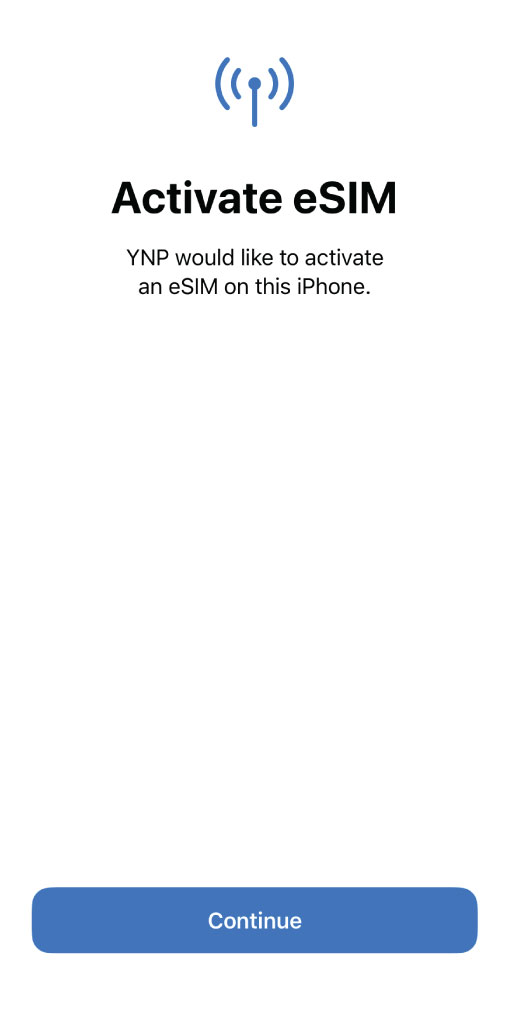
First, check for a notification from YNP (Your New Provider) and follow its prompts. If it does not appear, follow the phone-settings instructions in Programming Your Phone in My Account. Use the QR-code steps below only if you need the BACKUP METHOD. If the first method finishes setup, skip the QR-code steps.
1. On your iPhone, go to Settings > Cellular > Add eSIM
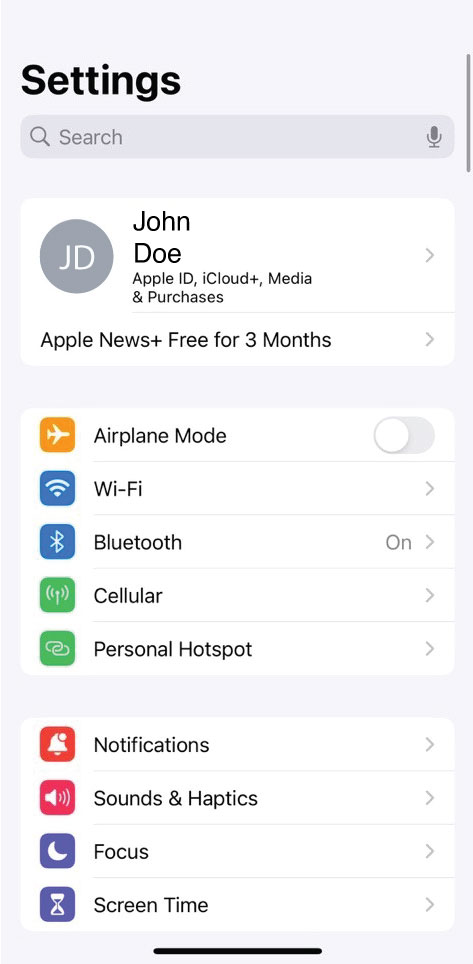
2. Choose "Use QR Code"
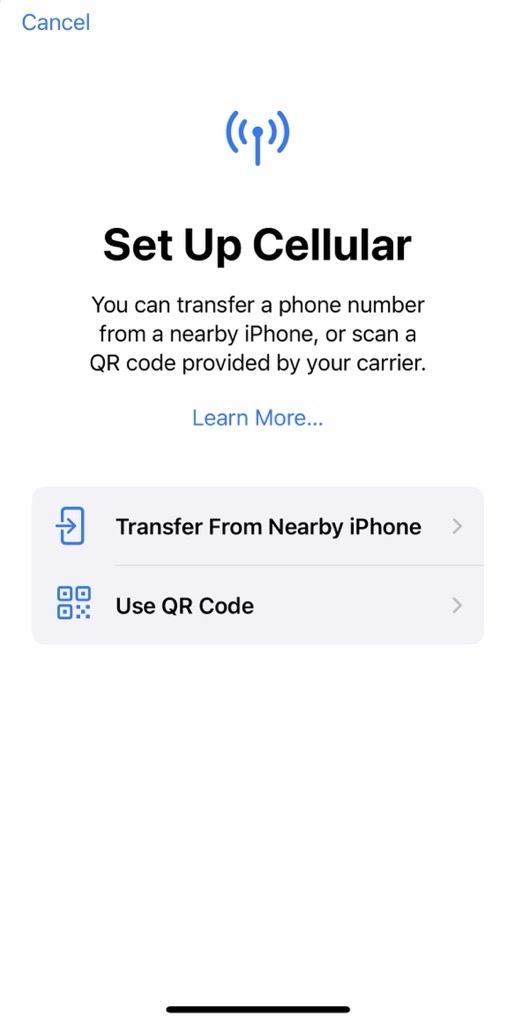
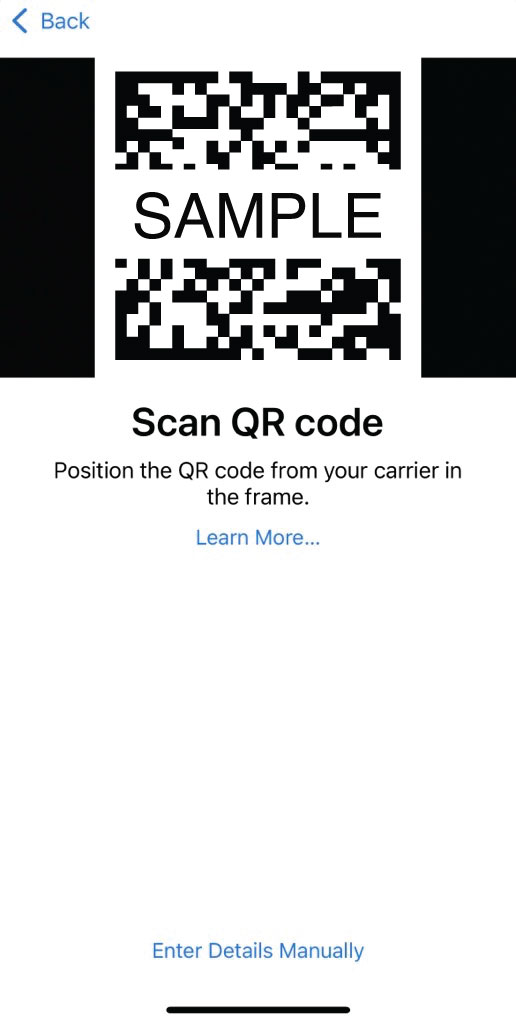
3. Select BACKUP METHOD in Programming Your Phone in My Account to display the QR-code instructions. You can also scan the Silvercell QR code below. If you are viewing this guide on the phone you are setting up, open it on another device so the phone can scan the code. Follow the prompts and tap "Continue" when asked.

- If you receive an error message saying that QR code is not valid, please chat with customer support so we can assist you further in activating your eSIM
4. Your eSIM is now activating. Please allow about 5 minutes for your phone to activate and connect to the network. The activating button will spin until it is fully activated
*Note: YNP stands for Your New Provider.
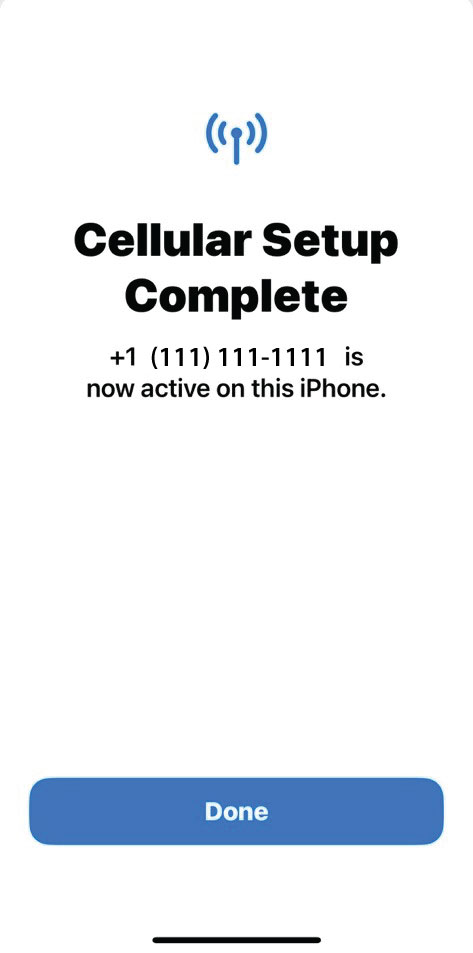
5. Once activation is complete, tap on "Done"
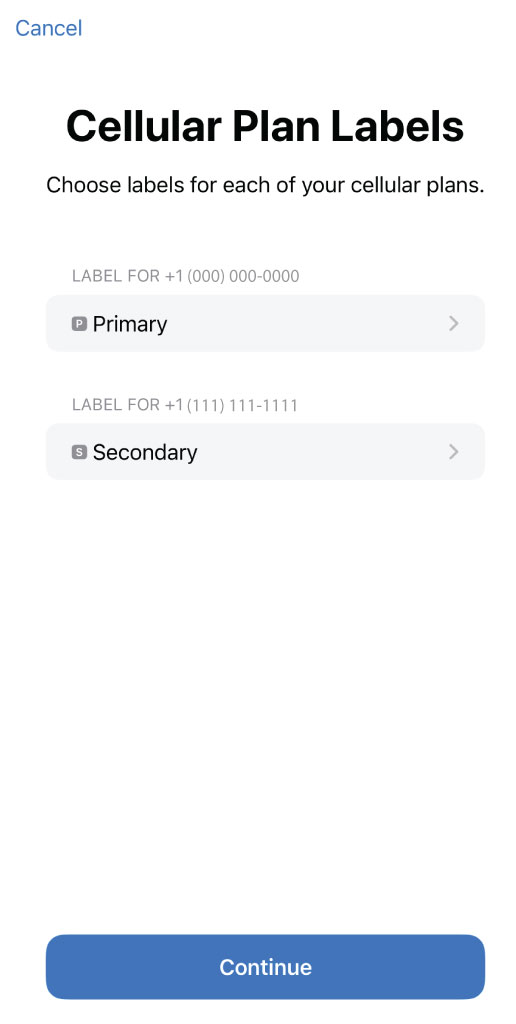
6. Next, you will label your lines. You can choose between Business, Cellular Data, Personal, Primary, Secondary, Travel, or create custom labels
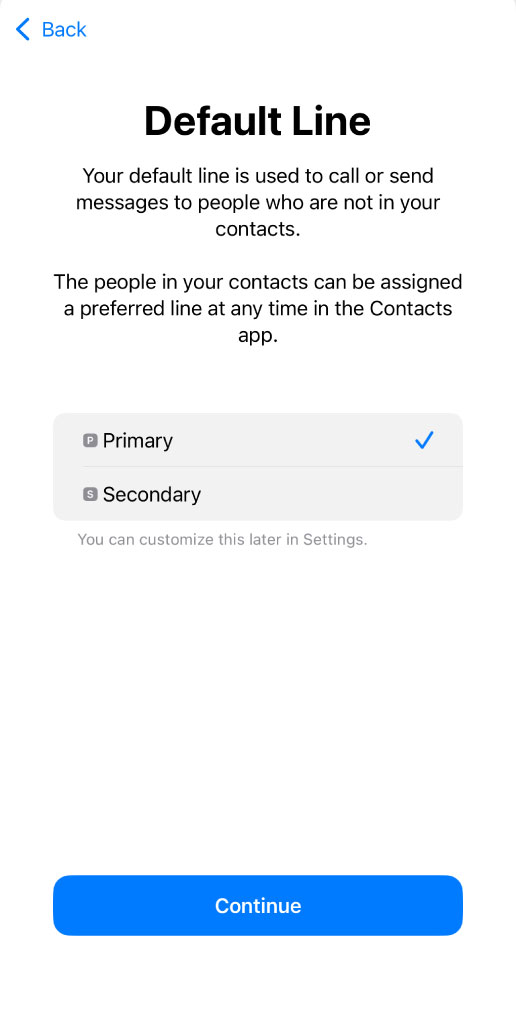
7. Select which line will be your default line
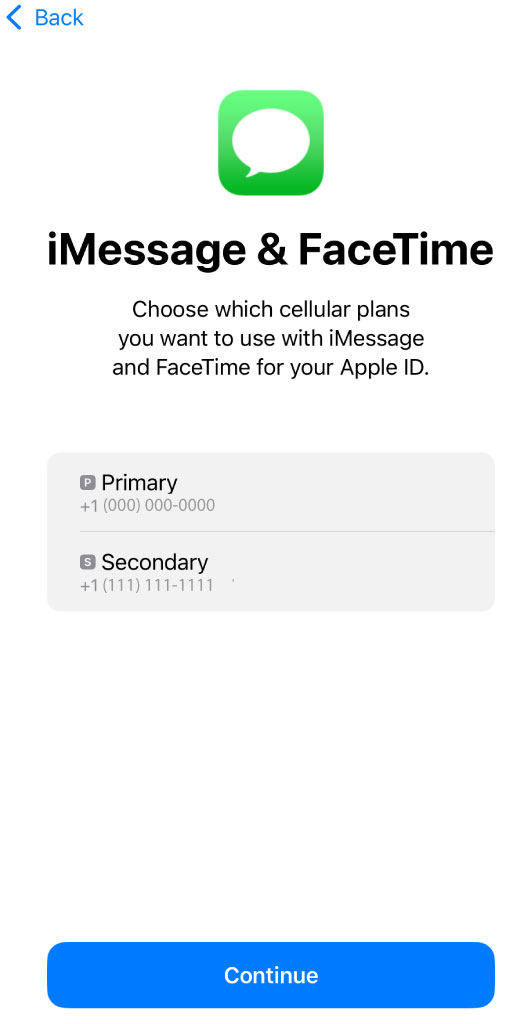
8. Choose which line you want to use with iMessage and Facetime
9. Choose which line will be the default line for cellular data. Select "Allow Cellular Data Switching" to allow your phone to use whatever line has the best coverage at any given time
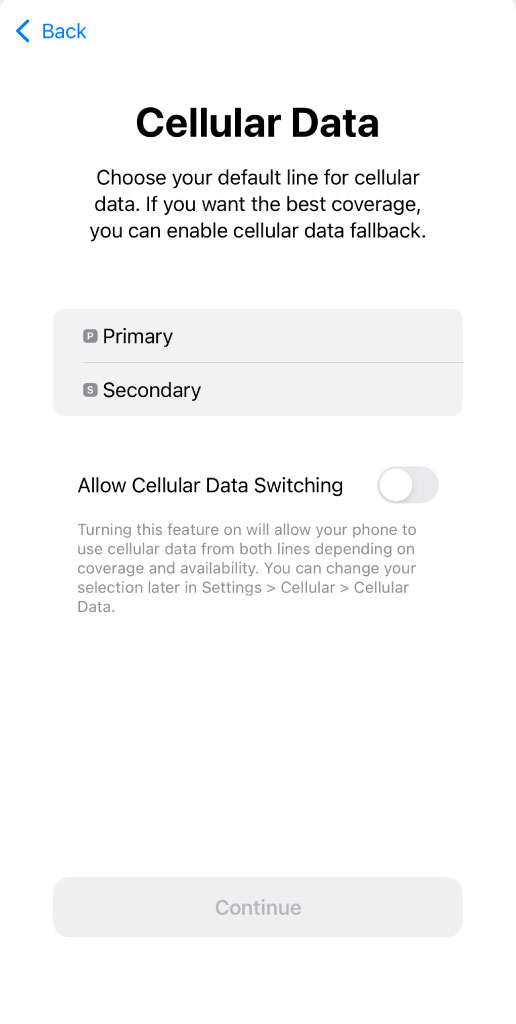
10. Now, your line settings are all selected and your service has been fully activated. We suggest making a test call by disconnecting from Wi-Fi and selecting your new line of service when placing the call
If you need additional help, Silvercell's 100% U.S. based live chat agents are available from 8am - 9pm CST Monday through Friday and from 10am - 6pm CST Saturday through Sunday (excluding holidays).
To chat with us, simply use the SilverService chat or message option.
You can also click here to contact us and start a chat.