

Streamline Your Smartphone: Practical Settings to Help Seniors
At Silvercell, we believe technology should empower everyone. For our customers just like you, smartphones are an important way to stay connected with loved ones, manage health information, and explore the digital world. With just a few adjustments, today’s smartphones can become easier to see, hear, and navigate. Whether you’ve had your Silvercell phone for months or recently joined us, these simple tips can help make your smartphone easier and more enjoyable to use every day.
See It Clearly: Adjust Text Size and Contrast
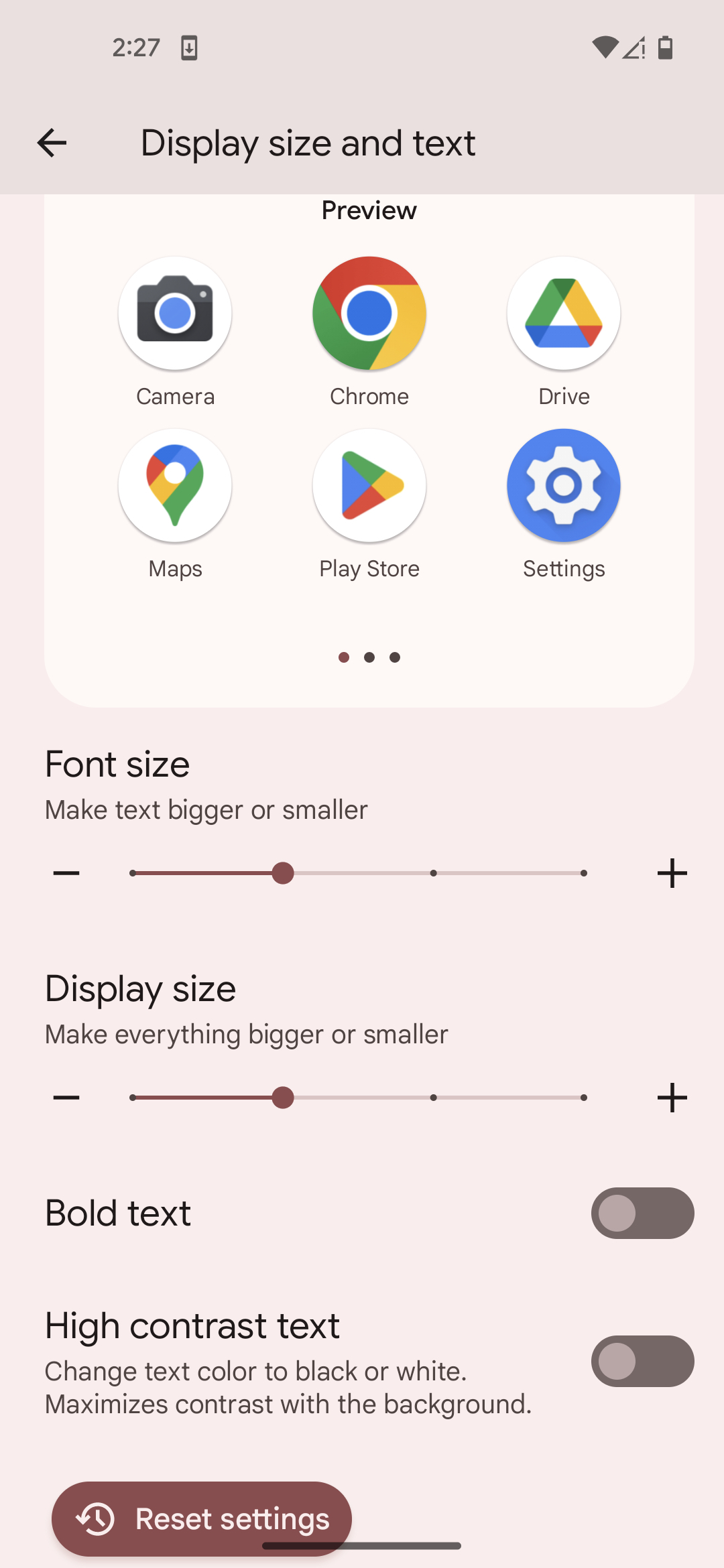
Vision changes are a natural part of aging, and small text can quickly make a smartphone feel frustrating. Increasing text size is one of the most effective ways to improve readability. On iPhones, go to Settings > Display & Brightness > Text Size, and use the slider to enlarge text. Activating “Bold Text” can make letters stand out even more. Android users can head to Settings > Display > Font Size or Font and Screen Zoom to achieve a similar result. Many Android phones also offer a “High Contrast Text” option under Accessibility. Increasing display brightness or enabling auto-brightness can further enhance visibility, ensuring screens remain clear whether you’re reading indoors or outdoors.

Keep It Simple and Easy to Navigate
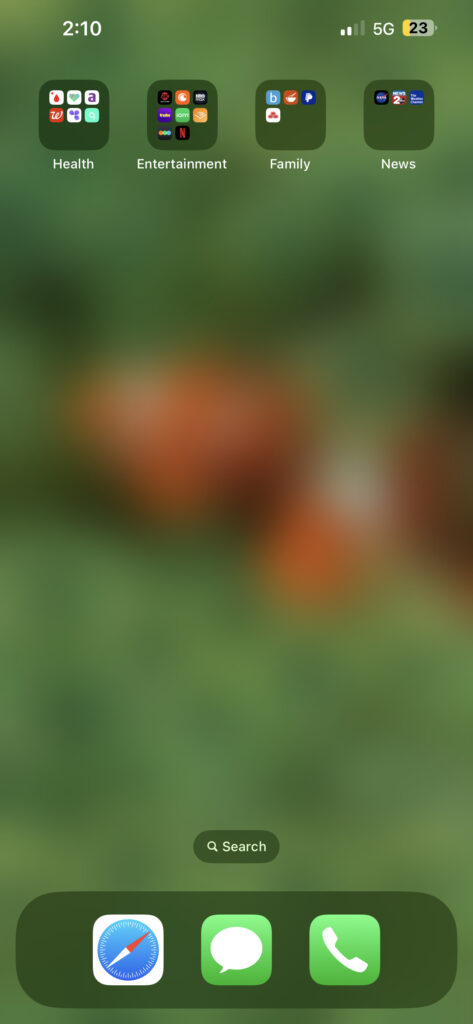
Keeping a smartphone simple and easy to navigate can make all the difference, especially if you prefer a cleaner and more organized experience. A cluttered home screen can feel overwhelming, so start by removing unnecessary apps and keeping only the essentials such as Phone, Messages, Camera, and Contacts on the main screen. Adding a medical alert or emergency response app can also provide peace of mind. Creating folders labeled “Health,” “Family,” “Entertainment” or “News” helps organize apps without adding clutter.
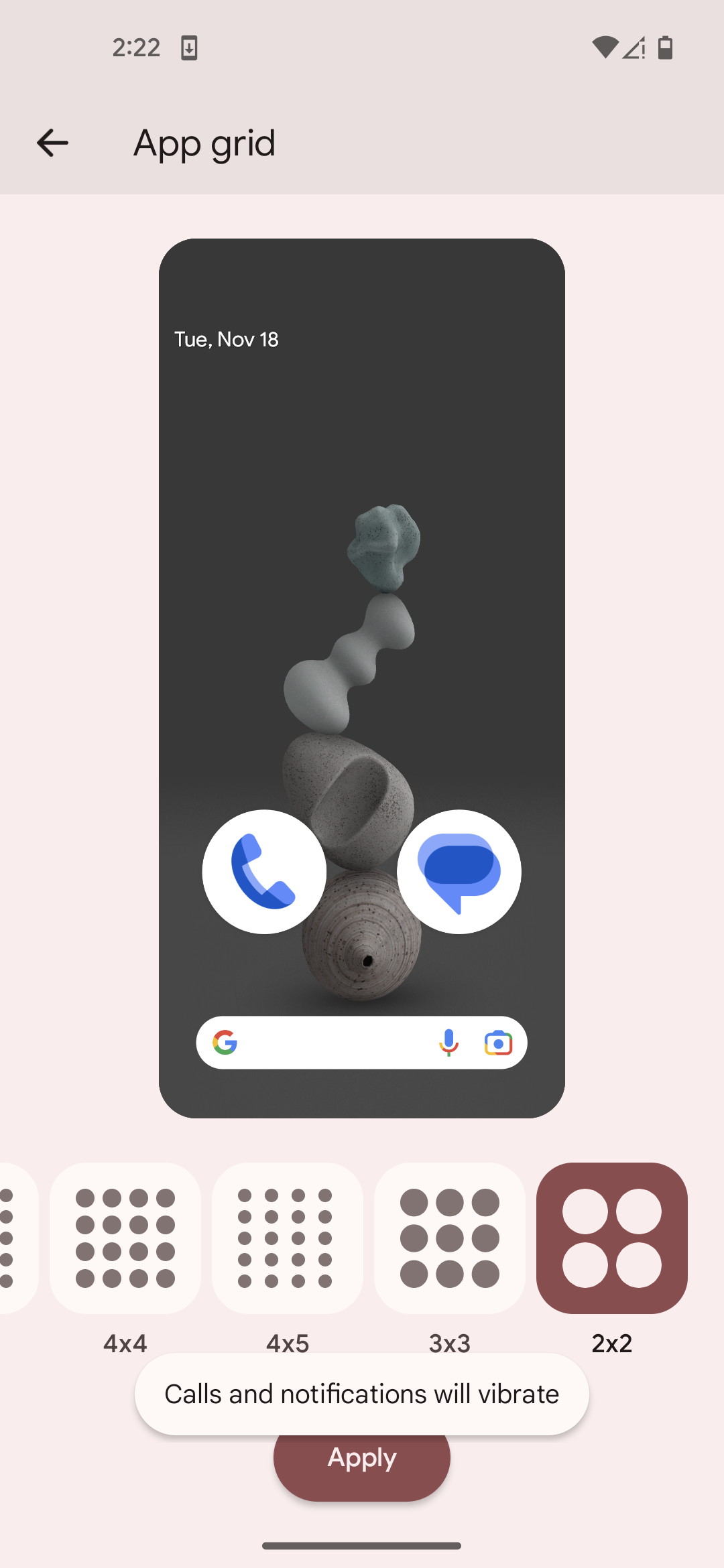
On iPhones, you can make app icons larger by long-pressing anywhere on the screen, tapping “Edit”, then “Customize”, and select “Large” icons. You can also use Display Zoom on iPhone which is a setting that magnifies everything on the screen, including text and icons, to make them appear larger. To turn this on, go to “Settings” > “Display and Brightness” > “Display Zoom”. On Android phones, open Settings > Wallpaper & Style> App Grid and select and option that shows fewer apps per screen and makes them larger. These adjustments make it easier to tap icons and navigate the screen comfortably.
To make navigation even smoother, place favorite apps in the bottom dock for quick access and add widgets for easy viewing of the weather or calendar. iPhone users can turn on Assistive Touch, which adds an on-screen button that makes gestures like pinching or swiping simpler. It is also helpful to keep the layout consistent once you find an arrangement that feels comfortable and familiar. Finally, reducing distractions helps maintain focus and calm. Limit notifications to calls, messages, and important reminders, choose clear and distinct ringtones, and set up “Do Not Disturb” or “Focus” modes at night for uninterrupted rest. If you use hearing aids, be sure to check your phone’s compatibility settings or connect through Bluetooth for clear and reliable sound.
Take Advantage of Accessibility Features
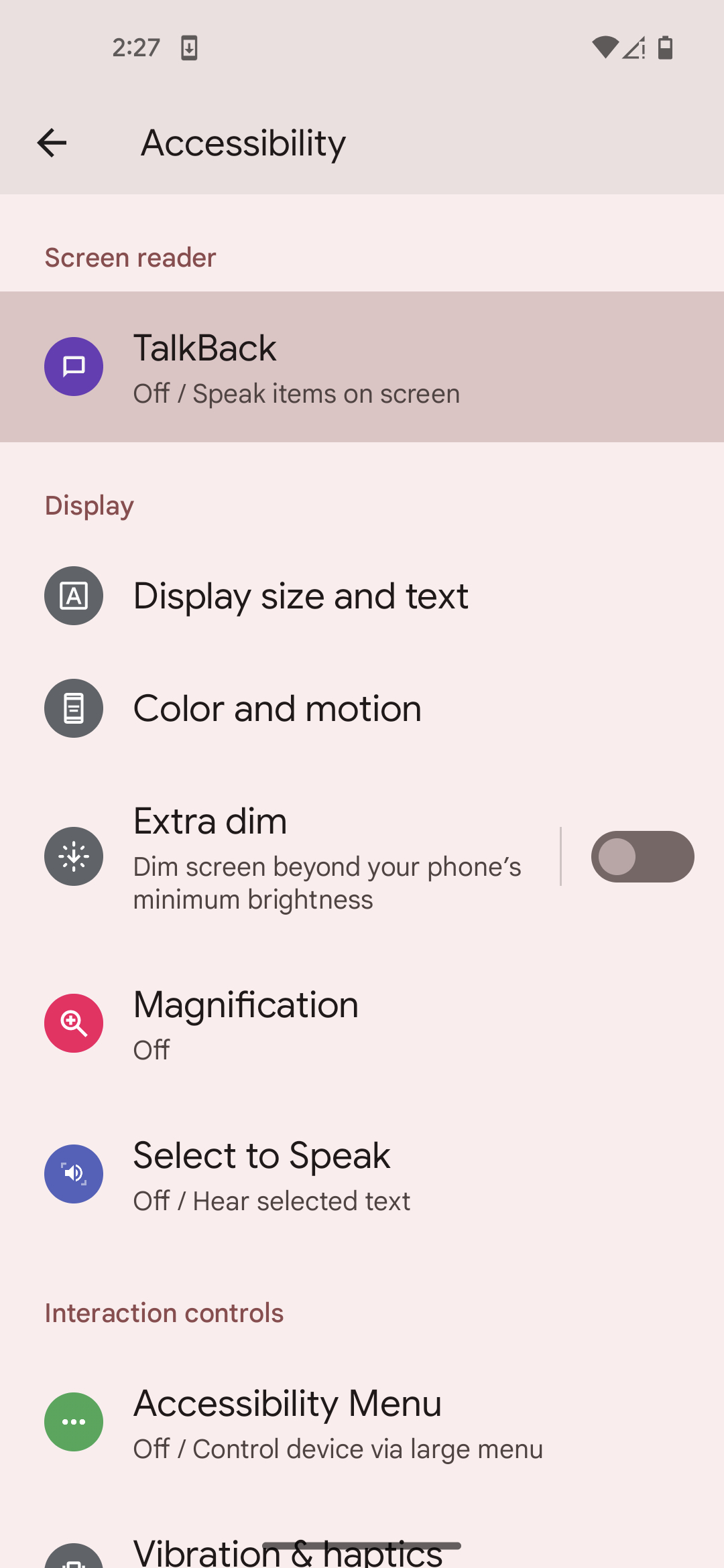
Modern smartphones come packed with accessibility tools designed to make life easier, and these settings can greatly enhance comfort and usability. Features like VoiceOver on iPhone and TalkBack on Android read on-screen text aloud, allowing users to navigate menus, messages, and web pages without needing to focus on small print. Magnification gestures can zoom in on fine details, which is especially helpful when reading or viewing photos.
Many phones also include speech-to-text and text-to-speech options, making it simple to dictate messages or have written content read aloud. For those who enjoy watching videos, enabling closed captions or subtitles provides clearer understanding, particularly in noisy environments. These accessibility tools are all customizable within the phone’s settings, allowing users to adjust their experience to match personal preferences and needs. Taking a few moments to explore these options can transform the smartphone into a tool that feels more natural, comfortable, and enjoyable to use every day.

Set Up Your In Case of Emergency (ICE) Information
One of the easiest ways to make a smartphone more useful and organized is by setting up your In Case of Emergency (ICE) information. This built-in feature, available on most smartphones, keeps your important medical details, allergies, and emergency contacts all in one place without the need for extra apps or complicated steps. On iPhones, you can find it in the Health app under “Medical ID,” while Android phones include it in “Safety & Emergency” or similar settings.
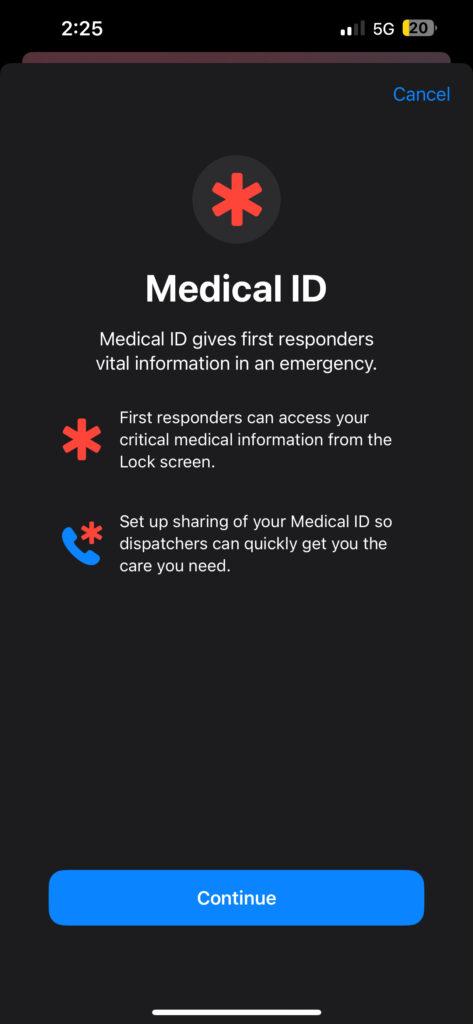
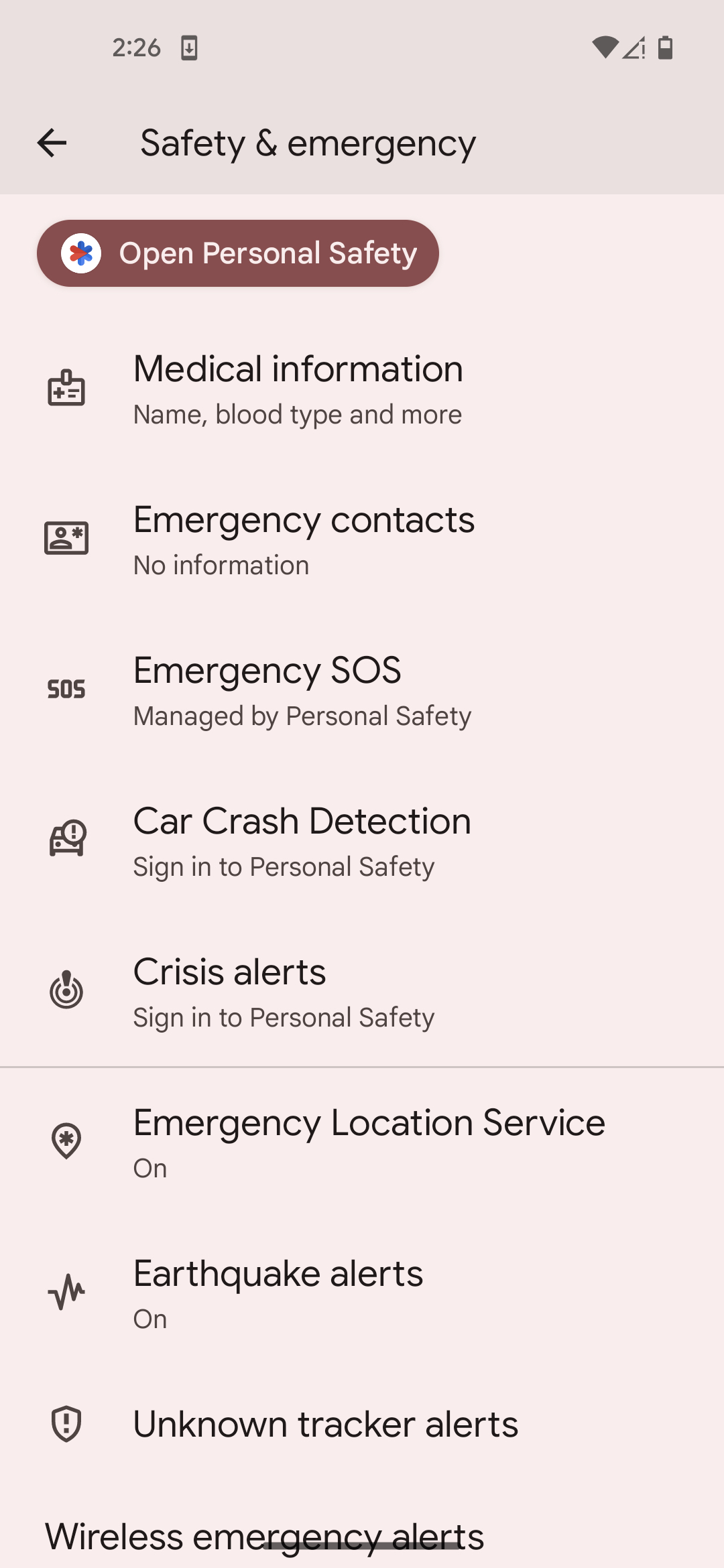
You can add a wide range of helpful details, such as your medical conditions, medications, allergies, blood type, and any special instructions that could assist healthcare providers. You can also list emergency contacts like family members or caregivers, so the right people can be reached quickly if needed. Once added, this information can appear on your phone’s lock screen, making it accessible, when necessary, without unlocking your phone. Think of it not just as a safety tool but as a simple, organized way to keep essential health and contact information in one easy-to-find place for you and your loved ones.
Use Built-In Emergency Features for Peace of Mind
Another easy way to make your smartphone more helpful is by turning on built-in emergency features such as Emergency SOS on iPhone or Emergency Location Services on Android. These tools are simple to set up and can automatically contact local emergency services or share your location with chosen contacts when activated. Once configured, they work quietly in the background, ready to help if you ever need them. This is a simple but powerful way to add extra peace of mind without needing additional apps or complicated steps. It’s one more example of how today’s smartphones can make life easier, safer, and more connected—all with just a few quick settings.
Helpful Smartphone Tips for Everyday Use
With just a few thoughtful adjustments, smartphones can become easy, reliable companions that support independence, safety, and connection. Features like larger text, organized home screens, accessibility tools, and emergency settings can make everyday tasks more comfortable, from staying in touch with loved ones to managing health information and getting help when needed. We hope these tips help our Silvercell customers get even more out of their phones. At Silvercell, we believe simplicity is the key to making technology work for everyone, and a well-set-up smartphone is a perfect example of how a few settings can make life smoother, safer, and more enjoyable.