

How to Scan Documents on Your Phone: Easy Steps for iPhone and Android
There are plenty of times when you need to scan documents on your phone. Maybe it’s a signed form, a medical record, a receipt, insurance paperwork, or an important document you need to send quickly.
Many people assume they need a scanner or computer to do this, but most smartphones already have everything you need built right in. Whether you have an iPhone or an Android device, learning how to scan documents on your phone can save time and make everyday tasks much easier.
Once you know how to scan documents on your phone, you can email files, save important records, share paperwork with family members, or upload documents without ever touching a traditional scanner.
Why Scan Documents on Your Phone?
There are many reasons to scan documents on your phone instead of using a traditional scanner.
For example, you can:
- Save important paperwork digitally
- Email forms without needing a printer or scanner
- Keep copies of receipts and warranties
- Send signed documents quickly
- Store records safely on your phone or in cloud storage
For many people, being able to scan documents on your phone is simply a more convenient way to stay organized.
How to Scan Documents on Your Phone Using an iPhone
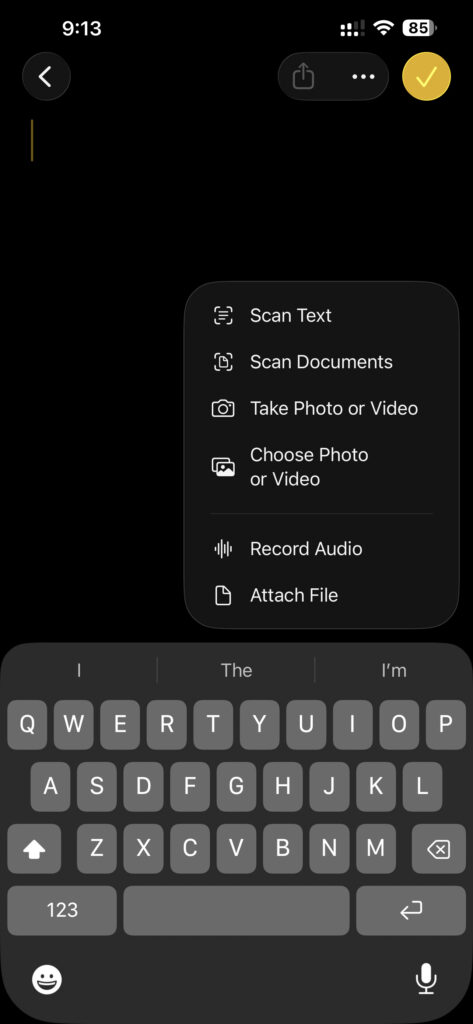
If you have an iPhone, you can easily scan documents on your phone using the Notes app that comes preinstalled on your device.
To scan a document:
- Open the Notes app.
- Create a new note or open an existing one.
- Tap the attachment icon.
- Select “Scan Documents.”
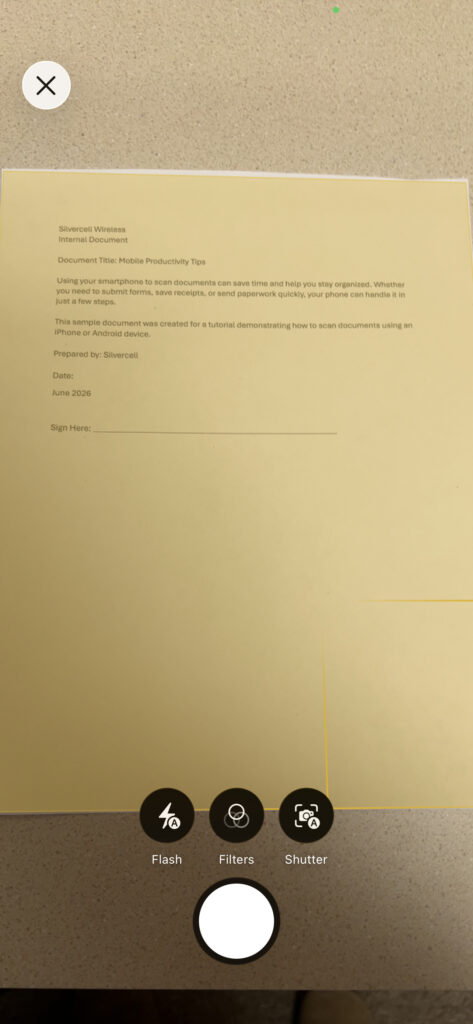
- Place the document in view of the camera.
- Your iPhone may automatically capture the page, or you can tap the shutter button.
- Adjust the corners if needed.
- Tap “Keep Scan.”
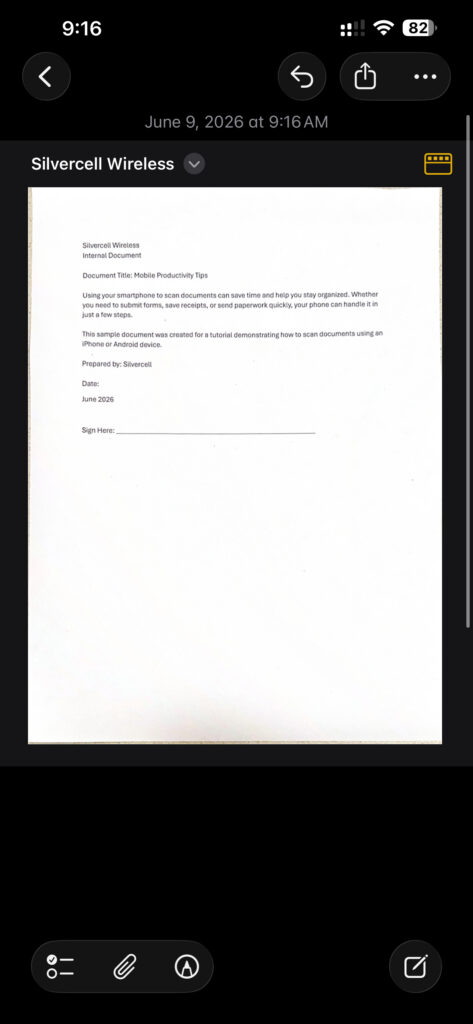
- When finished, tap “Done.”
After you scan documents on your phone, you can email them, save them as PDFs, or share them with others.
Sign Documents After You Scan Documents on Your Phone
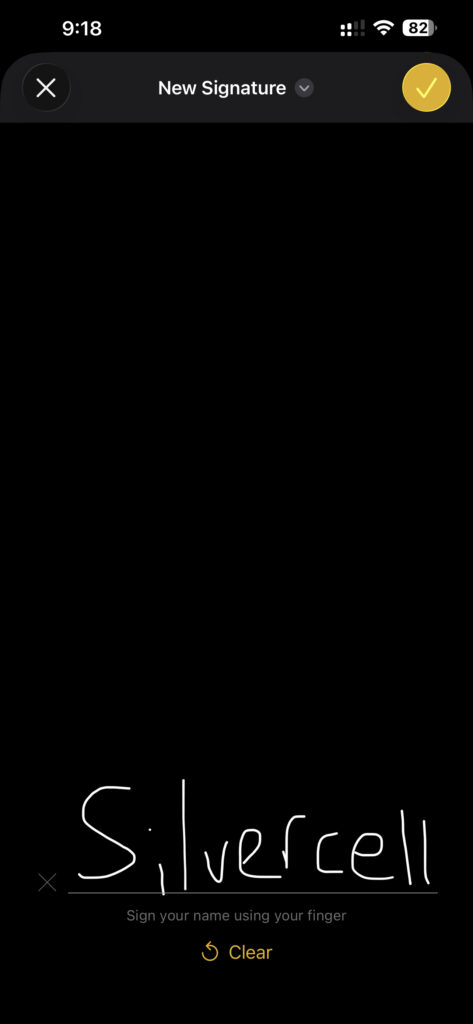
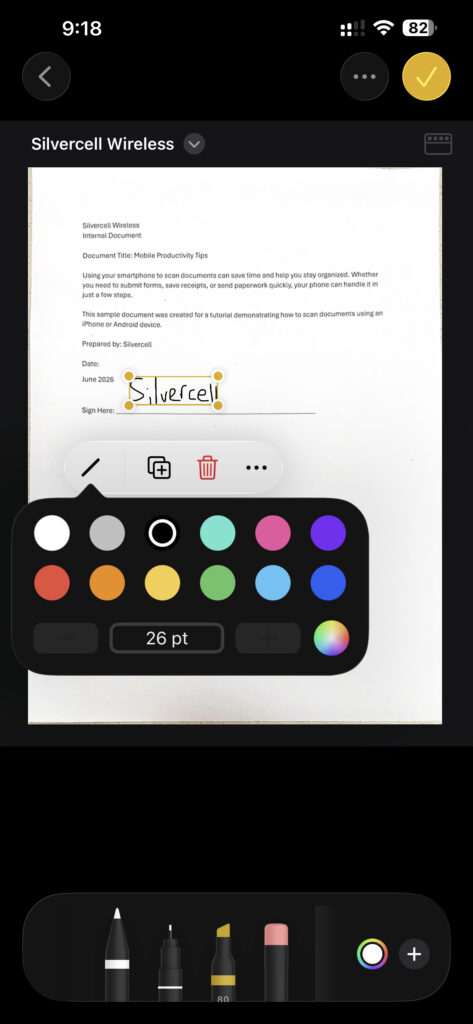
One helpful feature on the iPhone is the ability to sign documents directly after you scan documents on your phone.
Instead of printing a form, signing it, and scanning it again, you can add your signature electronically in just a few taps.
To sign a scanned document:
- Open the scanned document in Notes.
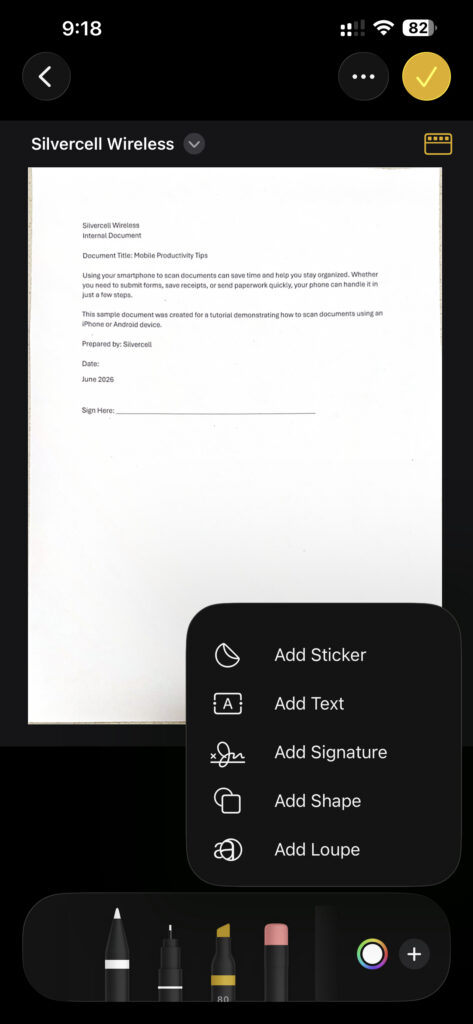
- Tap the Markup option.
- Select the Add button and choose “Signature.”
- Create a new signature or use one you’ve already saved.
- Place the signature where needed.
- Tap “Done.”
This can be especially helpful when you need to return paperwork while away from home.
Another Way to Scan Documents on Your Phone with an iPhone
You can also use Files app on your iPhone.
Simply:
- Open the Files app.
- Tap the three-dot menu.
- Select “Scan Documents.”
- Position the document in front of the camera.
- Capture the scan.
- Adjust the image if needed.
- Save the document.
Both the Notes and Files apps make it simple to scan documents on your phone and keep important paperwork organized.
How to Scan Documents on Your Phone Using an Android Device
Most Android phones also include easy ways to scan documents on your phone.
One common method uses Google Drive.
To scan a document:
- Open Google Drive.
- Tap the plus (+) button.
- Select “Scan.”
- Hold your phone over the document.
- Capture the image.
- Adjust or crop the scan if needed.
- Save the document.
Many newer Android phones also include document scanning features directly in the camera app, making it even easier to scan documents on your phone.
Tips for Better Results When You Scan Documents on Your Phone
To get the clearest results when you scan documents on your phone:
- Place the document on a flat surface.
- Use good lighting.
- Hold your phone steady.
- Make sure the entire page is visible.
- Review the scan before saving it.
These simple tips can help your scanned documents look cleaner and easier to read.
Do You Need an App to Scan Documents on Your Phone?
For most people, the built-in tools already included on their smartphone are enough to scan documents on your phone quickly and easily. However, apps such as Adobe Scan and Cam Scanner offer additional features like document organization, PDF creation, and text recognition.
Before downloading another app, check what your phone can already do. You may already have everything you need.
The Bottom Line
Learning how to scan documents on your phone is a simple skill that can make everyday life easier. Whether you need to save receipts, send forms, store medical records, or share important paperwork, your smartphone can help you get the job done in minutes.
At Silvercell Wireless, we believe technology should be useful and easy to understand. Knowing how to scan documents on your phone is one more way to get the most out of the device you already carry every day. And if you ever need help, our U.S.-based SilverService™ team is always ready to assist. Just click here and start chatting.