

July 7, 2026
Helpful Phone Settings Every Senior Should Know
At Silvercell, we believe technology should empower everyone. Whether you use a smartphone or a basic flip phone, your mobile phone includes features that can help you stay connected, and make everyday use easier. With just a few simple adjustments, you can customize your phone to better fit your needs, improve battery life, and take advantage of built-in safety features. Whether you’ve had your Silvercell phone for months or recently joined us, these tips can help you get even more from your phone every day.
While many of the tips below focus on smartphones, we’ve also included a section highlighting useful settings available on many basic phones that customers often don’t realize they have.
See It Clearly: Adjust Text Size and Contrast
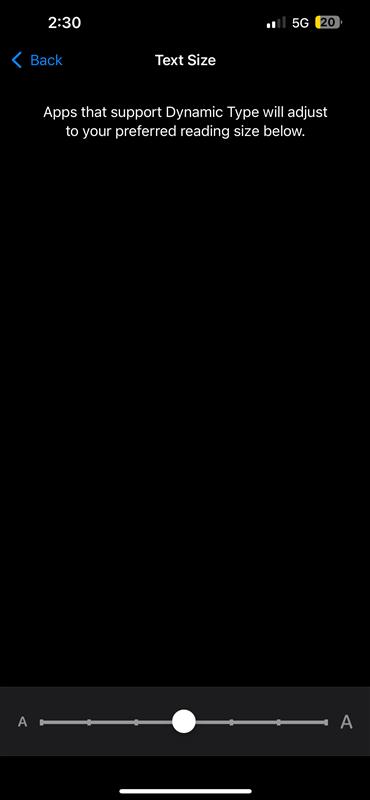
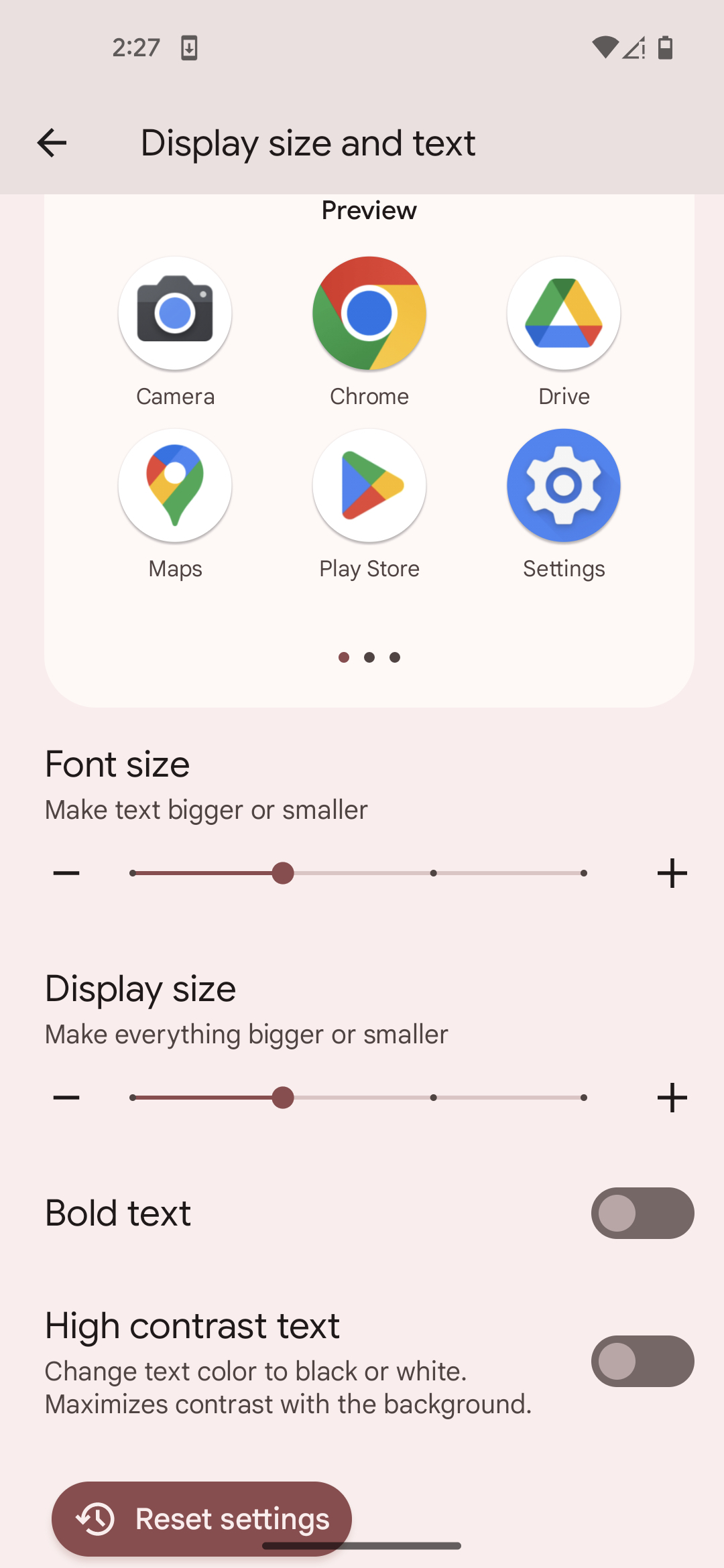
Vision changes are a natural part of aging, and small text can quickly make a smartphone feel frustrating. Increasing text size is one of the most effective ways to improve readability. On iPhones, go to Settings > Display & Brightness > Text Size, and use the slider to enlarge text. Activating “Bold Text” can make letters stand out even more. Android smartphone users can head to Settings > Display > Font Size or Font and Screen Zoom to achieve a similar result. Many Android phones also offer a “High Contrast Text” option under Accessibility. Increasing display brightness or enabling auto-brightness can further enhance visibility, ensuring screens remain clear whether you’re reading indoors or outdoors.
Keep It Simple and Easy to Navigate
Keeping your smartphone simple and easy to navigate can make all the difference, especially if you prefer a cleaner, more organized experience. A cluttered home screen can feel overwhelming, so start by removing apps you no longer use and keeping only your most important ones—such as Phone, Messages, Camera, and Contacts—on the main screen for easy access.
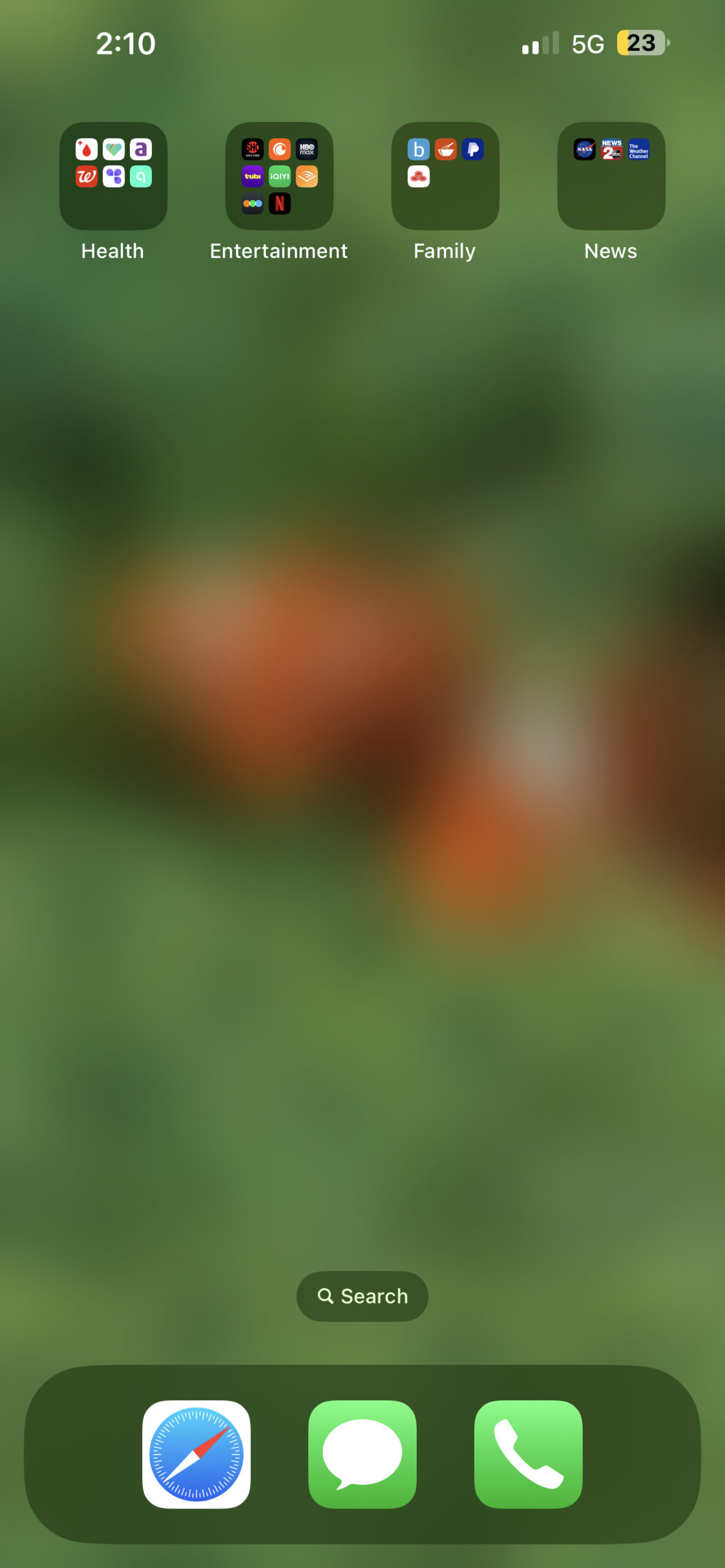
On an iPhone, you can remove an app from your Home Screen by pressing and holding its icon, then selecting Remove App. If you still want the app installed, choose Remove from Home Screen, and it will remain available in the App Library. You can also move apps by pressing and holding an app until the icons begin to jiggle, then dragging them to a new location or placing one app on top of another to automatically create a folder. You can rename folders to categories such as Health, Family, Entertainment, or News.
On an Android phone, the exact steps may vary slightly depending on the manufacturer (such as Samsung, Google Pixel, or Motorola), but the process is similar. Press and hold an app icon, then drag it to a new location, remove it from the Home Screen, or uninstall it if you no longer need it. To create a folder, drag one app onto another, then give the folder a descriptive name like Health, Family, Entertainment, or News.
Organizing your apps into clearly labeled folders makes it much easier to find what you need without scrolling through multiple screens. Since most smartphones also include an app search feature, keeping your Home Screen limited to the apps you use most often creates a cleaner, less overwhelming experience while still giving you quick access to everything else when you need it.
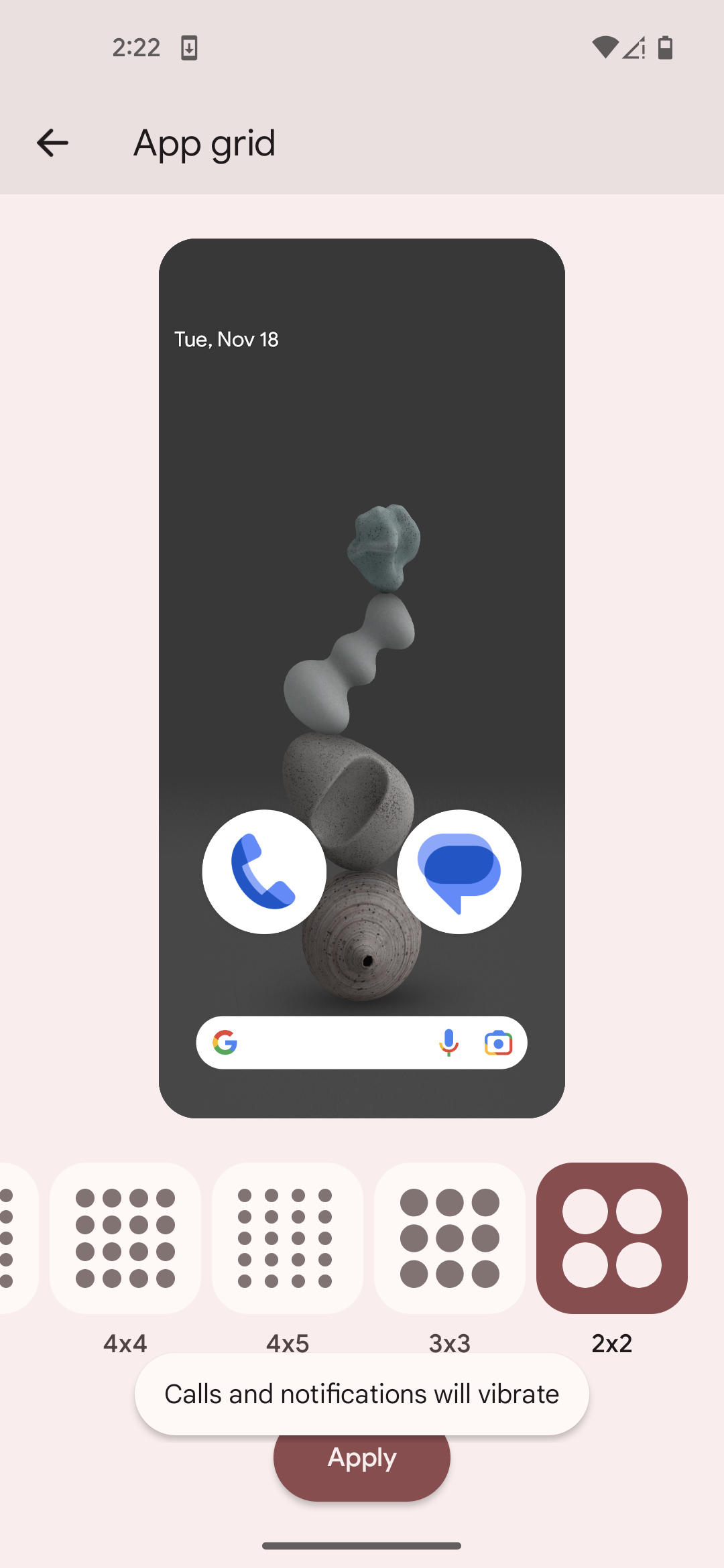
On iPhones, you can make app icons larger by long-pressing anywhere on the screen, tapping “Edit”, then “Customize”, and select “Large” icons. You can also use Display Zoom on iPhone which is a setting that magnifies everything on the screen, including text and icons, to make them appear larger. To turn this on, go to “Settings” > “Display and Brightness” > “Display Zoom”. On Android phones, open Settings > Wallpaper & Style> App Grid and select and option that shows fewer apps per screen and makes them larger. These adjustments make it easier to tap icons and navigate the screen comfortably.
To make navigation even smoother, place favorite apps in the bottom dock —the row of icons that stay visible on your screen no matter which home screen page you are viewing. This keeps the apps you use most, such as Phone or Messages, within easy reach. You can also add widgets, which are larger app displays that show useful information, like the weather forecast or your upcoming calendar events, without needing to open the app. iPhone users can turn on Assistive Touch, which adds an on-screen button that makes gestures like pinching or swiping simpler. It is also helpful to keep the layout consistent once you find an arrangement that feels comfortable and familiar. Finally, reducing distractions helps maintain focus and calm. You can limit notifications (the section within your phone that stores/displays alerts, messages, missed calls, and app updates, allowing you to view and manage them in one place) to calls, messages, and important reminders, choose clear and distinct ringtones, and set up “Do Not Disturb” or “Focus” modes at night for uninterrupted rest.
Take Advantage of Usability Features
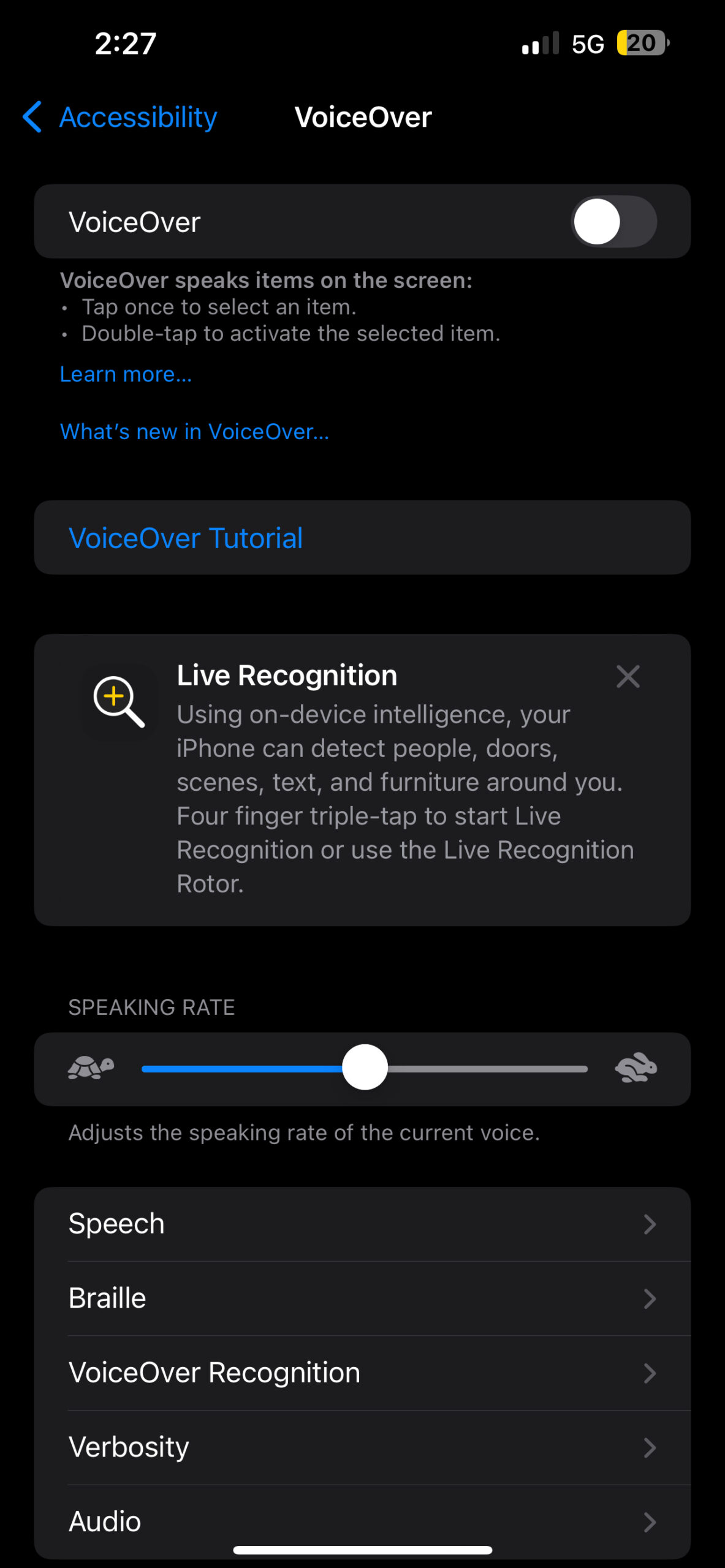
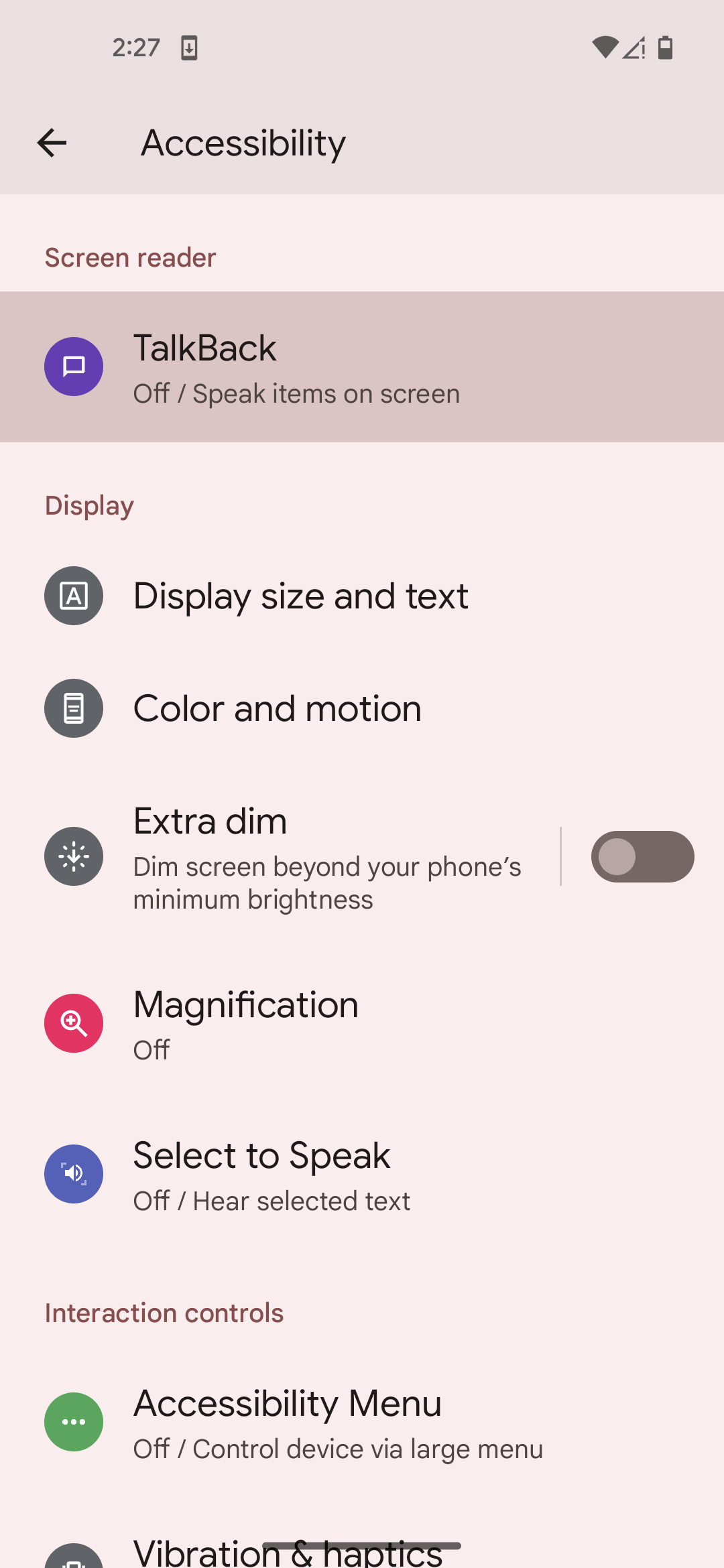
Modern smartphones come packed with usability tools designed to make life easier, and these settings can greatly enhance comfort and usability. Features like VoiceOver on iPhone and TalkBack on Android read on-screen text aloud, allowing users to navigate menus, messages, and web pages without needing to focus on small print. Magnification gestures can zoom in on fine details, which is especially helpful when reading or viewing photos.
Many phones also include speech-to-text and text-to-speech options, making it simple to dictate messages or have written content read aloud. For those who enjoy watching videos, enabling closed captions or subtitles provides clearer understanding, particularly in noisy environments. These accessibility tools are all customizable within the phone’s settings, allowing users to adjust their experience to match personal preferences and needs. Taking a few moments to explore these options can transform the smartphone into a tool that feels more natural, comfortable, and enjoyable to use every day.
Set Up Your In Case of Emergency (ICE) Information
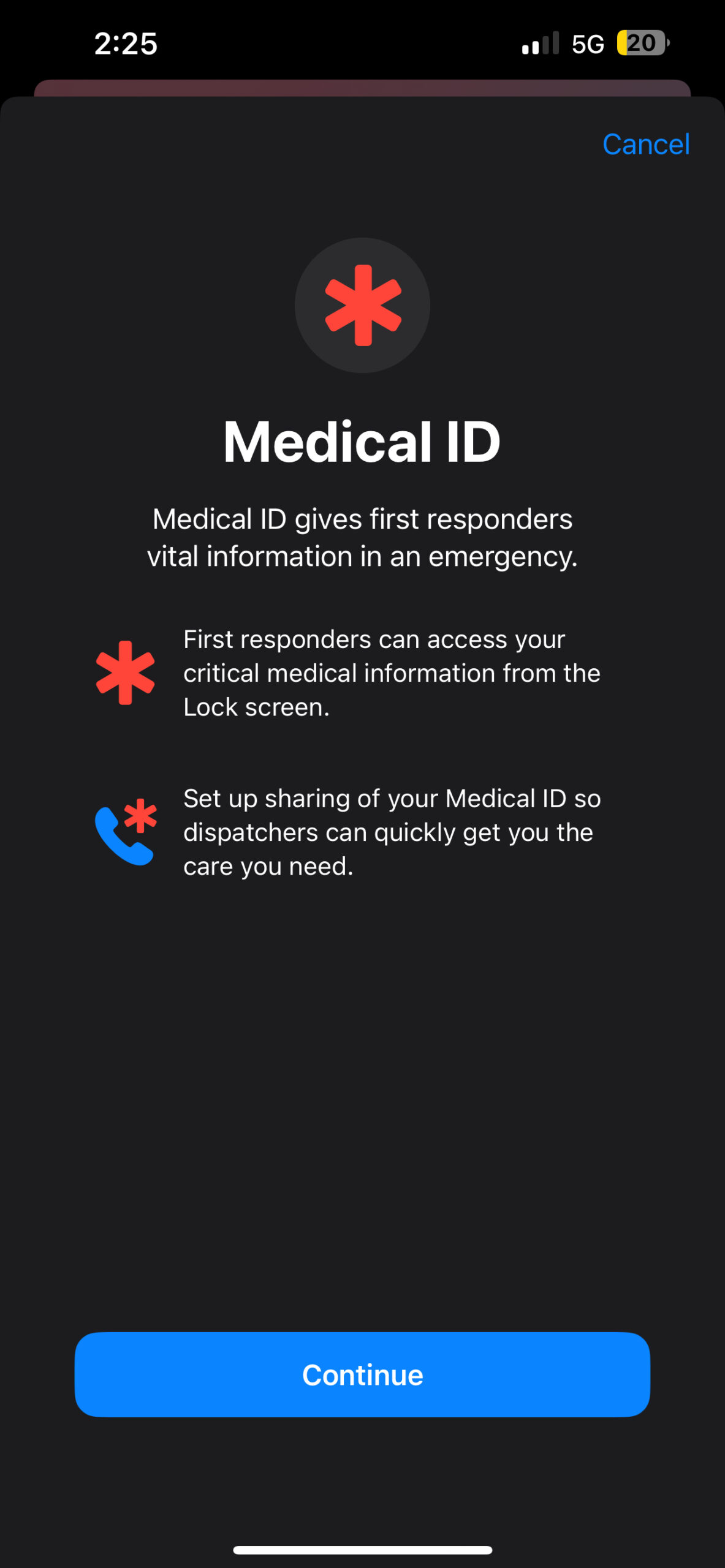
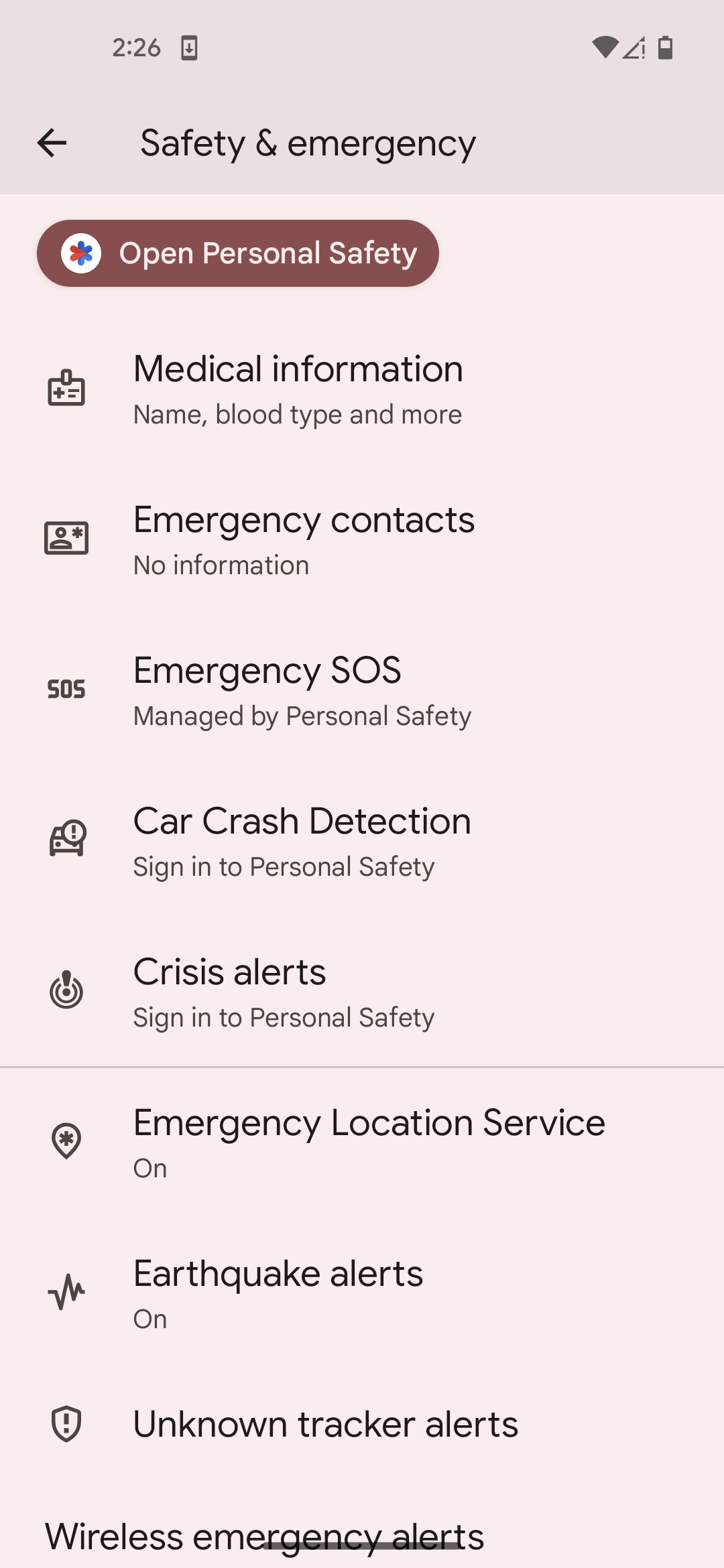
One of the easiest ways to make a smartphone more useful and organized is by setting up your In Case of Emergency (ICE) information. This built-in feature, available on most smartphones, keeps your important medical details, allergies, and emergency contacts all in one place without the need for extra apps or complicated steps. On iPhones, you can find it in the Health app under “Medical ID,” while Android phones include it in “Safety & Emergency” or similarly named settings.
You can add a wide range of helpful details, such as your medical conditions, medications, allergies, blood type, and any special instructions that could assist healthcare providers. You can also list emergency contacts like family members or caregivers, so the right people can be reached quickly if needed. Once added, this information can appear on your phone’s lock screen, making it accessible, when necessary, without unlocking your phone. Think of it not just as a safety tool but as a simple, organized way to keep essential health and contact information in one easy-to-find place for you and your loved ones.
Use Built-In Emergency Features for Peace of Mind
Another easy way to make your smartphone more helpful is by turning on built-in emergency features such as Emergency SOS on iPhone or Emergency Location Services on Android. These tools are simple to set up and can automatically contact local emergency services or share your location with chosen contacts when activated. On iPhone, you will go to Settings> Emergency SOS, and here you can select the way in which emergency services will be called from your phone, including either “Call with Hold and Release” or “Call with 5 Button Presses”. You can also update your emergency contact in this section as well, to learn more click here. To turn on Emergency Location Services on an Android phone, open the Settings app and go to Location or Safety & Emergency (the name may vary by device). Select Emergency Location Service and turn the feature On. Once configured, they work quietly in the background, ready to help if you ever need them. This is a simple but powerful way to add extra peace of mind without needing additional apps or complicated steps. It’s one more example of how today’s smartphones can make life easier, safer, and more connected—all with just a few quick settings.
Helpful Settings You May Not Know Your Basic Flip Phone Has
Basic phones (flip phones) may not have all the features of a smartphone, but many include useful settings that can make everyday use easier, improve accessibility, and even extend battery life. Depending on your phone model, you may find some of these helpful options in the Settings menu.
- Wi-Fi Calling: If your basic phone supports Wi-Fi Calling, you can make and receive calls over a Wi-Fi network when cellular coverage is weak. Check your phone’s settings or user manual to see if this feature is available on your model.
- Save Battery Life: If you aren’t actively using Bluetooth, Wi-Fi, or location services (GPS), turning them off can help your battery last longer between charges.
- Wireless Emergency Alerts: Most basic phones can receive important alerts such as AMBER Alerts, Public Safety Alerts, and severe weather notifications. You can usually customize which alerts you receive under Settings > Wireless Emergency Alerts.
- Personalize Ringtones and Message Alerts: Many basic phones allow you to choose different ringtones for incoming calls and customize the sound used for text message notifications, making it easier to recognize important calls or messages.
- Outside Screen Notifications: If your flip phone has an external display, you may be able to choose whether notifications appear on the outside screen while the phone is closed.
- Answer Calls by Opening the Phone: Many flip phones allow you to answer an incoming call simply by opening the phone instead of pressing the green Call button. This option can often be found in the Call Settings menu.
- Predictive Text: If you’re sending text messages, you can usually turn predictive text (sometimes called T9) on or off depending on your preference.
- Language Settings: Most basic phones let you change the display and messaging language through the Settings menu.
- Display Colors: Some basic phones include accessibility options such as inverting display colors, allowing you to switch between black text on a light background or white text on a dark background for improved readability.
- Screen Timeout: You can often adjust how long the display stays on before turning off. Keeping the screen on longer can make reading easier, while a shorter timeout helps conserve battery life.
Please note that available features vary by phone model, so some settings may not be available on every basic phone.
Helpful phone Tips for Everyday Use
With just a few thoughtful adjustments, both smartphones and many basic phones can become easy, reliable companions that support independence, safety, and connection. Features like larger text, organized home screens, accessibility tools, emergency settings, customizable alerts, and battery-saving options can make everyday tasks more comfortable, from staying in touch with loved ones to managing health information and getting help when needed. We hope these tips help our Silvercell customers get even more out of their phones. At Silvercell, we believe that technology has its place for everyone, and a well-set-up smartphone is a perfect example of how a few settings can make life smoother, safer, and more enjoyable.
Still need help?
Our 100% US-based team provides patient support through online chat.