
November 3, 2026
How to Troubleshoot Dropped Calls for Seniors
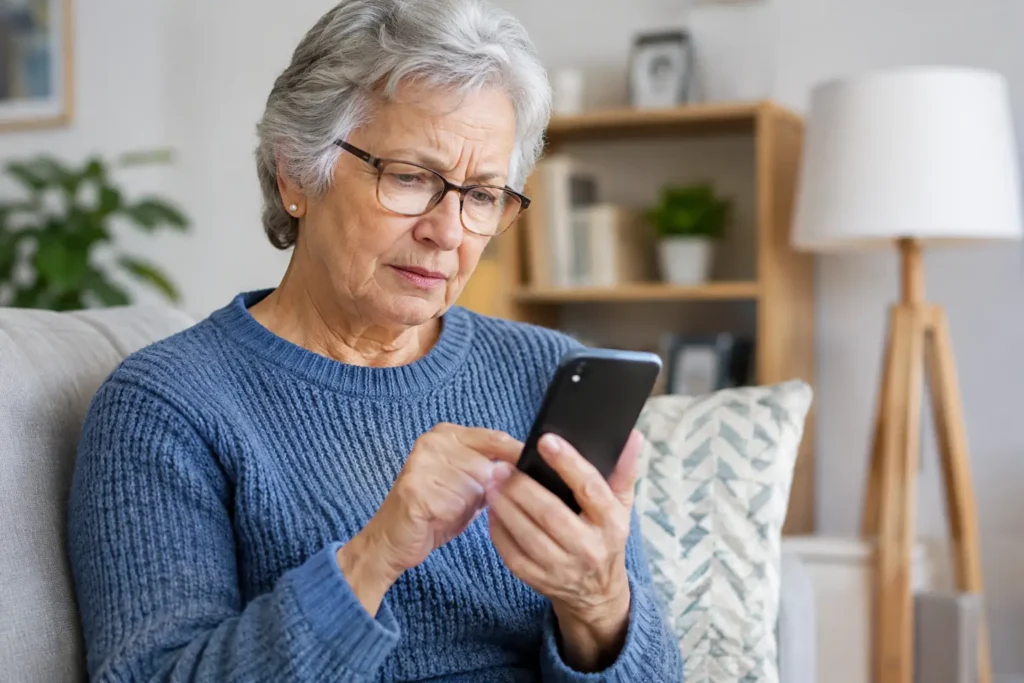
A call with a doctor, a family member, or a pharmacy should not end abruptly without warning. If you searched for “troubleshoot dropped calls seniors,” the good news is that many call problems have a simple cause – and several can be checked safely in just a few minutes.
Start with the easiest possibilities before changing phone settings. A dropped call may be caused by a weak signal where you are standing, a temporary network issue, a phone setting, or a problem with the phone itself. Taking one step at a time can help you find the cause without making the situation more confusing.
First, Make Sure You Are in a Strong Signal Area
Look at the signal bars near the top of your phone screen. One or two bars may be enough for a text message, but a voice call can still break up or disconnect. Signal strength can change inside the same house, especially in a basement, near thick walls, or in rooms with metal roofing or large appliances.
Try moving near a window or stepping outside, then make another call. If calls work well in one spot but drop in another, the phone is likely working properly. The issue is coverage in that particular area.
This is also worth checking when you travel. A location that had good service last year can have different conditions now because of construction, weather, network changes, or the type of phone you use. If dropped calls happen only in one neighborhood or building, write down the address and the time of day. That information is useful if you need help from your phone provider.
Restart the Phone Before Changing Anything Else
Turning a phone off and back on is a simple step, but it can solve temporary connection problems. A restart gives the phone a fresh connection to the cellular network and closes apps that may be interfering with normal operation.
To restart most smartphones, press and hold the side or power button until you see the option to power off. Wait about 30 seconds after the phone shuts down, then turn it back on. On some flip phones, holding the red end-call button will power the phone off and on.
After the phone restarts, wait a minute or two for the signal bars to return. Then place a short call to someone you trust. If the problem has stopped, no further action may be needed.
Check Airplane Mode and Calling Settings
Airplane Mode turns off the phone’s connection to the cellular network. It can sometimes be switched on by accident, especially after traveling or while exploring phone settings. When Airplane Mode is on, you may see an airplane symbol at the top of the screen.
Open Settings and look for Airplane Mode. Make sure it is turned off. You can also try turning Airplane Mode on for about 10 seconds, then turning it off again. This prompts the phone to search for a fresh network connection.
If you use Wi-Fi Calling, it may help when cellular signal is weak inside your home. Wi-Fi Calling lets compatible phones place calls through a reliable Wi-Fi connection. However, it depends on the strength of that Wi-Fi connection. If calls drop only when Wi-Fi Calling is active, turn it off briefly and test a regular cellular call. That comparison can show whether the issue is Wi-Fi or mobile coverage.
Look for a Pattern in the Dropped Calls
The details matter. A phone that drops every call needs a different solution than a phone that only disconnects during long calls or when calling one particular person.
Ask yourself whether the problem happens indoors, outdoors, or everywhere. Notice whether it affects calls to all people or only one number. If both you and the other person are having trouble hearing each other before the call ends, either phone could have a weak connection.
Also consider timing. If calls drop during a storm, in a crowded venue, or at the same busy time each day, the issue may be temporary network congestion. In that case, trying again later or moving to another location may be the practical answer.
Update Your Phone When an Update Is Available
Phone makers occasionally release updates that improve calling performance, security, and compatibility with wireless networks. An older phone software version can sometimes cause connection issues after network changes.
On an iPhone, open Settings, select General, and then choose Software Update. On many Android phones, open Settings and search for “Software Update.” The wording may vary by phone model.
Before installing an update, make sure the battery is well charged or keep the phone connected to its charger. If the phone gives you a choice, use Wi-Fi for the update. Updates can take a little time, so it is best to do them when you do not expect an important call.
Inspect the Phone and SIM Card Carefully
A damaged case, a loose SIM card, or a phone that has been dropped can affect its ability to stay connected. Check whether the phone feels unusually hot, has a cracked screen, or has been exposed to water. These signs do not always cause dropped calls, but they are worth mentioning when you contact support.
If your phone uses a physical SIM card, do not remove it unless you are comfortable doing so or have guidance from support. The small card and tray can be easy to misplace. For many people, it is safer to ask for help before handling it.
Keep the phone charged as well. A very low battery can cause a phone to behave unpredictably, especially on an older device. If dropped calls seem to happen when the battery is low, charge the phone fully and test it again.
Avoid Resetting Everything Too Soon
You may see advice online to perform a factory reset. This is rarely the right first step. A factory reset can erase photos, contacts, apps, saved passwords, and personal settings if the phone has not been backed up.
A network settings reset is less drastic, but it still removes saved Wi-Fi passwords and certain connection preferences. Consider it only after restarting the phone, checking signal, and confirming that the problem continues in more than one location. If you are unsure, call customer support first and explain what you have already tried.
When It Is Time to Call Your Provider
Contact your provider if calls consistently drop in several places, if the phone shows no service when others nearby have signal, or if the issue began after activating a new phone or transferring your number. It is especially helpful to call from another phone if your own line cannot stay connected long enough for a conversation.
Have a few details ready: your phone model, the locations where calls drop, when the issue started, and whether restarting the phone changed anything. Clear details help support teams investigate more quickly.
A senior-focused provider such as Silvercell can also help determine whether a phone is compatible, whether there is a network issue in your area, or whether settings need attention. You should not have to guess your way through a technical problem alone.
If you need emergency help and your call will not stay connected, move to an area with better signal and try again immediately. If possible, ask a nearby person to place the call from another phone. For a non-emergency concern, take a breath, try the basic checks above, and let a helpful support person take it from there.
Still need help?
Our 100% US-based team provides patient support through online chat.