
September 21, 2026
How to Enable Emergency Contacts on Your Phone
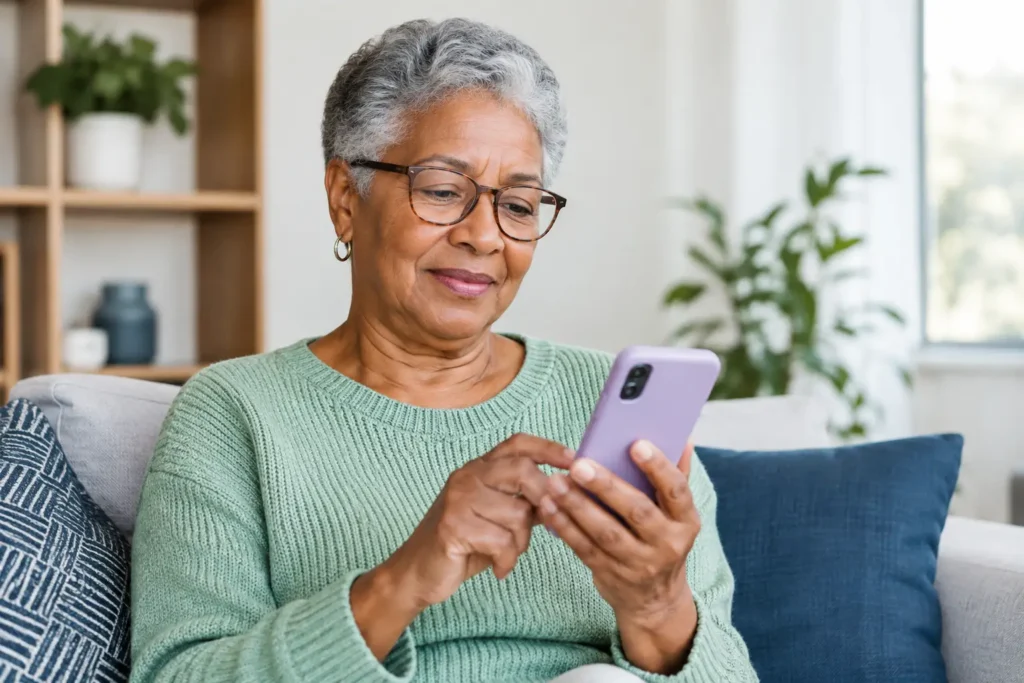
A phone can be one of the most helpful tools to have during an emergency – but only if the right information is easy to find. Learning how to enable emergency contacts lets first responders, medical staff, or a helpful bystander see who to call, even when you cannot unlock your phone.
The exact steps depend on whether you use an iPhone or an Android phone. The good news is that you do not need to be a technology expert to set this up. Take your time, use the instructions that match your device, and ask someone you trust to help if a screen looks different from what is described.
What emergency contacts do – and do not do
Emergency contacts are people you want notified if you are sick, injured, or unable to speak for yourself. They are usually displayed through your phone’s emergency or medical information screen, which can often be opened from the lock screen without entering your passcode.
This is different from simply saving a person in your regular Contacts app. A regular contact may be hard for someone else to find if your phone is locked. An emergency contact is placed in a special, easier-to-access area.
Adding emergency contacts does not automatically call 911 or your loved ones every time something happens. Most phones have a separate Emergency SOS feature for that. Depending on your phone and settings, Emergency SOS may call emergency services and send an alert or location to your chosen contacts after you activate it. It is wise to review both settings, but do not test an SOS call unless your phone gives you a safe test option.
Before you add anyone
Choose one or two people who are likely to answer their phones and can make decisions or share helpful information. This may be an adult child, spouse, close friend, neighbor, caregiver, or another trusted relative.
Let each person know you are listing them. Confirm their current mobile number and tell them where you keep key medical or insurance information if they may need it. It is also helpful to choose people who live nearby when possible, though a dependable person farther away can still be a good contact.
Avoid adding someone simply because they are family if they rarely answer calls, travel frequently, or would be uncomfortable handling an emergency. The best emergency contact is the person who can respond calmly and quickly.
How to enable emergency contacts on an iPhone
On an iPhone, emergency contacts are part of your Medical ID in the Health app. Your Medical ID can display important information from the lock screen when you choose to make it available.
- Open the Health app.
- Tap your profile picture or initials in the upper-right corner.
- Select Medical ID.
- Tap Edit.
- Scroll to Emergency Contacts and tap add emergency contact.
- Select a person from your contacts, choose their relationship to you, and tap Done.
While you are on the Medical ID screen, look for the setting labeled Show When Locked. Turn it on if it is not already enabled. This allows someone to view your Medical ID by tapping Emergency from the iPhone passcode screen, then choosing Medical ID.
You can add more than one emergency contact. Still, keep the list short and current. If you list several people, emergency personnel may not know who should be called first, and your phone may alert all of them when Emergency SOS is used.
Add useful medical information on iPhone
Your Medical ID can include allergies, medications, medical conditions, blood type, primary doctor, and notes. Only add information you are comfortable sharing, because Medical ID may be visible from your locked phone.
For many people, the most useful details are serious allergies, major conditions such as diabetes or a heart condition, and medications that could affect emergency treatment. Be brief and accurate. If a prescription changes, update your Medical ID at the same time.
How to enable emergency contacts on Android
Android phones do not all use the same menus. The names may vary by phone brand and software version, but most Android phones place these settings under Safety & emergency, Emergency information, or a safety app.
Start by opening your phone’s Settings app. Look for Safety & emergency. From there, look for Emergency contacts, Emergency information, or Medical information. You can usually tap an option to add a contact from your phone’s saved contacts.
On many Google Pixel phones, you can also open the Personal Safety app. Select Your info, then choose Emergency contacts to add or change the people listed there.
Samsung phones often use a similar path: open Settings, select Safety and emergency, then choose Emergency contacts. Some Samsung models may also let you display emergency information from the lock screen or access contacts by holding the power button.
If you cannot find the right menu, use the search bar at the top of Settings and type “emergency contacts.” This is often the quickest way to locate the feature on an Android phone.
Check whether your Android information appears on the lock screen
After adding contacts, look for a setting that allows emergency information to appear when the phone is locked. The wording might be Show when locked, Display medical information, or Emergency information on lock screen.
This step matters. A contact saved only inside a safety app may not be easy for a stranger to find during an emergency. Turn on lock-screen access when you are comfortable doing so, and then check it yourself.
Set up Emergency SOS separately
Emergency contacts are helpful after someone sees your phone. Emergency SOS is designed to help you place a call or send an alert yourself when you feel unsafe or need urgent help.
On an iPhone, open Settings, choose Emergency SOS, and review the available options. Depending on your model, pressing and holding the side button with a volume button, or pressing the side button several times, can start an emergency call. Your iPhone may also notify the emergency contacts in your Medical ID after the call ends.
On Android, open Settings and search for Emergency SOS. Many Android phones let you start SOS by quickly pressing the power button five times. Your phone may offer options to call 911, share your location, record video, or notify contacts. Features vary, so read each option before turning it on.
There is a trade-off to consider. SOS shortcuts can be valuable when every second counts, but they can sometimes be triggered by accident in a purse, pocket, or while handling the phone. If you are concerned about accidental calls, review the countdown and alert settings with a family member or a patient support representative.
Test the setup without creating an emergency
Once you finish, lock your phone and look for the Emergency option on the passcode screen. Do not make a call. Instead, check whether your Medical ID or emergency information is visible and whether the names and phone numbers are correct.
Then call or text the people you listed. Let them know you have added them and ask them to save your number, if they have not already. A simple message such as, “I added you as my emergency contact on my phone,” prevents confusion if they ever receive an alert.
Review your emergency contacts at least once a year and after any major change, such as a new phone number, move, medication change, or loss of a spouse. It only takes a few minutes, and it can prevent a great deal of uncertainty later.
If phone settings feel confusing, do not put the task off. Sit down with a trusted family member, friend, or a patient support professional and complete it together. The best emergency contact setup is not the most complicated one – it is the one that is accurate, visible when needed, and supported by people who know how to help.
Still need help?
Our 100% US-based team provides patient support through online chat.